On this page
A workforce calendar is where shifts, time off, availability and labour costs meet, so the software has to show the whole week at a glance and still catch the conflicts. The eight tools below cover that job for teams of every size, from a free scheduler for thirty staff to a platform that forecasts demand and auto-builds the rota. Deputy leads because its Scheduling plan costs four dollars and fifty cents per user a month and pairs auto-scheduling with break compliance, and the rest are ranked on how much calendar control a team gets for the price.
How we researched this
We checked every price on the vendor pricing page on November 29, 2026, and only included tools with a published US dollar list price. The enterprise platforms that sell workforce management by quote, including NICE, Verint, Calabrio and Paycor, publish no prices a team can budget against, so they are not in this list. Prices change, so confirm the current figure on the vendor site before you buy.
Compare the tools
| Name | Best for | Starting price | Free plan | |
|---|---|---|---|---|
 Deputy | Teams that need shift compliance and auto-scheduling | $4.50/user/month | No free plan; 31-day free trial | Visit |
 Homebase | Single-location teams that want scheduling plus hiring | $20/location/month | Free plan (1 location, up to 20 employees) | Visit |
 When I Work | Small teams that want simple scheduling and shift swaps | $2.50/user/month | No free plan; 14-day free trial | Visit |
 7shifts | Restaurant and hospitality teams that schedule by location | $39.99/location/month | Free plan (Comp, up to 15 employees) | Visit |
 Connecteam | Deskless teams that want scheduling, chat and HR in one app | $29/month | Free plan (up to 10 users) | Visit |
 Sling | Small shift teams that want free scheduling for thirty staff | $1.70/user/month | Free plan (up to 30 users) | Visit |
 Planday | Shift teams that need working-time rule warnings | $2.99/user/month | No free plan; 30-day free trial | Visit |
 Humanity | Teams that want rule-based scheduling with forecasting | $2.75/user/month | Free trial available | Visit |
The WFM software for calendar management, compared
1. Deputy
Best for: Teams that need shift compliance and auto-scheduling
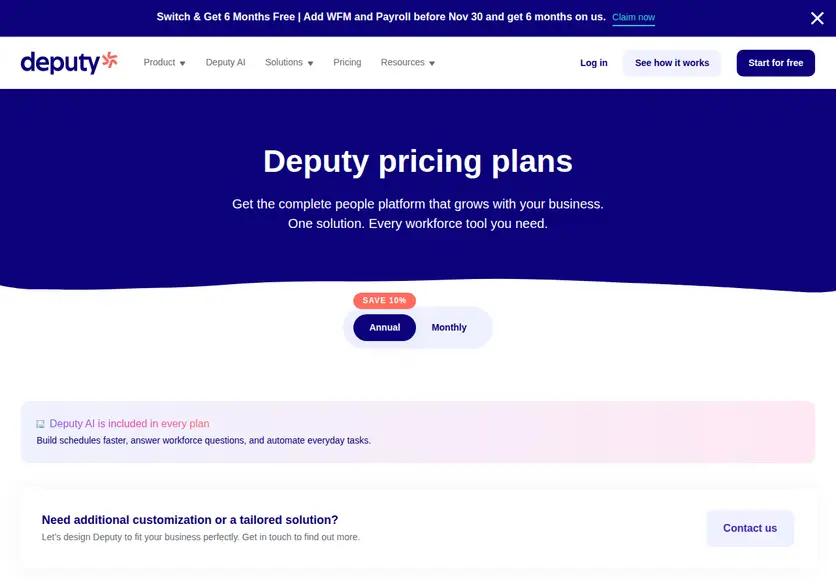
Paid tool Starting price: $4.50/user/month · Four dollars and fifty cents per user a month for Scheduling or for Time and Attendance separately; Premium bundles both at six dollars per user a month with a thirty dollars a month minimum spend; Enterprise is quoted; no free plan, thirty-one-day free trial
Free plan: No free plan; 31-day free trial
A team that needs its calendar to respect break laws and demand forecasts will find this Deputy Scheduling plan costs four dollars and fifty cents per user a month. Its AI auto-scheduler builds rosters from forecasted foot traffic, checks certifications and enforces meal and rest break attestations at clock-out. Per-user pricing climbs fast on a big roster, and the Premium bundle has a thirty dollars a month minimum spend.
What we like
- AI auto-scheduler builds rosters from demand forecasts
- Meal and rest break compliance built into clock-out
- Facial recognition kiosk clock-ins on iPad
Watch out for
- Per-user pricing climbs fast on a big roster
- Premium has a thirty dollars a month minimum spend
How to try it
- Import the team and set each person availability
- Build the roster with the auto-scheduler and publish it
- Turn on break attestations at clock-out
2. Homebase
Best for: Single-location teams that want scheduling plus hiring
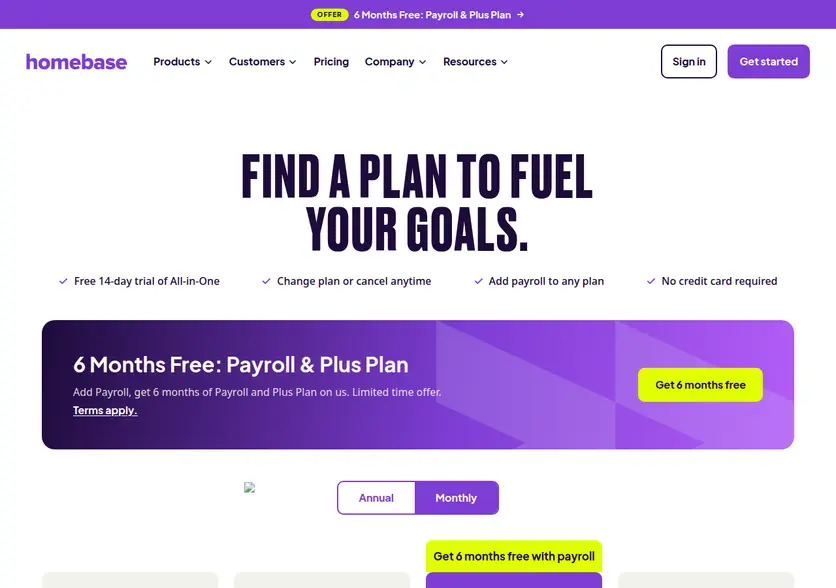
Paid tool Starting price: $20/location/month · Twenty dollars per location a month billed annually at two hundred and forty dollars a year, or twenty-four dollars and ninety-five cents month to month, on Essentials; Plus is fifty-nine dollars and ninety-five cents a month and All-in-One is ninety-nine dollars and ninety-five cents a month; the free Basic plan covers one location with up to twenty employees; payroll is a separate add-on at forty-nine dollars a month plus six dollars per employee
Free plan: Free plan (1 location, up to 20 employees)
A single-location team that wants the calendar beside hiring and HR will find this Homebase Essentials plan costs twenty dollars per location a month billed annually. It covers advanced scheduling, time-off management and team messaging, with a free Basic plan for one location with up to twenty employees. Payroll is a separate add-on, and multi-location teams pay per location, which adds up.
What we like
- Free plan covers scheduling for one location
- Hiring, onboarding and HR in the same app
- Flat per-location price, so a big roster costs no more
Watch out for
- Payroll is a separate add-on, not in the headline price
- Multi-location teams pay per location, which adds up
How to try it
- Add the location and invite the team to the app
- Build the weekly schedule from the template
- Turn on the time clock and connect it to payroll
3. When I Work
Best for: Small teams that want simple scheduling and shift swaps
Paid tool Starting price: $2.50/user/month · Two dollars and fifty cents per user a month on Essentials; Pro is five dollars and Premium is eight dollars a user a month; the vendor publishes no separate annual rate, though its help centre describes a five percent discount for annual billing; the FAQ quotes five dollars a user a month for multi-location teams, against two dollars and fifty cents for single-location teams; no free plan, fourteen-day free trial
Free plan: No free plan; 14-day free trial
A small team that wants a calendar it can build in minutes will find this When I Work Essentials plan costs two dollars and fifty cents per user a month. It offers auto-scheduling, forecasting, shift swaps and team messaging from the entry plan, with a clean interface a new manager learns in an hour. There is no free plan since the old free tier was removed, and time tracking is a separate add-on.
What we like
- Auto-scheduling and forecasting on the entry plan
- Shift swaps and team messaging built in
- Clean interface that a new manager learns in an hour
Watch out for
- No free plan since the old free tier was removed
- Time tracking is a separate add-on that changes the price
How to try it
- Add the team and set each person availability
- Build the schedule and publish it to the mobile app
- Turn on shift swaps so staff trade shifts without a manager
4. 7shifts
Best for: Restaurant and hospitality teams that schedule by location
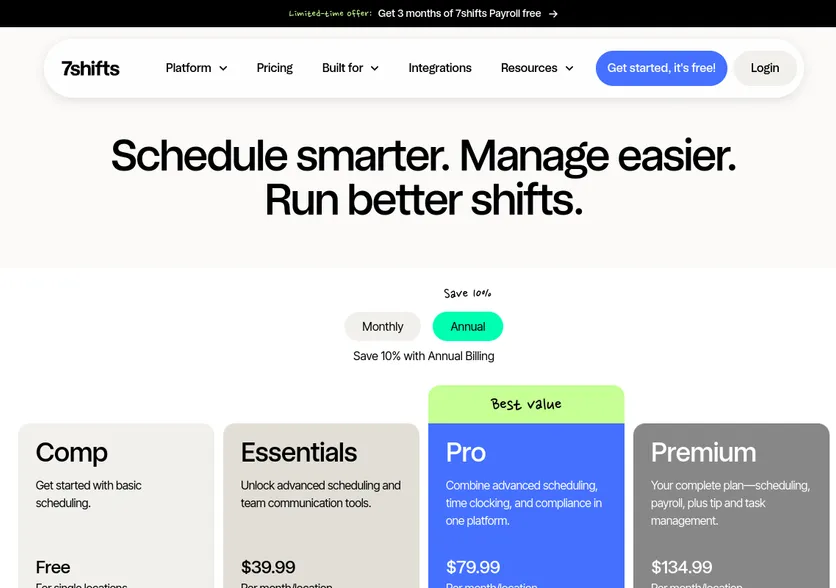
Paid tool Starting price: $39.99/location/month · Thirty-nine dollars and ninety-nine cents per location a month on Essentials billed annually, or forty-four dollars and ninety-nine cents month to month, for up to thirty employees; Pro is seventy-nine dollars and ninety-nine cents a month billed annually and Premium is one hundred and thirty-four dollars and ninety-nine cents a month billed annually; the free Comp plan covers one location with up to fifteen employees
Free plan: Free plan (Comp, up to 15 employees)
A restaurant team that schedules by location will find this 7shifts Essentials plan costs thirty-nine dollars and ninety-nine cents per location a month billed annually. It covers unlimited scheduling, time clocking, labour budgeting and sales forecasting for up to thirty employees, with a free plan for fifteen. Each plan caps headcount, so a growing roster pushes the team up a tier.
What we like
- Sales-based labour forecasting on the Premium plan
- Tip pooling and payroll built for restaurants
- Free plan covers fifteen employees at one location
Watch out for
- Each plan caps headcount, so a growing roster pushes you up a tier
- Payroll and tip management cost extra on lower plans
How to try it
- Add the location and import the team roster
- Build the schedule against the sales forecast
- Publish the rota and let staff swap shifts in the app
5. Connecteam
Best for: Deskless teams that want scheduling, chat and HR in one app
Paid tool Starting price: $29/month · Twenty-nine dollars a month per hub on Basic billed annually, or thirty-five dollars month to month, for the first thirty users; Advanced is forty-nine dollars a month and Expert is ninety-nine dollars a month; extra users cost eighty cents to four dollars and twenty cents each on Operations; each hub is billed separately, so all three hubs on Basic cost eighty-seven dollars a month; the free Small Business plan covers up to ten users
Free plan: Free plan (up to 10 users)
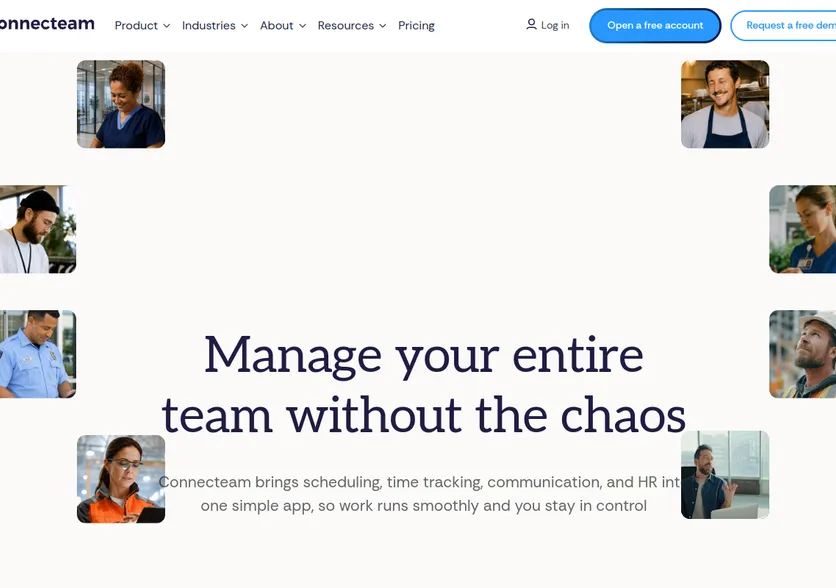
A deskless team that wants the calendar beside chat and HR will find this Connecteam Operations Basic plan costs twenty-nine dollars a month for the first thirty users billed annually. It covers GPS time clock, scheduling, checklists and payroll integration, with a free plan for ten users across every hub. Each hub is billed separately, so the full suite costs three times the headline.
What we like
- Flat price covers the first thirty users on each hub
- GPS time clock with geofencing on the Operations hub
- Free plan covers ten users with every hub
Watch out for
- Each hub is billed separately, so the full suite costs three times the headline
- Costs step up sharply once the team passes thirty users
How to try it
- Pick the Operations hub and add the team
- Build the schedule and turn on the GPS time clock
- Add the Communications hub for team chat and updates
6. Sling
Best for: Small shift teams that want free scheduling for thirty staff
Paid tool Starting price: $1.70/user/month · One dollar and seventy cents per user a month on Premium billed annually, or two dollars month to month; Business is three dollars and forty cents a user a month billed annually, or four dollars month to month; the free plan covers scheduling and messaging for up to thirty users; fifteen-day free trial on paid plans
Free plan: Free plan (up to 30 users)
A small shift team that wants its calendar free will find it here, since this Sling Premium plan costs one dollar and seventy cents per user a month billed annually. The free plan covers scheduling and messaging for up to thirty users, and Premium adds the mobile time clock, geofencing and labour cost tracking. Auto-scheduling needs the Business plan, and there are no HR or payroll features.
What we like
- Free plan covers scheduling for up to thirty users
- Cheapest paid time clock in this list
- Group messaging built into the schedule
Watch out for
- Auto-scheduling needs the Business plan
- No HR or payroll features, so it stays a scheduler only
How to try it
- Add the team and publish the first schedule for free
- Turn on the mobile time clock on Premium
- Set labour cost targets against sales
7. Planday
Best for: Shift teams that need working-time rule warnings
Paid tool Starting price: $2.99/user/month · Two dollars and ninety-nine cents per user a month on Starter with a five-user minimum, billed in bundles of five, so eight users still pay for ten; Plus is four dollars and forty-nine cents a user a month plus a fifteen dollars a month subscription fee with a ten-user minimum; Pro is custom-priced; one directory lists two dollars and forty-nine cents, which is stale; no free plan, thirty-day free trial
Free plan: No free plan; 30-day free trial
A shift team that must not break working-time rules will find this Planday Starter plan costs two dollars and ninety-nine cents per user a month. Its working-time warnings flag illegal shifts before publishing, and the plan covers scheduling, shift swaps and basic payroll reporting. Users are billed in bundles of five, so a team of eight still pays for ten.
What we like
- Working-time warnings flag illegal shifts before publishing
- Payroll integrations on the Plus plan
- Low per-user price for a European shift team
Watch out for
- Users are billed in bundles of five, so small teams overpay
- Auto-scheduling is only on the custom-priced Pro plan
How to try it
- Add the team and set contracted hours and working-time rules
- Build the schedule and clear the working-time warnings
- Export payroll hours to the payroll system
8. Humanity
Best for: Teams that want rule-based scheduling with forecasting
Paid tool Starting price: $2.75/user/month · Two dollars and seventy-five cents per user a month on Starter; Classic is four dollars and Enterprise is eight dollars a user a month in older vendor-supplied listings, while other directories list two dollars, three dollars or three dollars and fifty cents for Starter; the vendor no longer publishes a price list, so confirm the figure with TCP Humanity before buying; free trial available
Free plan: Free trial available
A team that wants its calendar to enforce its own rules will find this Humanity Starter plan costs two dollars and seventy-five cents per user a month. Its rule-based scheduling blocks unqualified or unavailable staff, and higher plans add forecasting and demand planning. The vendor no longer publishes prices, so the figure is directory-sourced and should be confirmed before buying.
What we like
- Rule-based scheduling blocks unqualified or unavailable staff
- Forecasting and demand planning on higher plans
- Shift trades and drops handled by the app
Watch out for
- The vendor no longer publishes prices, so the figure is directory-sourced
- Directory prices for Starter range from two to three dollars and fifty cents
How to try it
- Add the team with roles and certifications
- Set the scheduling rules for breaks and overtime
- Publish the roster and let staff trade shifts in the app
Prices above were checked on each vendor’s own website on Nov 29, 2026 and can change — the vendor’s page is the final word. Vendor links are editorial: nobody paid to be listed or ranked here. Vendors who want a featured listing can see how it works on our Get listed page.
How to build a shift calendar that nobody has to fix by hand
Start with availability, because a calendar built on guesses will be rewritten the moment it is published. Add contracted hours and working-time rules before the first shift is placed, so the tool flags illegal rosters instead of the manager finding out later. Use templates for the repeating weeks and auto-scheduling for the rest, then let staff swap shifts in the app instead of texting the manager. Publish the calendar early and freeze it a few days before the week starts, so people can plan their lives around it. Review labour cost against sales every week, since a calendar that looks full can still cost more than the week earns.
Before you buy
- Confirm the calendar shows availability, time off and labour cost together, because a rota without costs is only half a plan
- Check whether auto-scheduling is on the plan you will buy, since some tools keep it for a higher tier
- Ask if staff can swap shifts in the app, so the manager is not the bottleneck for every change
- Make sure the price is per user, per location or flat, because the same team can cost very different amounts
- Test the tool on a real week of shifts during the trial, including a swap and a time-off request
Official websites
Official websites of the products reviewed above. Features and prices were checked against these sites when this guide was written, and they can change, so confirm on the vendor site before you buy.
Frequently asked questions
What is WFM software for calendar management?
It is software that builds and manages staff schedules, time off, availability and shift swaps in one calendar. Good tools show the whole week at a glance, flag conflicts and illegal shifts, and let staff swap shifts without involving a manager. The best plans for calendar management cost a few dollars per user a month or a flat fee per location, and several start free.
How much does Deputy cost for calendar management?
Deputy Scheduling costs four dollars and fifty cents per user a month, and Time and Attendance costs the same, while the Premium bundle of both is six dollars per user a month with a thirty dollars a month minimum spend. Enterprise is quoted, and there is no free plan, only a thirty-one-day free trial. A team should budget per user, since every person on the roster adds to the bill.
Can a team manage its shift calendar for free?
Yes, with Homebase, 7shifts, Connecteam and Sling, which all offer free plans that cover scheduling for a small team. Sling's free plan covers up to thirty users, Homebase covers one location with up to twenty employees, and 7shifts covers fifteen employees. Free plans limit features such as auto-scheduling and time tracking, so a growing team should compare the paid plans above.
Which WFM tool is best for a single restaurant location?
Homebase is the best pick for a single restaurant location, at twenty dollars a location a month billed annually on Essentials, because the flat price covers unlimited employees and adds hiring and HR. 7shifts is the runner-up for a restaurant that wants sales-based labour forecasting, though its plans cap headcount. Deputy is the better pick for a team that needs strict break compliance across many sites.
How far ahead should a shift calendar be published?
A shift calendar should be published at least one week ahead, and two weeks is better for staff who plan childcare or a second job. Publishing early also gives time to fix gaps before the week starts, instead of scrambling on Monday morning. Tools such as Deputy, When I Work and Homebase let staff see the published rota in a mobile app, so nobody needs to check a noticeboard.
Compare the eight tools above, then start with a free plan or trial on the tool that matches how the team already builds its calendar before paying for a full year.
Browse Productivity Tools tools