On this page
Green screen work lives or dies on the key: a good chroma keyer pulls a clean edge around hair and glass, while a weak one leaves green fringes and noisy holes. The best editors pair that keyer with spill removal, motion tracking and colour matching so the subject sits naturally in the new background. Adobe Premiere Pro leads this list with its Ultra Key effect and deep colour tools, and the other seven tools are ranked on key quality, honest pricing and how fast they finish a real composite.
How we researched this
We checked every price on the vendor pricing page on November 27, 2026, and only included tools with a published US dollar list price and a free trial or free plan. We ranked each tool on chroma key quality, including edge detail, spill suppression and handling of hair and transparent objects, plus tracking, colour matching and export quality. Tools with quote-only pricing were left out, so every price below can be verified on the vendor site.
Compare the tools
| Name | Best for | Starting price | Free plan | |
|---|---|---|---|---|
 Adobe Premiere Pro | Professional editors who key green screen footage every week | $22.99/mo | 7-day free trial, no free plan | Visit |
 DaVinci Resolve Studio | Colorists and editors who want a one-time purchase with pro keying | $295 one-time | Free version with most editing features | Visit |
 Final Cut Pro | Mac editors who want fast green screen keying on Apple silicon | $299.99 one-time | 90-day free trial, no free plan | Visit |
 Filmora | Beginners and YouTubers who want easy green screen without a pro learning curve | $49.99/yr | Free plan with watermarked exports | Visit |
 Camtasia | Trainers and tutorial makers who key webcam footage over slides | $179.88/yr | Free trial, exports watermarked until upgrade | Visit |
 PowerDirector 365 | Hobbyists and prosumers who want the most features per dollar | $79.99/yr | Free Essential version with limited features | Visit |
 VSDC Video Editor Pro | Budget editors on Windows who want cheap chroma key | $19.99/yr | Free version with core editing, no watermark | Visit |
 Kapwing | Social and marketing teams who key green screen clips in the browser | $16/mo | Free plan with watermarked 720p exports | Visit |
The green screen software for video editors, compared
1. Adobe Premiere Pro
Best for: Professional editors who key green screen footage every week
Paid tool Starting price: $22.99/mo · Twenty-two dollars and ninety-nine cents per user a month on an annual plan billed monthly; about thirty-four dollars and forty-nine cents month to month; a prepaid year costs two hundred sixty-three dollars and eighty-eight cents
Free plan: 7-day free trial, no free plan
Adobe Premiere Pro is the professional default for green screen work, and its Ultra Key effect pairs with Lumetri colour, masking and tracking in one timeline. A single-app plan costs twenty-two dollars and ninety-nine cents a month on annual billing and includes one hundred gigabytes of cloud storage with Adobe Fonts. Editors can key, despill, match the background colour and track a moving subject without leaving the timeline or round-tripping to another app.
What we like
- Ultra Key handles hair and fine edges well
- Colour, masking and tracking in one timeline
- Industry-standard files for client handoff
Watch out for
- Subscription only, with no one-time purchase
- Needs a strong computer for 4K keying
How to try it
- Drop the green screen clip on the timeline above the background
- Apply Ultra Key, pick the green and refine the matte edges
- Remove spill, match colours and track the subject if it moves
2. DaVinci Resolve Studio
Best for: Colorists and editors who want a one-time purchase with pro keying
Paid tool Starting price: $295 one-time · Two hundred ninety-five dollars as a one-time licence with free updates; the free version covers most editing and colour tools; no subscription is required
Free plan: Free version with most editing features
DaVinci Resolve Studio is the colour-grading benchmark, and its Studio licence adds the Delta Keyer, Magic Mask and noise reduction that green screen composites need. The licence costs two hundred ninety-five dollars once, with free updates for life, and the free version already covers editing, colour and Fusion effects. Its node-based compositing gives precise control over edges, spill and background matching for demanding shots.
What we like
- Delta Keyer and Magic Mask are pro-grade
- One-time price with free updates for life
- Free version covers most editing and colour
Watch out for
- Steep learning curve across its workspaces
- Needs a powerful graphics card for Fusion
How to try it
- Open the clip in Fusion and add a Delta Keyer node
- Refine the matte, despill the edges and clean the background
- Grade the subject to match the new background and export
3. Final Cut Pro
Best for: Mac editors who want fast green screen keying on Apple silicon
Paid tool Starting price: $299.99 one-time · Two hundred ninety-nine dollars and ninety-nine cents as a one-time purchase on the Mac App Store; also in Apple Creator Studio at twelve dollars and ninety-nine cents a month or one hundred twenty-nine dollars a year
Free plan: 90-day free trial, no free plan
Final Cut Pro is the fastest editor on a Mac, and its keyer effect handles green screen with automatic spill removal on a magnetic timeline. The one-time purchase costs two hundred ninety-nine dollars and ninety-nine cents on the Mac App Store, with a ninety-day free trial. Its speed comes from Apple silicon optimisation, so 4K keying, rendering and background replacement stay smooth on a laptop.
What we like
- Fastest keying and rendering on Apple silicon
- One-time purchase with a long free trial
- Magnetic timeline speeds up rough cuts
Watch out for
- Mac only, so Windows editors are excluded
- Smaller plugin library than Premiere Pro
How to try it
- Place the green screen clip above the background on the timeline
- Apply the keyer and let it sample the green automatically
- Adjust spill and edge softness, then match the background grade
4. Filmora
Best for: Beginners and YouTubers who want easy green screen without a pro learning curve
Paid tool Starting price: $49.99/yr · Forty-nine dollars and ninety-nine cents a year for Basic; Advanced is fifty-nine dollars and ninety-nine cents a year; Premium is ninety-nine dollars and ninety-nine cents a year; a perpetual licence costs seventy-nine dollars and ninety-nine cents
Free plan: Free plan with watermarked exports
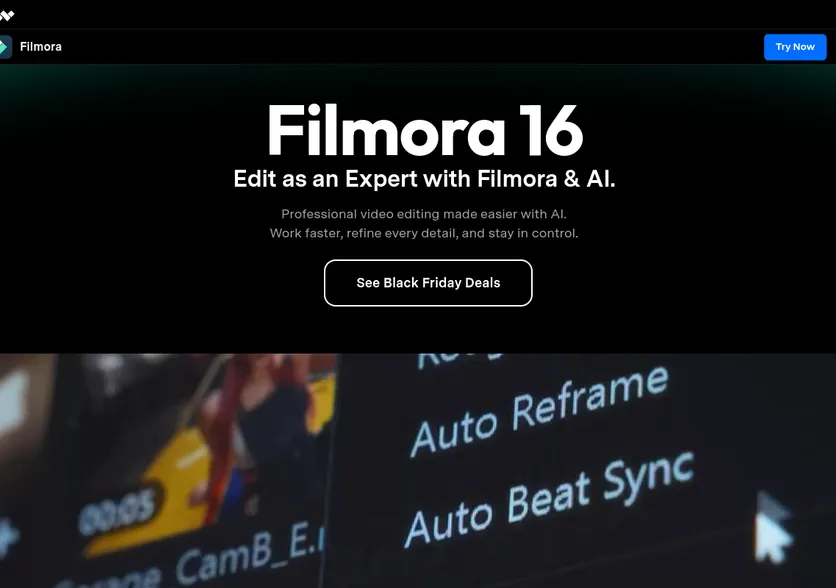
Filmora makes green screen a one-click job, with a chroma key tool, AI background removal and a large template and effects library on a friendly timeline. Basic costs forty-nine dollars and ninety-nine cents a year and exports in 4K without a watermark. Its screen recorder, keyframe animation and stock library suit creators who film talking-head videos against a green screen at home.
What we like
- One-click chroma key with AI background removal
- Cheapest friendly editor with 4K export
- Screen recording and templates included
Watch out for
- Keying quality trails pro tools on tricky hair
- Perpetual licence covers one platform only
How to try it
- Import the green screen clip and the background into the timeline
- Open the chroma key tool and pick the green colour
- Refine the edge, add an effect and export the finished video
5. Camtasia
Best for: Trainers and tutorial makers who key webcam footage over slides
Paid tool Starting price: $179.88/yr · One hundred seventy-nine dollars and eighty-eight cents a year for Essentials; Starter is thirty-nine dollars a year with watermarked editor exports; Create is two hundred forty-nine dollars a year; Pro is five hundred ninety-nine dollars a year
Free plan: Free trial, exports watermarked until upgrade
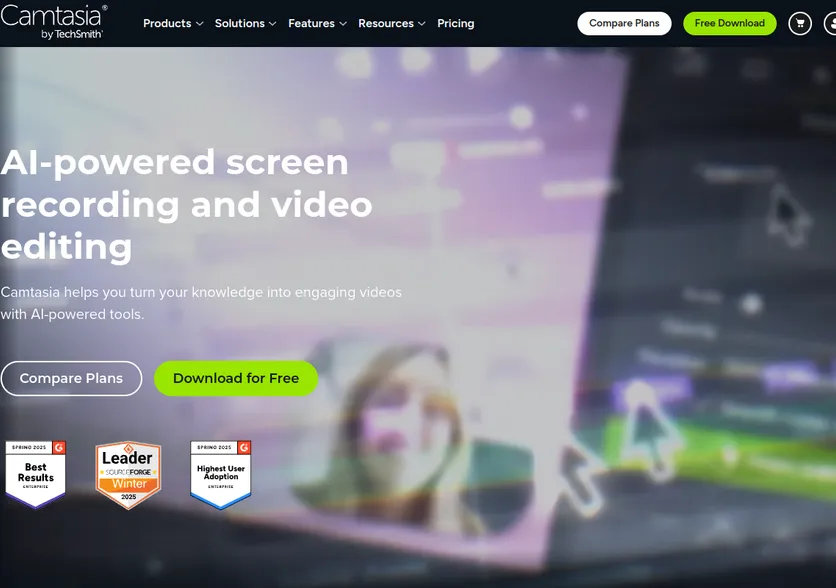
Camtasia is built for screen tutorials, and its green screen tool lets a presenter float over slides, software demos and annotations without a studio. Essentials costs one hundred seventy-nine dollars and eighty-eight cents a year and bundles the editor with Audiate and Snagit. Its cursor effects, quizzes and SCORM export suit training teams who record lessons against a green screen and publish them to a learning platform.
What we like
- Green screen plus screen recording in one tool
- Quizzes and SCORM export for training
- Cursor effects and annotations built in
Watch out for
- Starter plan watermarks editor exports
- Keying is basic next to pro compositors
How to try it
- Record the webcam against a green screen and capture the screen
- Apply the green screen effect and place the presenter over the slides
- Add callouts and quizzes, then export for the web or an LMS
6. PowerDirector 365
Best for: Hobbyists and prosumers who want the most features per dollar
Paid tool Starting price: $79.99/yr · Seventy-nine dollars and ninety-nine cents a year at list price; promotions run from fifty-nine dollars and ninety-nine cents to sixty-nine dollars and ninety-nine cents a year; monthly billing is twenty-four dollars and ninety-nine cents a month
Free plan: Free Essential version with limited features
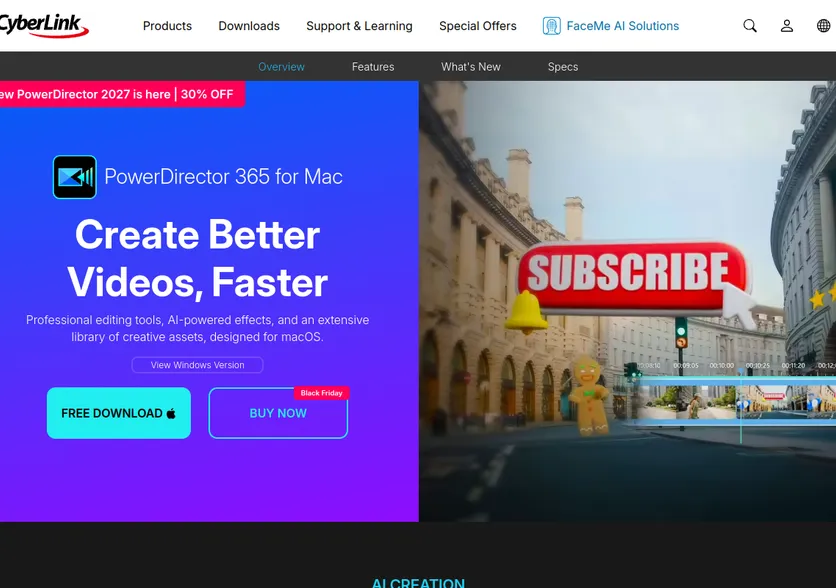
PowerDirector 365 packs an unusual amount of capability into a yearly plan, with chroma key, motion tracking, AI captions and a deep effects library on an easy timeline. The 365 plan costs seventy-nine dollars and ninety-nine cents a year at list price and includes one hundred AI credits a month with fifty gigabytes of cloud storage. Its guided editing and stock media suit creators who key green screen clips for YouTube without learning a pro compositor.
What we like
- Chroma key plus motion tracking at a low yearly price
- Large effects and stock media library
- Free Essential version to test first
Watch out for
- Sale prices change often, so the list price matters
- Windows and Mac need separate subscriptions
How to try it
- Place the green screen clip above the background track
- Open chroma key, sample the green and clean the edges
- Add motion tracking or captions and export in 4K
7. VSDC Video Editor Pro
Best for: Budget editors on Windows who want cheap chroma key
Paid tool Starting price: $19.99/yr · Nineteen dollars and ninety-nine cents a year for Pro; the free version covers core editing with no watermark; some listings show a higher list price with discounts applied
Free plan: Free version with core editing, no watermark
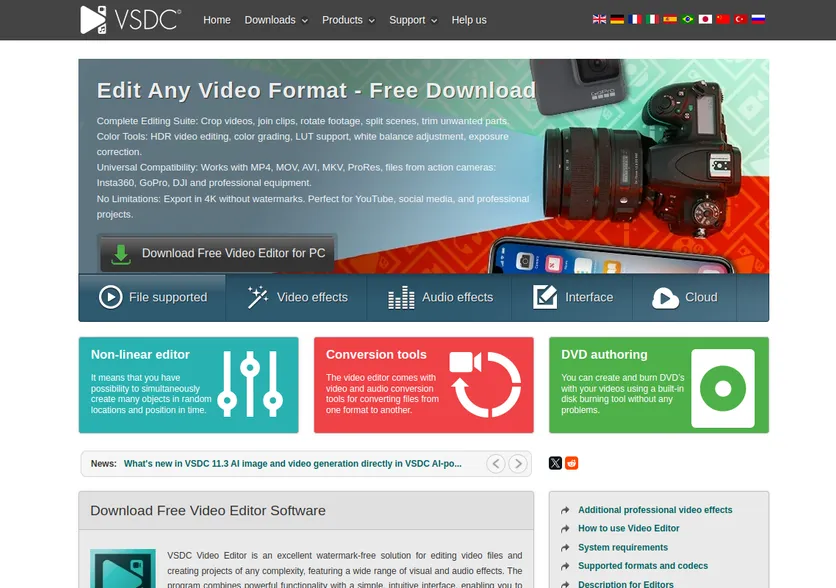
VSDC Video Editor Pro is a capable Windows editor with a chroma key tool, motion tracking and colour correction at a price far below the pro tools. Pro costs nineteen dollars and ninety-nine cents a year and adds advanced features on top of a free version that already exports without a watermark. Its non-linear timeline and hardware acceleration suit older computers, though the interface takes longer to learn than friendlier editors.
What we like
- Cheapest paid chroma key in this list
- Free version exports without a watermark
- Runs well on older Windows computers
Watch out for
- Windows only, so Mac editors are excluded
- Interface is harder to learn than Filmora
How to try it
- Add the green screen clip to the timeline above the background
- Open the chroma key filter and select the green colour
- Adjust tolerance and edge smoothing, then export the video
8. Kapwing
Best for: Social and marketing teams who key green screen clips in the browser
Paid tool Starting price: $16/mo · Sixteen dollars per member a month on annual billing for Pro; twenty-four dollars a month on monthly billing; Business is fifty dollars per member a month on annual billing
Free plan: Free plan with watermarked 720p exports
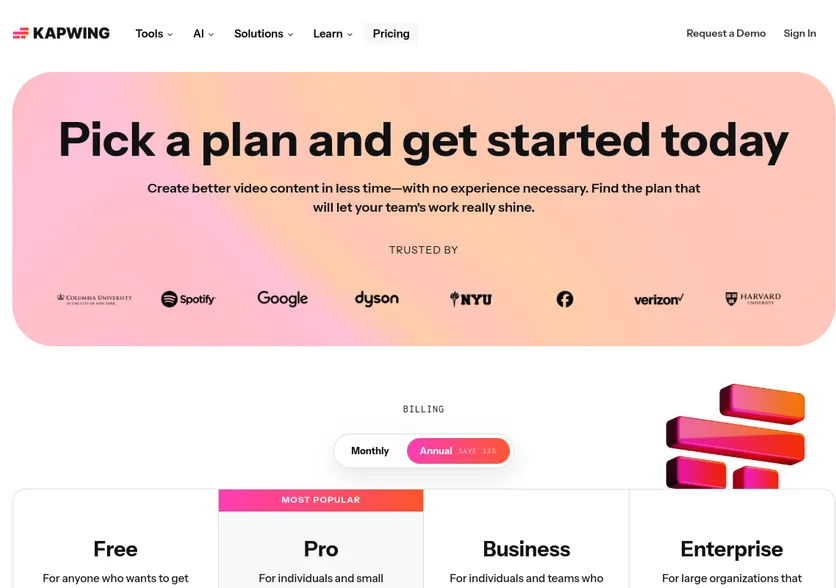
Kapwing is a browser editor with a green screen tool, AI subtitles and team workspaces, so a marketing team can key a clip and publish it without installing software. Pro costs sixteen dollars per member a month on annual billing and adds 4K exports, one thousand credits a month and a brand kit. Its shared folders, commenting and version history suit teams that pass green screen clips between editors and reviewers.
What we like
- Green screen keying entirely in the browser
- Team workspaces with comments and version history
- AI subtitles and resizing built in
Watch out for
- Browser limits slow down large projects
- AI features are metered by credits
How to try it
- Upload the green screen clip to a Kapwing project
- Apply the green screen effect and pick the background
- Add subtitles, export in 4K and share the project link
Prices above were checked on each vendor’s own website on Nov 27, 2026 and can change — the vendor’s page is the final word. Vendor links are editorial: nobody paid to be listed or ranked here. Vendors who want a featured listing can see how it works on our Get listed page.
How to pick green screen software for video editors
Start with the footage, not the feature list: shoot a test clip with hair, glasses and movement, then key it in the trial version before you pay. A keyer that looks clean on a still frame can fall apart on moving hair, so judge the edges in motion. Light the screen evenly and keep the subject a step away from it, because no software fixes hot spots or heavy green spill cleanly. Check the export settings too, since a tool that keys well but caps exports at low resolution wastes the work. Finally, weigh the billing model honestly: a one-time licence pays for itself in just over a year against a subscription if you edit all year round.
Before you buy
- Trial the keyer with moving hair and glasses before you buy, not just a still frame
- Check spill removal and edge refinement controls, since cheap keyers leave green fringes
- Confirm the export resolution and format your channel or client actually needs
- Compare one-time licences against subscriptions across two full years of use
- Make sure your computer meets the memory and graphics needs for 4K keying
Official websites
Official websites of the products reviewed above. Features and prices were checked against these sites when this guide was written, and they can change, so confirm on the vendor site before you buy.
Frequently asked questions
What is the best green screen software for video editors?
Adobe Premiere Pro is the best overall green screen editor, because Ultra Key handles hair and fine edges well and sits beside Lumetri colour, masking and tracking in one timeline. DaVinci Resolve Studio is the best value, with the pro-grade Delta Keyer and Magic Mask for two hundred ninety-five dollars once. For beginners, Filmora offers one-click chroma key with 4K export at forty-nine dollars and ninety-nine cents a year.
What is the cheapest green screen software?
VSDC Video Editor Pro is the cheapest paid option here at nineteen dollars and ninety-nine cents a year, and its free version already exports without a watermark. Filmora Basic costs forty-nine dollars and ninety-nine cents a year and is far easier to learn. Kapwing Pro costs sixteen dollars per member a month on annual billing for browser-based keying, while DaVinci Resolve Studio at two hundred ninety-five dollars once is cheapest over two years.
Can I do green screen editing for free?
Yes, DaVinci Resolve offers a free version with most editing, colour and Fusion effects, though the Delta Keyer and Magic Mask sit in the paid Studio licence. VSDC also has a free version that exports without a watermark and includes a chroma key filter. Kapwing and Filmora offer free plans with watermarked exports, which suit a quick test before paying for clean output.
How do I get clean green screen edges?
Light the green screen evenly with no hot spots or shadows, and keep the subject at least a few feet in front of it to reduce green spill on skin and clothes. Use a keyer with edge refinement and spill suppression, and check the matte on moving hair rather than a still frame. Finally, match the colour and lighting of the subject to the new background, since a mismatched grade makes even a perfect key look pasted on.
Is Premiere Pro or DaVinci Resolve better for green screen?
Premiere Pro is better when green screen work must fit a client pipeline, because Ultra Key, Lumetri colour and tracking share one timeline and its files are the industry standard for handoff. DaVinci Resolve Studio is better for colour-critical composites, since its node-based Fusion workspace and Delta Keyer give finer control over edges and spill. Resolve also wins on price, at two hundred ninety-five dollars once against twenty-two dollars and ninety-nine cents a month.
Compare the eight tools above, then key a real test clip with moving hair before you commit to a plan.
Browse Video Tools tools