On this page
Recoloring is more than sliding a filter across a photo. The best tools let you change one object, one shade or one whole palette while the rest of the image stays exactly as it was. Photoshop leads this comparison with the deepest selective color controls, and Capture One and Illustrator follow for photographers and vector designers. We checked every price on the vendor site on November 27, 2026.
How we researched this
We started with editors that can change colors precisely, not just apply filters, then read each price on the vendor site on November 27, 2026 and noted the free plan or trial each one carries. We judged them for designers and photographers who recolor photos, logos and illustrations for real projects. We dropped free-only editors and tools with no published price because a buyer needs a dollar figure to compare.
Compare the tools
| Name | Best for | Starting price | Free plan | |
|---|---|---|---|---|
 Photoshop | Anyone who needs the deepest recoloring controls for photos and graphics | $22.99/month | No free plan; 7-day free trial | Visit |
| Illustrator | Designers who recolor logos, illustrations and brand artwork | $22.99/month | No free plan; 7-day free trial | Visit |
 CorelDRAW Graphics Suite | Designers who want vector and bitmap recoloring in one suite | $269/year | No free plan; 15-day free trial | Visit |
| PaintShop Pro | Hobbyists who want strong recoloring tools for a one-time price | $79.99 one-time | No free plan; 30-day free trial | Visit |
 Capture One | Photographers who grade color on raw files with precision | $18/month | No free plan; 30-day free trial | Visit |
 DxO PhotoLab | Photographers who want clean color correction on raw photos | $149.99 one-time | No free plan; 30-day free trial | Visit |
| Luminar Neo | Beginners who want AI to handle the color work for them | $99 one-time | No free plan; 7-day free trial | Visit |
 Pixlr | Casual users who want quick color swaps in the browser | $1.99/month | Free plan with basic tools and ads | Visit |
The image editing software for recoloring, compared
1. Photoshop
Best for: Anyone who needs the deepest recoloring controls for photos and graphics
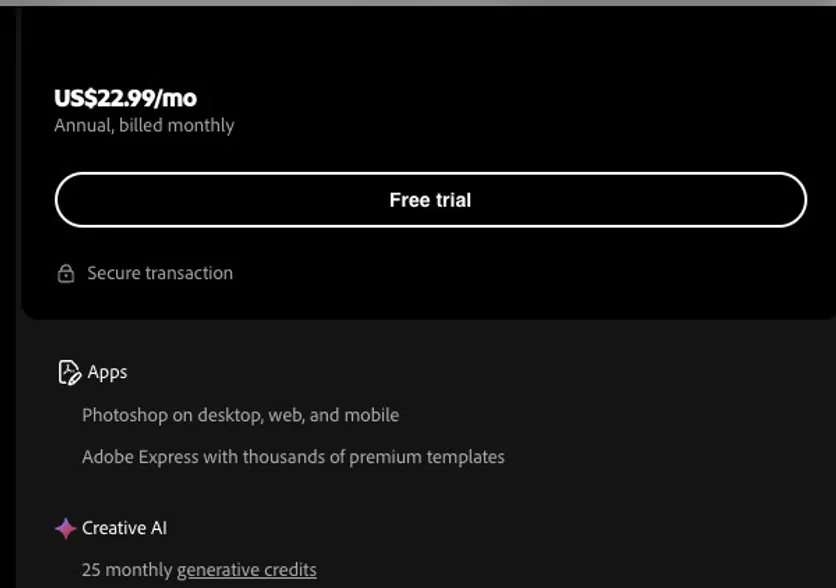
Paid tool Starting price: $22.99/month · Photography plan at twenty-two dollars ninety-nine cents a month billed annually, or two hundred sixty-three dollars eighty-eight cents a year prepaid; thirty-four dollars forty-nine cents a month on monthly billing; seven-day free trial
Free plan: No free plan; 7-day free trial
This Photoshop editor is the strongest tool for recoloring a photo, because its hue and saturation controls, color replacement brush and selective color adjustments can change one object without touching the rest of the image. Generative fill can even repaint a wall or a dress from a short text prompt, then blend the new color with the original light and shadows. The same file also handles layers and masks, so a recolor stays editable long after the first change.
What we like
- Selective color tools that target one hue at a time
- Generative fill that repaints objects from a prompt
- Layer masks keep every recolor editable
Watch out for
- Recoloring with masks takes practice to look natural
- Subscription cost adds up over a full year
How to try it
- Select the object with the selection tool
- Open hue and saturation and shift the color
- Refine the edges with a layer mask and save
2. Illustrator
Best for: Designers who recolor logos, illustrations and brand artwork
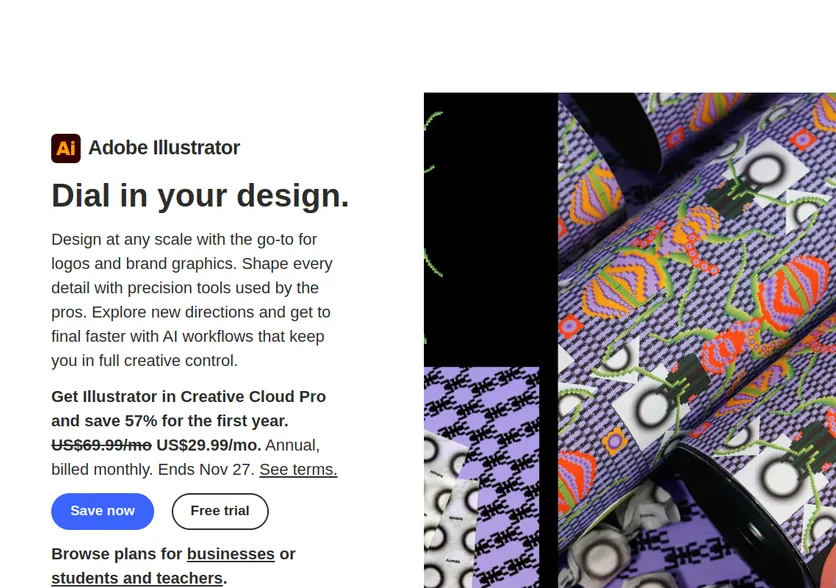
Paid tool Starting price: $22.99/month · Single app plan at twenty-two dollars ninety-nine cents a month billed annually, or two hundred sixty-three dollars eighty-eight cents a year prepaid; thirty-four dollars forty-nine cents a month on monthly billing; seven-day free trial
Free plan: No free plan; 7-day free trial
This Illustrator editor is built for vector recoloring, where a logo or illustration can change its whole palette in seconds. The Recolor Artwork panel remaps every color in a design at once, while global swatches let one change update every object that shares a color. It suits brand work, because a designer can test a new palette across a full identity without redrawing anything.
What we like
- Recolor Artwork remaps a whole design at once
- Global swatches update every matching object
- Precise color control for brand palettes
Watch out for
- Vector only, so it cannot edit a photo directly
- The learning curve is steep for a first-time user
How to try it
- Open the artwork and select the shapes to recolor
- Open Recolor Artwork and pick a new palette
- Save the result as a global swatch set
3. CorelDRAW Graphics Suite
Best for: Designers who want vector and bitmap recoloring in one suite
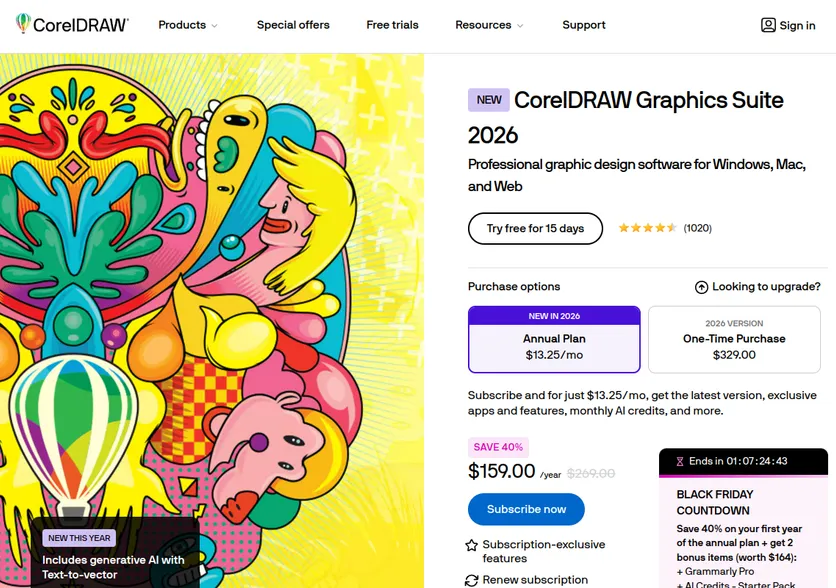
Paid tool Starting price: $269/year · Graphics Suite at two hundred sixty-nine dollars a year list price, or five hundred forty-nine dollars one time; first-year promotions are lower and are not the list price; fifteen-day free trial
Free plan: No free plan; 15-day free trial
This CorelDRAW suite covers both sides of recoloring, with vector color styles for logos and bitmap tools for photos in the same package. The Replace Colors feature swaps one shade for another across a design, and color styles keep a palette consistent from a business card to a banner. It is a one-stop option for a studio that recolors illustrations, layouts and photos without switching apps.
What we like
- Vector and bitmap recoloring in one suite
- Replace Colors swaps shades across a design
- Color styles keep palettes consistent
Watch out for
- The yearly price is high for occasional use
- The interface carries a lot of legacy panels
How to try it
- Open the design and pick the colors to change
- Use Replace Colors to swap shades across the file
- Save the palette as a color style for reuse
4. PaintShop Pro
Best for: Hobbyists who want strong recoloring tools for a one-time price
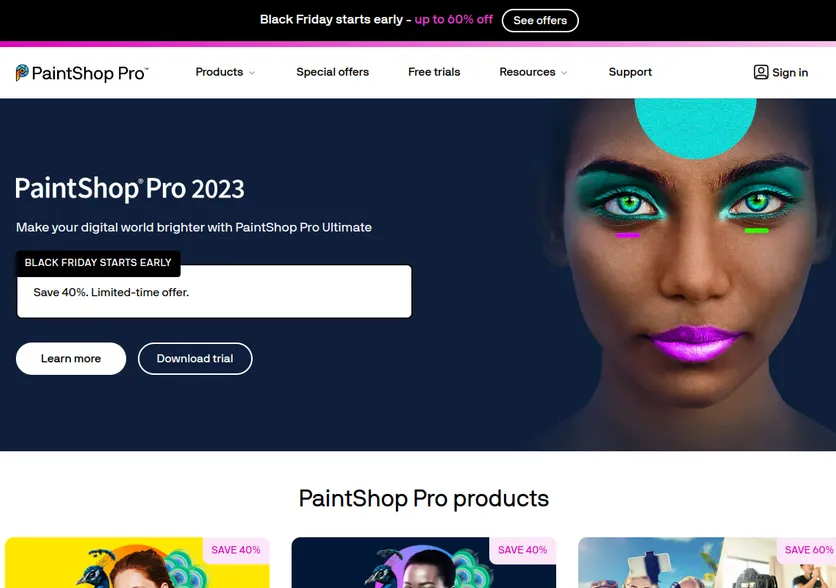
Paid tool Starting price: $79.99 one-time · PaintShop Pro 2023 at seventy-nine dollars ninety-nine cents one time; Ultimate at ninety-nine dollars ninety-nine cents; thirty-day free trial
Free plan: No free plan; 30-day free trial
This PaintShop Pro editor gives a hobbyist serious recoloring tools without a subscription, including a dedicated Color Changer that swaps one shade for another with a brush. The material palette and color harmonies help a beginner pick combinations that look intentional rather than random. AI tools add background removal and noise reduction, so an old photo can be cleaned up and recolored in the same session.
What we like
- Color Changer swaps shades with a brush
- One-time purchase with no subscription
- Color harmonies help beginners pick palettes
Watch out for
- Windows only, with no Mac version
- The interface feels dated next to newer editors
How to try it
- Open the photo and pick the Color Changer tool
- Brush over the object and set the new color
- Adjust the tolerance so edges stay clean
5. Capture One
Best for: Photographers who grade color on raw files with precision
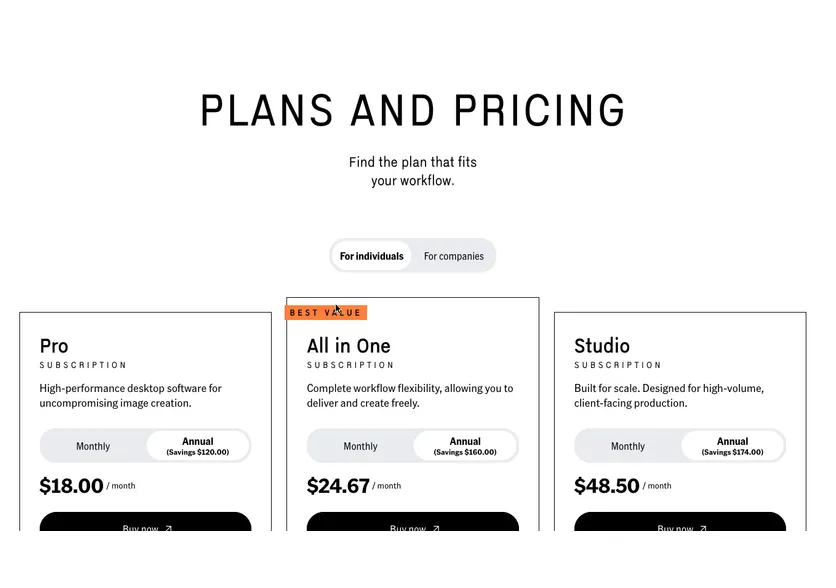
Paid tool Starting price: $18/month · Pro at eighteen dollars a month billed annually, or two hundred sixteen dollars a year; twenty-eight dollars a month on monthly billing; perpetual license at three hundred forty-nine dollars; thirty-day free trial
Free plan: No free plan; 30-day free trial
This Capture One editor is the photographer's choice for color work, with a dedicated Color Editor that adjusts hue, saturation and lightness for a narrow range of tones. Skin tone tools keep portraits natural while the rest of the image shifts, and the color balance wheels shape shadows, midtones and highlights separately. Tethered shooting and raw processing make it a complete studio tool, not just a recoloring app.
What we like
- Color Editor targets narrow tone ranges precisely
- Skin tone tools keep portraits natural
- Color balance wheels for shadows and highlights
Watch out for
- The monthly price is the highest in this list
- The toolset assumes a photographer, not a casual user
How to try it
- Open a raw file and pick the Color Editor
- Select the color range to shift and adjust it
- Use the balance wheels to shape the final grade
6. DxO PhotoLab
Best for: Photographers who want clean color correction on raw photos
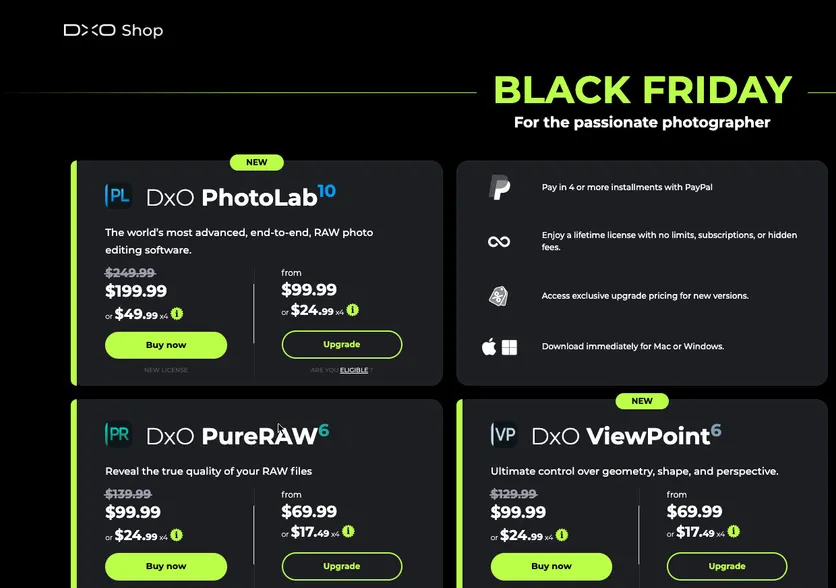
Paid tool Starting price: $149.99 one-time · PhotoLab 9 Essential at one hundred forty-nine dollars ninety-nine cents one time; Elite at two hundred thirty-nine dollars ninety-nine cents; thirty-day free trial
Free plan: No free plan; 30-day free trial
This DxO PhotoLab editor is built around optical corrections and careful color, so a raw photo starts from a technically clean base before any creative recoloring. The HSL controls and local adjustment brushes let a photographer shift one color range while the rest of the image stays faithful. DeepPRIME noise reduction cleans up high-ISO shots, which matters when a recolor pushes shadows and saturation hard.
What we like
- Optical corrections clean up every raw file first
- HSL controls with local adjustment brushes
- Noise reduction that survives heavy color shifts
Watch out for
- No pixel-level retouching like a full editor
- New versions are paid upgrades, not free updates
How to try it
- Open a raw file and apply the optical corrections
- Use HSL controls to shift the color range
- Brush a local adjustment onto one area and export
7. Luminar Neo
Best for: Beginners who want AI to handle the color work for them
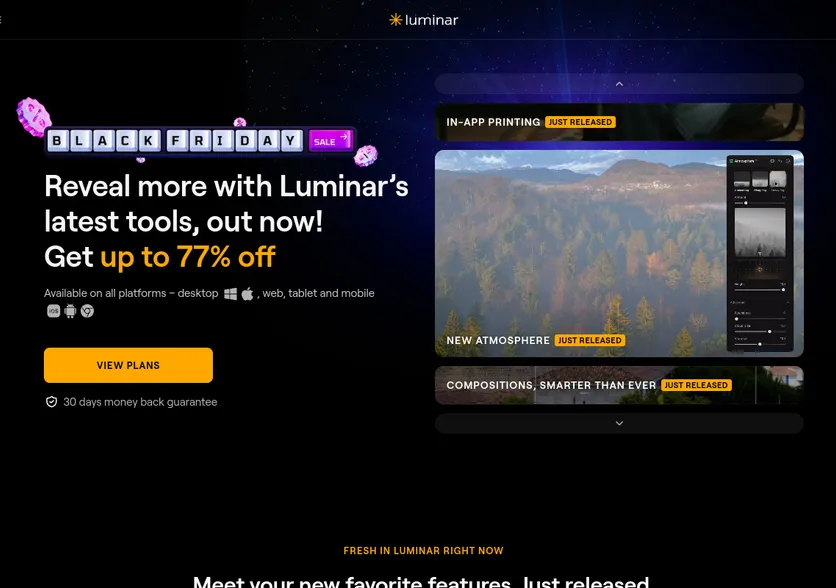
Paid tool Starting price: $99 one-time · Desktop Only edition at ninety-nine dollars one time; All Platforms at one hundred thirty-nine dollars and Max at one hundred fifty-nine dollars; seven-day free trial
Free plan: No free plan; 7-day free trial
This Luminar Neo editor uses AI to recolor a scene with very little manual work, from sky replacement that changes the mood of a photo to color harmony tools that suggest palettes that fit. A beginner can shift the whole feel of an image with one slider instead of learning curves and channels. The one-time purchase keeps the cost fixed, and it also works as a plug-in for Photoshop and Lightroom.
What we like
- AI sky replacement changes a photo's mood fast
- Color harmony suggests palettes that fit
- One-time purchase with no monthly subscription
Watch out for
- The product is now sold simply as Luminar
- Less precise masking than a layer-based editor
How to try it
- Open a photo and try the AI sky replacement
- Use color harmony to test a new palette
- Fine-tune the result with the color sliders
8. Pixlr
Best for: Casual users who want quick color swaps in the browser
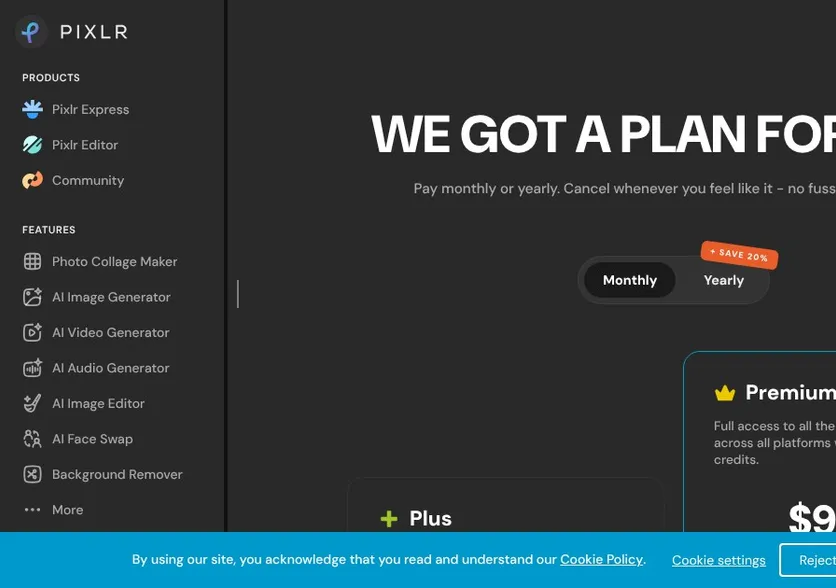
Paid tool Starting price: $1.99/month · Plus at one dollar ninety-nine cents a month billed annually, or two dollars forty-nine cents a month on monthly billing; Premium at seven dollars ninety-nine cents a month billed annually; free plan with ads
Free plan: Free plan with basic tools and ads
This Pixlr editor is the cheapest way to recolor an image, with a replace-color tool and hue sliders that work right in the browser for under two dollars a month on annual billing. A user can change the color of a shirt, a car or a background in minutes without installing software. Filters and overlays add a stylized finish, which suits social posts and quick mockups more than careful photo work.
What we like
- Replace color works in the browser for free
- Lowest paid price in this comparison
- Quick filters for stylized social posts
Watch out for
- Recolor edges are rougher than a desktop editor
- The free plan shows ads and limits some tools
How to try it
- Open the photo in the browser editor
- Use replace color or the hue slider on the object
- Export the image in your chosen format
Prices above were checked on each vendor’s own website on Nov 27, 2026 and can change — the vendor’s page is the final word. Vendor links are editorial: nobody paid to be listed or ranked here. Vendors who want a featured listing can see how it works on our Get listed page.
How to get a clean recolor that looks real
Always work on a copy or a separate layer so the original stays safe, and select the object before you touch any color slider. A mask or a color range keeps the change inside the edges, which is what separates a believable recolor from a sloppy one. Check the result at full size, because color bleeding that looks fine in a thumbnail often shows up clearly once you zoom in.
Match the light, not just the hue. A red dress in shade looks different from the same dress in sunlight, so adjust brightness and saturation along with the color itself. For brand work, save the new palette as swatches or color styles so the same shades stay consistent across every file you touch.
Before you buy
- Check that the editor can recolor one object without changing the rest of the image
- Confirm raw file support if you recolor camera photos rather than JPEGs
- Look for hue and saturation controls with masking, not just preset filters
- Make sure the plan exports at full resolution without a watermark
- Test the recolor tools on a real photo during the free trial before paying
Official websites
Official websites of the products reviewed above. Features and prices were checked against these sites when this guide was written, and they can change, so confirm on the vendor site before you buy.
Frequently asked questions
What is the best software for recoloring an image?
Photoshop is the most capable, because its hue and saturation controls, color replacement brush and layer masks let you change one object without touching the rest of the image. Capture One is the better pick for photographers, with a dedicated Color Editor and skin tone tools for raw files. For logos and illustrations, Illustrator remaps a whole palette in seconds with Recolor Artwork.
Can I change the color of one object without changing the whole photo?
Yes, and the trick is to select the object first so the color change stays inside its edges. Photoshop masks, Capture One color ranges and PaintShop Pro Color Changer all limit the shift to the area you pick. A rough selection will bleed color into the background, so spend a minute refining the edges before you adjust the hue.
What is the cheapest way to recolor photos?
Pixlr is the cheapest paid option at under two dollars a month on annual billing, and its replace-color tool works in the browser. Luminar Neo costs ninety-nine dollars once and uses AI to shift the mood of a photo with very little manual work. PaintShop Pro is also a one-time purchase and includes a dedicated Color Changer brush.
Does recoloring work better on raw files or JPEGs?
A raw file holds far more color data than a JPEG, so a recolored sky or skin tone stays smooth instead of banding. Capture One and DxO PhotoLab are built for raw files and give the cleanest results when you push colors hard. If you only have JPEGs, keep the shifts small and use masking so the change looks natural.
Should I recolor a logo in a vector tool or a photo editor?
Vector tools like Illustrator and CorelDRAW are better for logos, because a palette change updates every object that shares a color. Photo editors like Photoshop and Capture One are better for images, because they work pixel by pixel with masks and color ranges. Pick the vector route for brand artwork and the photo route for pictures.
Pick the editor that matches the kind of recoloring you do most, then test its color tools on a real photo during the free trial.
Browse Image Tools tools