On this page
Small teams need tools that keep communication, meetings and tasks in one connected flow. When five people work from four places, the chat app, the meeting link and the task list have to agree with each other, or work quietly falls through the cracks. The seven tools below cover that job from different angles: chat, video, docs and task boards. Slack leads because it puts chat, automation and workflow tools in one place for seven dollars and twenty-five cents per user a month, and the rest are ranked on how well they fit a small team.
How we researched this
We checked every price on the vendor pricing page on November 28, 2026, and only included tools with a published US dollar list price. Every tool here has a free plan or a free trial. Prices change, so confirm the current figure on the vendor site before you buy.
Compare the tools
| Name | Best for | Starting price | Free plan | |
|---|---|---|---|---|
 Slack | Small teams that live in chat | $7.25/user/month | Free plan (90-day message history) | Visit |
 Zoom Workplace | Teams that meet clients on video daily | $14.16/user/month | Free plan (Basic, 40-minute group meetings) | Visit |
 Microsoft Teams | Teams already paying for Microsoft 365 | $4/user/month | Free plan (Teams free) | Visit |
 Asana | Teams running several structured projects | $10.99/user/month | Free plan (Personal, up to 2 users) | Visit |
 Trello | Teams that want simple visual boards | $5/user/month | Free plan (up to 10 boards per workspace) | Visit |
 Notion | Docs-first teams that want one workspace | $10/user/month | Free plan (individuals) | Visit |
 Google Workspace | Teams starting from scratch on email and docs | $7/user/month | 14-day free trial | Visit |
The remote work software for small teams, compared
1. Slack
Best for: Small teams that live in chat
Paid tool Starting price: $7.25/user/month · Seven dollars and twenty-five cents per user a month billed annually on Pro (eight dollars and seventy-five cents billed monthly); Business+ is fifteen dollars billed annually; a fifty percent discount for three months on monthly billing cuts Pro to four dollars and thirty-eight cents and is NOT the list price
Free plan: Free plan (90-day message history)
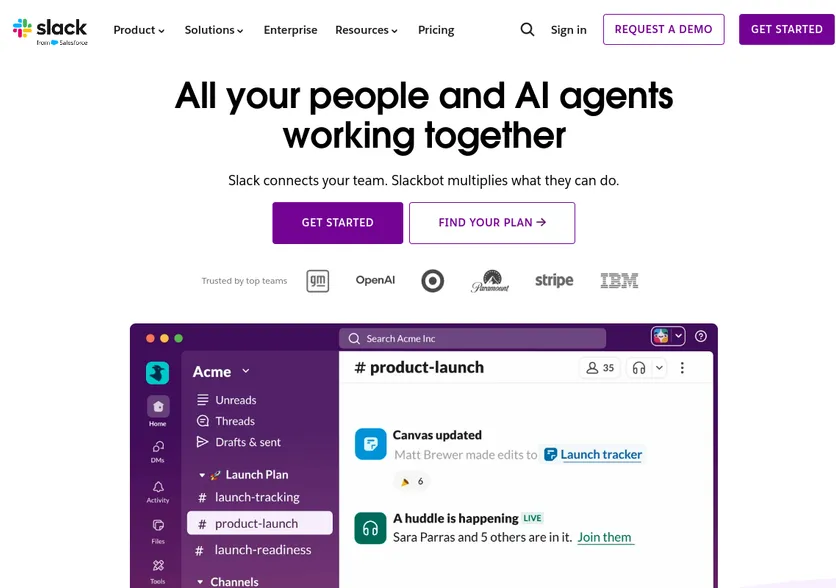
A small team that lives in chat needs one place where every conversation stays findable, and this Slack plan costs seven dollars and twenty-five cents per user a month billed annually for unlimited history, apps and huddles. Channels keep projects separate, Workflow Builder automates the routine requests, and AI summaries catch up anyone who was offline. It is the strongest chat-first hub in this list for a distributed team.
What we like
- Channels keep every conversation organised by topic
- Workflow Builder automates routine requests without code
- Huddles give small teams instant voice without a meeting link
Watch out for
- Only active members are billed, so costs rise with headcount
- Message history is limited to ninety days on the free plan
How to try it
- Create channels for each project and invite the team
- Connect the apps the team already uses for files and tasks
- Set notification hours so chat does not follow people home
2. Zoom Workplace
Best for: Teams that meet clients on video daily
Paid tool Starting price: $14.16/user/month · Fourteen dollars and sixteen cents per user a month billed annually on Workplace Pro (sixteen dollars and ninety-nine cents billed monthly); Business is eighteen dollars and thirty-three cents billed annually; the annual Pro price rose from thirteen dollars and thirty-three cents in March 2026
Free plan: Free plan (Basic, 40-minute group meetings)
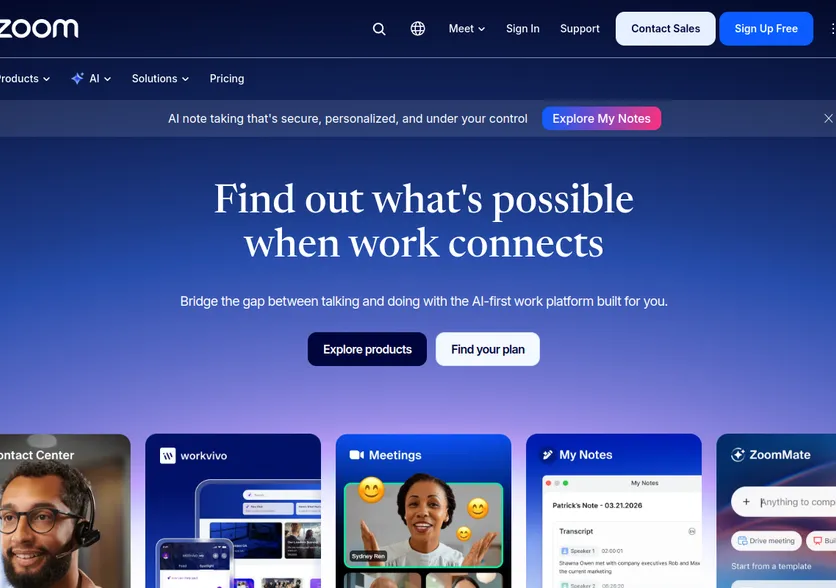
A team that meets clients on video every day needs meetings that simply work, and this Zoom Workplace plan costs fourteen dollars and sixteen cents per user a month billed annually for thirty-hour meetings with one hundred participants. AI Companion writes the summary, ten gigabytes of cloud recording come with each licence, and chat, phone and webinars sit in the same app. It is the best pick here when video is the centre of the remote setup.
What we like
- Reliable video with thirty-hour meetings on the Pro plan
- AI Companion writes meeting summaries without an add-on
- Ten gigabytes of cloud recording per licence is included
Watch out for
- Only the meeting host needs a licence, so costs hide in hosts
- Project tracking and docs still need a second tool
How to try it
- Schedule the meeting and share the link with the team
- Record to the cloud and let AI Companion draft the summary
- Share the recording and action items in your team chat
3. Microsoft Teams
Best for: Teams already paying for Microsoft 365
Paid tool Starting price: $4/user/month · Four dollars per user a month billed annually on Teams Essentials, which covers chat and meetings only; the full Microsoft 365 Business Basic bundle costs more and adds the Office apps
Free plan: Free plan (Teams free)
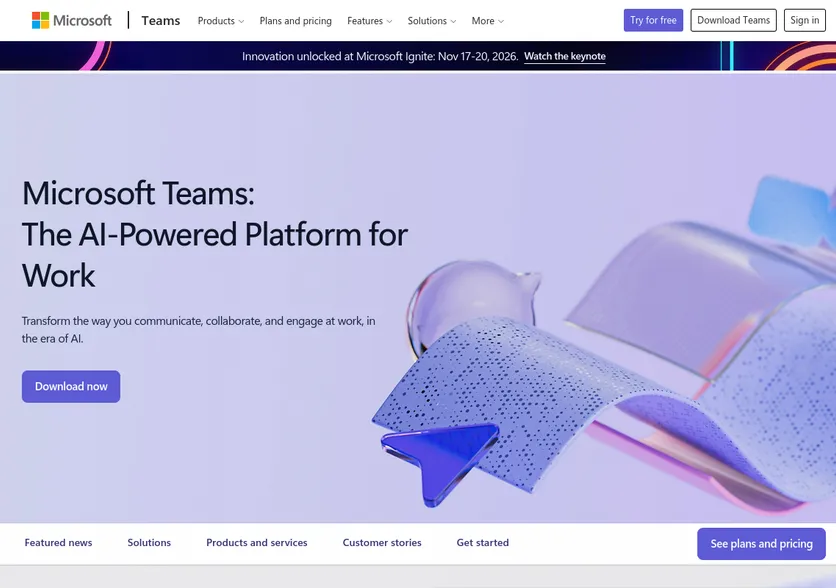
A team that already pays for Microsoft tools gets the most from this Microsoft Teams plan, which costs four dollars per user a month billed annually for chat and meetings in one workspace. Conversations, meetings and files stay together, so nobody hunts through email for the latest version. It is the cheapest paid entry here and the obvious choice inside the Microsoft ecosystem.
What we like
- Chat, meetings and files sit in one Microsoft workspace
- Cheapest paid entry in this list for chat plus meetings
- Works best for teams already paying for Microsoft 365
Watch out for
- Essentials covers chat and meetings only, with no Office apps
- The interface feels dense for a team of two or three
How to try it
- Create a team and add a channel for each workstream
- Schedule meetings from the calendar and share files in the channel
- Pin the key documents so new members find them fast
4. Asana
Best for: Teams running several structured projects
Paid tool Starting price: $10.99/user/month · Ten dollars and ninety-nine cents per user a month billed annually on Starter (thirteen dollars and forty-nine cents billed monthly); Advanced is twenty-four dollars and ninety-nine cents billed annually
Free plan: Free plan (Personal, up to 2 users)
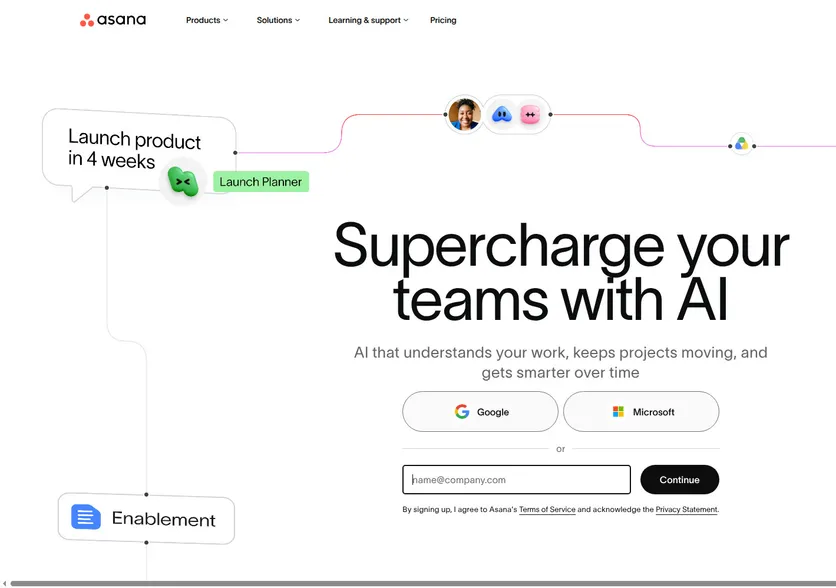
A team that juggles several projects at once needs ownership to be visible, and this Asana plan costs ten dollars and ninety-nine cents per user a month billed annually for timelines, dependencies and reporting dashboards. Unlimited automations handle the repetitive steps, and the free Personal plan covers a team of two. It is the most structured work manager here for a team that plans in earnest.
What we like
- Timelines and dependencies make ownership visible at a glance
- Unlimited automations are included from the Starter plan
- Reporting dashboards track progress across projects
Watch out for
- Starter jumps to nearly twenty-five dollars on Advanced
- Small teams can find the setup heavier than a simple board
How to try it
- Create a project and add tasks with owners and due dates
- Build a timeline and link tasks that depend on each other
- Review the dashboard weekly and reassign stalled work
5. Trello
Best for: Teams that want simple visual boards
Paid tool Starting price: $5/user/month · Five dollars per user a month billed annually on Standard (six dollars billed monthly); Premium is ten dollars billed annually and Enterprise is seventeen dollars and fifty cents
Free plan: Free plan (up to 10 boards per workspace)
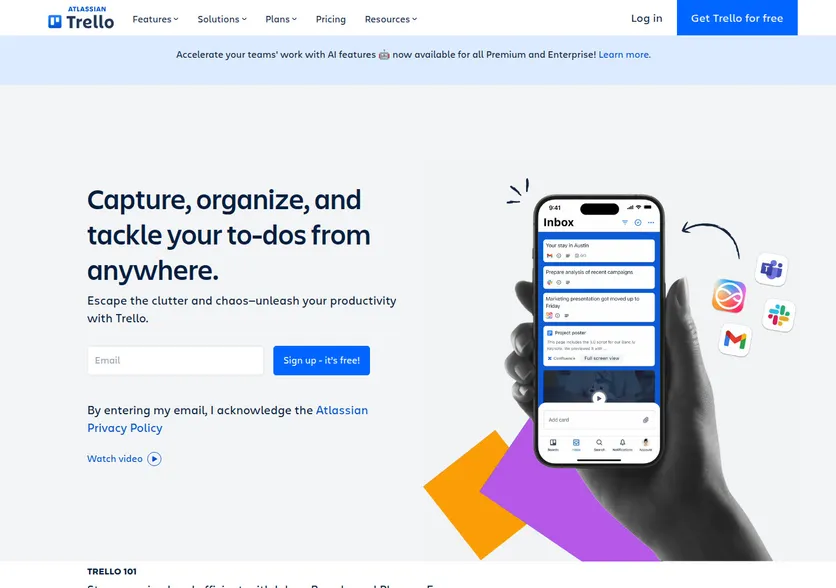
A team that thinks in simple stages will adopt this Trello plan fastest, because it costs five dollars per user a month billed annually for unlimited boards where cards move from to do to done. The free plan covers ten boards, and the Inbox and Planner views catch tasks from anywhere. It is the cheapest and easiest project tool here for a team that hates setup.
What we like
- Boards and cards are the easiest project view to learn
- The free plan covers ten boards and unlimited cards
- Power-Ups add calendar, map and automation views cheaply
Watch out for
- Complex workflows with dependencies need a fuller tool
- Reporting stays thin even on the Premium plan
How to try it
- Create a board with lists for each stage of the work
- Add cards with checklists, dates and owners
- Move cards across lists in the weekly team review
6. Notion
Best for: Docs-first teams that want one workspace
Paid tool Starting price: $10/user/month · Ten dollars per member a month billed annually on Plus (twelve dollars billed monthly); Business is twenty dollars per member a month billed annually
Free plan: Free plan (individuals)
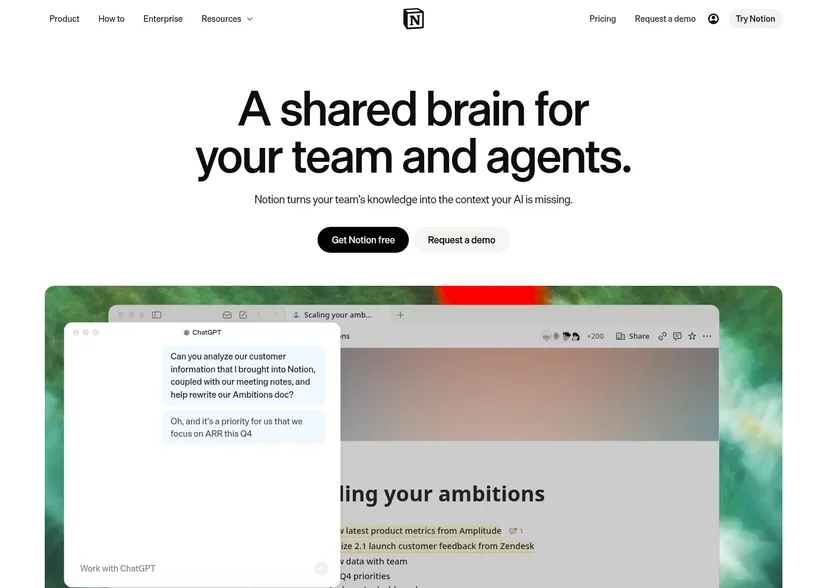
A team that keeps its knowledge in docs and wikis needs a workspace that bends to its process, and this Notion plan costs ten dollars per member a month billed annually for databases, templates and search across connected apps. One home page can hold meeting notes, the roadmap and the team hub, and the free plan is genuinely usable for one person. It is the most flexible tool here for a docs-first team.
What we like
- Docs, wikis and databases live in one flexible workspace
- Templates cover meeting notes, roadmaps and team hubs
- Search reaches across connected apps from one box
Watch out for
- Flexibility means the team must agree a structure first
- Ready-made project views need more setup than a board tool
How to try it
- Build a team home page with links to docs and projects
- Create a database for tasks with status and owner fields
- Review the workspace monthly and archive pages nobody uses
7. Google Workspace
Best for: Teams starting from scratch on email and docs
Paid tool Starting price: $7/user/month · Seven dollars per user a month billed annually on Business Starter (eight dollars and forty cents on the flexible monthly plan); Business Standard is fourteen dollars and Business Plus is twenty-two dollars; a fifty percent discount for the first three months is a new-customer promotion, not the list price
Free plan: 14-day free trial
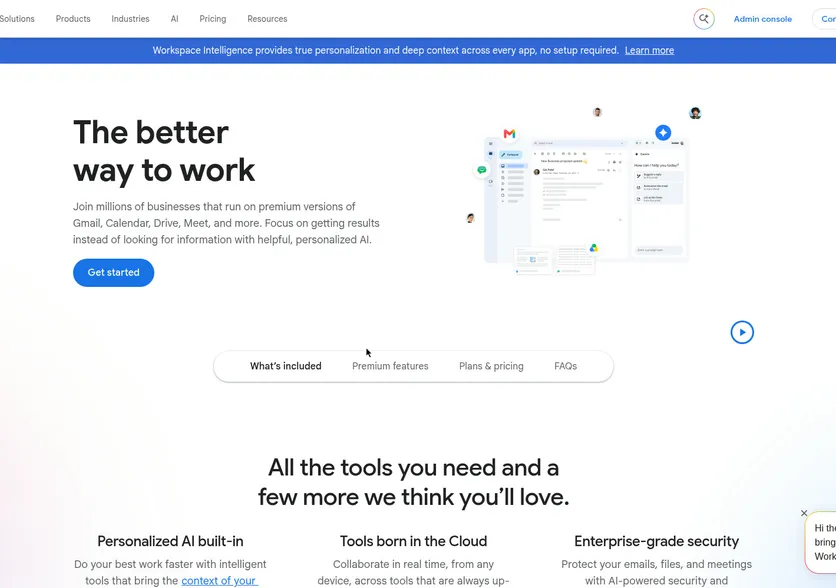
A team that just needs email, docs and video calls that work needs no learning curve, and this Google Workspace plan costs seven dollars per user a month billed annually for Gmail on a custom domain, Drive, Docs and Meet. Thirty gigabytes of pooled storage come with each user, and Meet handles calls for up to one hundred participants. It is the most dependable foundation here for a team starting from scratch.
What we like
- Gmail, Drive, Docs and Meet work together with no setup
- Thirty gigabytes of pooled storage per user on Starter
- Familiar apps mean almost no training for new hires
Watch out for
- Project tracking and structured workflows need another tool
- The three-hundred-user cap rules out larger teams
How to try it
- Create accounts for the team on a custom domain
- Set up shared drives for each project or client
- Use Meet for calls and Docs for shared notes and plans
Prices above were checked on each vendor’s own website on Nov 28, 2026 and can change — the vendor’s page is the final word. Vendor links are editorial: nobody paid to be listed or ranked here. Vendors who want a featured listing can see how it works on our Get listed page.
How to build a remote setup a small team will actually use
Pick one home for conversations and one home for tasks, then stop adding tools, because a small team drowns in apps faster than it drowns in work. Agree where decisions live: chat for quick questions, docs for anything that must survive the week, and the task board for who does what by when. Set notification hours so the chat does not follow people home, and review the stack every quarter to drop the tool nobody opens. A setup the team enjoys using beats a feature list every time.
Before you buy
- Check which collaboration features your team uses daily, such as chat, meetings or task boards
- Confirm the tool connects with the apps your team already relies on
- Review how much setup and administration the tool requires for a small team
- Test the mobile experience if team members work from phones or tablets
- Verify data security and sharing controls match your team requirements
Official websites
Official websites of the products reviewed above. Features and prices were checked against these sites when this guide was written, and they can change, so confirm on the vendor site before you buy.
Frequently asked questions
Which tool is best for a small remote team just starting out?
Slack is a practical starting point because it centralises chat, coordination and automation for seven dollars and twenty-five cents per user a month. Pair it with a task tool such as Trello or Asana once your workflows become clearer. Starting with chat keeps the team talking, and the task tool can wait until the work outgrows conversation.
Do I need both a chat tool and a project management tool?
Often yes. Chat tools like Slack and Teams handle fast conversation, while Asana, Trello and Notion organise tasks and documentation. Some teams start with one and add the other as work grows. Notion is the closest to doing both, since its databases can track tasks beside the docs.
How does Google Workspace fit with the other tools?
Google Workspace provides documents, spreadsheets and file sharing, which complement chat and project tools. Many small teams use it as the productivity base alongside a dedicated communication app. At seven dollars per user a month it is cheap enough to sit under Slack or Teams without doubling the bill.
What is the cheapest remote work setup for a small team?
Teams Essentials costs four dollars per user a month and covers chat and meetings, while Trello Standard costs five dollars per user a month for task boards. Both have free plans that a very small team may never outgrow. For most teams, Slack at seven dollars and twenty-five cents plus Trello at five dollars is the best-value paid combination.
Compare the seven tools above, then start with the free plan of the tool that matches how the team already works before paying for a full year.
Browse Business Tools tools