On this page
Editing 4K footage punishes weak software, so the right editor needs proxy workflows, smooth playback and exports that do not take all night. The eight tools below cut 4K for budgets of every size, from a one-time purchase to a cheap monthly plan. DaVinci Resolve Studio leads because it buys pro colour outright for two hundred and ninety-five dollars once, and the rest are ranked on playback, features and how they handle a 4K timeline.
How we researched this
We checked every price on the vendor pricing page on November 29, 2026, and only included tools with a published US dollar list price. The editors that sell by quote or hide pricing behind a sales call were left out. Prices change, so confirm the current figure on the vendor site before you buy.
Compare the tools
| Name | Best for | Starting price | Free plan | |
|---|---|---|---|---|
 Adobe Premiere Pro | Professional editors cutting client work | $22.99/month | No free plan; 7-day free trial | Visit |
 Final Cut Pro | Mac editors who want speed and a one-time purchase | $299.99 one-time | No free plan; 30-day free trial | Visit |
 DaVinci Resolve Studio | Editors who want pro colour without a subscription | $295 one-time | Free plan (DaVinci Resolve free) | Visit |
 Filmora | Beginners who want a friendly editor that grows | $49.99/year | Free plan (watermarked exports) | Visit |
 PowerDirector 365 | Enthusiasts who want templates and AI tools cheap | $79.99/year | Free plan (watermarked exports) | Visit |
 VEGAS Pro | Windows editors who cut fast on a keyboard | $199 one-time | No free plan; 30-day free trial | Visit |
 CapCut Pro | Short-form creators who live on templates and AI | $19.99/month | Free plan | Visit |
 Descript | Podcasters and interviewers who edit by transcript | $16/person/month | Free plan (1 media hour) | Visit |
The video editing software for 4K videos, compared
1. Adobe Premiere Pro
Best for: Professional editors cutting client work
Paid tool Starting price: $22.99/month · Twenty-two dollars and ninety-nine cents a month on the annual plan billed monthly, or two hundred and seventy-five dollars and eighty-eight cents a year; Adobe marks that figure first-year only for new subscribers, and month-to-month billing is about thirty-four dollars and forty-nine cents a month; Creative Cloud Pro is sixty-nine dollars and ninety-nine cents a month
Free plan: No free plan; 7-day free trial
For 4K client work where the timeline must never stutter, this Adobe Premiere Pro plan costs twenty-two dollars and ninety-nine cents a month billed annually, and it edits native 4K with proxy workflows built in. Lumetri colour, Enhance Speech and auto ducking cover the finishing steps, and Frame.io review sits inside the app. It is the professional standard when the deliverable has to match a broadcast spec.
What we like
- Deepest toolset with the widest plugin library
- Frame.io review and cloud storage included
- Works with After Effects and Audition in one workflow
Watch out for
- Subscription only, with no one-time purchase
- First-year price may rise at renewal
How to try it
- Import the footage and build the sequence
- Cut on the timeline and add colour and audio
- Export the finished video for the client
2. Final Cut Pro
Best for: Mac editors who want speed and a one-time purchase
Paid tool Starting price: $299.99 one-time · Two hundred and ninety-nine dollars and ninety-nine cents once on the Mac App Store; the app is also inside Apple Creator Studio at twelve dollars and ninety-nine cents a month or one hundred and twenty-nine dollars a year; some premium content is available only to Creator Studio subscribers
Free plan: No free plan; 30-day free trial
A Mac editor cutting 4K all day wants speed above all, and this Final Cut Pro plan costs two hundred and ninety-nine dollars and ninety-nine cents once on the Mac App Store. The magnetic timeline and background rendering keep 4K playback smooth on Apple Silicon, and ProRes acceleration cuts export times hard. One payment buys the app outright, with no monthly bill afterwards.
What we like
- Magnetic timeline makes rough cuts feel effortless
- Tuned for Apple Silicon with fast rendering
- One payment, with no monthly bill afterwards
Watch out for
- Mac only, with no Windows version
- Some premium content needs the subscription
How to try it
- Import the media into a new library
- Cut on the magnetic timeline and add titles
- Export the finished video in ProRes or H264
3. DaVinci Resolve Studio
Best for: Editors who want pro colour without a subscription
Paid tool Starting price: $295 one-time · Two hundred and ninety-five dollars once for a perpetual Studio licence, with free major updates; the free DaVinci Resolve covers editing and colour up to Ultra HD, and seasonal sales have shown Studio near two hundred and thirty-six dollars
Free plan: Free plan (DaVinci Resolve free)
For 4K work where colour is the deliverable, this DaVinci Resolve Studio plan costs two hundred and ninety-five dollars once for a perpetual licence. Studio unlocks noise reduction, advanced HDR grading and resolutions up to 32K, with the DaVinci Neural Engine handling AI tools. Edit, colour, effects and audio live in one app, so a 4K project never leaves the timeline.
What we like
- Best colour grading in any editor at this price
- Edit, colour, effects and audio in one app
- Free version is genuinely usable for real work
Watch out for
- The interface is dense for first-time editors
- Needs a strong computer for 4K work
How to try it
- Download Resolve and open a new project
- Cut the timeline on the Edit page
- Grade on the Colour page and export
4. Filmora
Best for: Beginners who want a friendly editor that grows
Paid tool Starting price: $49.99/year · Forty-nine dollars and ninety-nine cents a year on Basic; Advanced is fifty-nine dollars and ninety-nine cents a year with one thousand AI credits a month, Premium is ninety-nine dollars and ninety-nine cents a year, and a perpetual licence for Filmora 16 is seventy-nine dollars and ninety-nine cents once
Free plan: Free plan (watermarked exports)
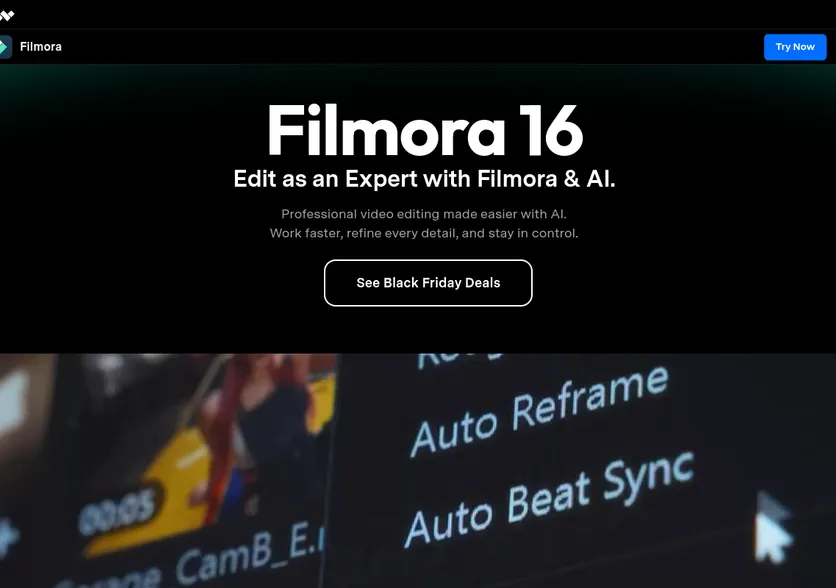
A creator stepping up to 4K without a pro budget gets a friendly start here, since this Filmora plan costs forty-nine dollars and ninety-nine cents a year on Basic, with watermark-free 4K export included. Templates and AI tools for captions and cutout speed up the edit, and the perpetual licence suits buyers who dislike subscriptions. It grows with the creator, from first 4K vlog to a regular publishing schedule.
What we like
- Templates and effects make first videos fast
- AI tools for captions, cutout and reframing
- Perpetual licence option for buyers who hate rent
Watch out for
- AI features run on credits on the Basic plan
- The perpetual licence covers Filmora 16 only
How to try it
- Import clips and drop them on the timeline
- Apply a template or add captions and effects
- Export without a watermark on a paid plan
5. PowerDirector 365
Best for: Enthusiasts who want templates and AI tools cheap
Paid tool Starting price: $79.99/year · Seventy-nine dollars and ninety-nine cents a year is the regular list price for PowerDirector 365; frequent sales show it near fifty-one dollars and ninety-nine cents to fifty-nine dollars and ninety-nine cents a year, and monthly billing is nineteen dollars and ninety-nine cents a month; Ultimate perpetual is one hundred and thirty-nine dollars and ninety-nine cents once
Free plan: Free plan (watermarked exports)
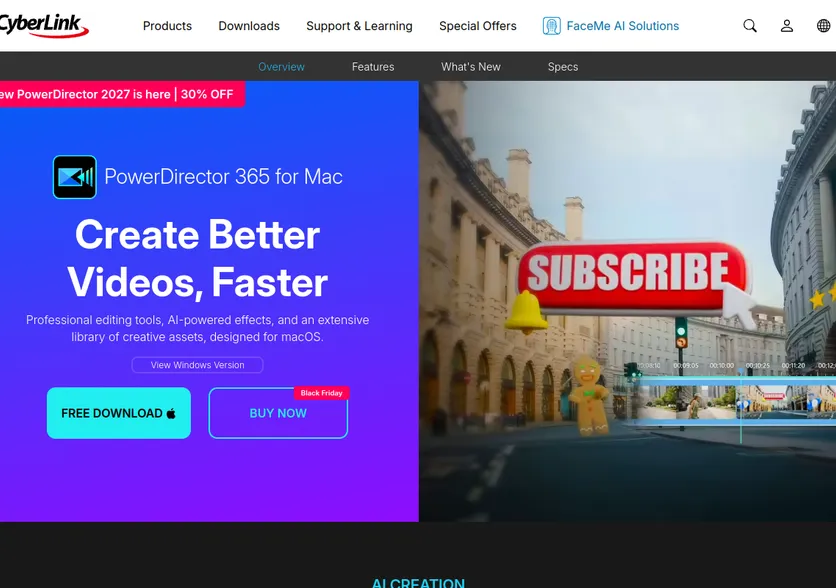
For a 4K editor who wants AI tools and templates at a modest yearly price, this PowerDirector 365 plan costs seventy-nine dollars and ninety-nine cents a year at list price. Motion tracking, multicam editing and AI captions come included, and the mobile app edits the same 4K projects on a phone. Frequent sales bring the price well below list, so timing the purchase saves real money.
What we like
- Huge template and stock library included
- AI captions, motion tracking and multicam
- Mobile app edits the same projects on a phone
Watch out for
- The regular price is often discounted, so timing matters
- Reviewers report occasional lag on heavy projects
How to try it
- Import the footage into a new project
- Apply a template or use the AI tools
- Export the video for the platform it needs
6. VEGAS Pro
Best for: Windows editors who cut fast on a keyboard
Paid tool Starting price: $199 one-time · One hundred and ninety-nine dollars once for a new perpetual licence; the annual subscription is ninety-five dollars and eighty-eight cents a year and monthly billing is nineteen dollars and ninety-nine cents a month; Suite is two hundred and forty-nine dollars once, and upgrades for perpetual owners are one hundred and forty-nine dollars
Free plan: No free plan; 30-day free trial
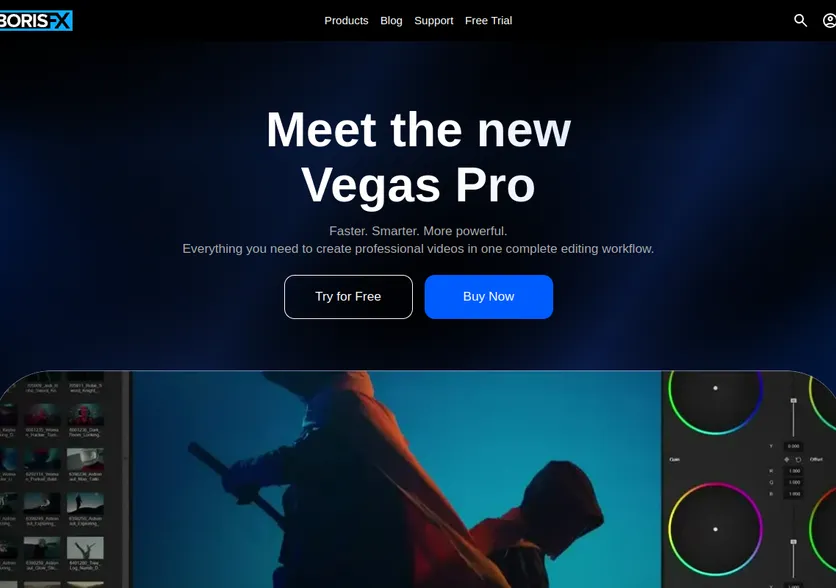
A Windows editor who cuts 4K with keyboard shortcuts will feel at home here, since this VEGAS Pro plan costs one hundred and ninety-nine dollars once for a perpetual licence. GPU-accelerated playback keeps 4K timelines smooth, and built-in audio mixing with VST3 support handles the soundtrack without a second app. The buyer chooses between the one-time licence and a cheaper yearly subscription.
What we like
- Fast timeline cutting with automatic crossfades
- Built-in audio mixing with VST3 support
- Choice of subscription or perpetual licence
Watch out for
- Windows only, with no Mac version
- Stock media is limited to subscription plans
How to try it
- Import the media into the timeline
- Cut with keyboard shortcuts and add effects
- Render the finished video for delivery
7. CapCut Pro
Best for: Short-form creators who live on templates and AI
Paid tool Starting price: $19.99/month · Nineteen dollars and ninety-nine cents a month on Pro, or one hundred and seventy-nine dollars and ninety-nine cents a year; Ultra is seventy-nine dollars a month and Teams is twelve dollars and forty-nine cents a seat a month; the old nine dollars and ninety-nine cents Pro plan is now the mobile-only Standard tier
Free plan: Free plan
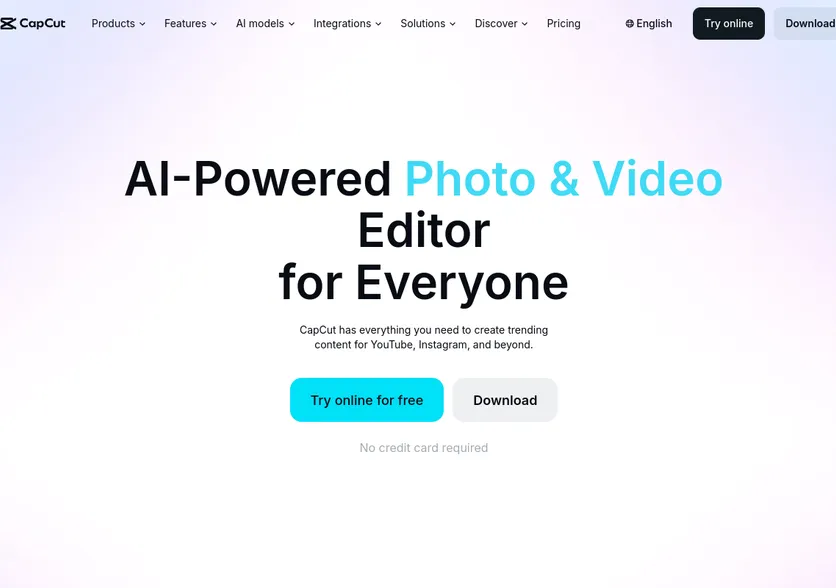
Short-form 4K needs speed more than depth, and this CapCut Pro plan costs nineteen dollars and ninety-nine cents a month, with 4K export and twelve hundred monthly AI credits. Auto captions, background removal and auto-reframe turn raw phone footage into a finished vertical clip fast. Cloud storage keeps projects synced between phone and desktop, which suits creators who edit on the move.
What we like
- Best template library for Reels and TikTok
- AI captions, background removal and auto-reframe
- Cloud storage keeps projects synced everywhere
Watch out for
- AI features burn monthly credits, not unlimited
- The 2026 repricing more than doubled the annual cost
How to try it
- Open CapCut and start from a template
- Drop in clips and add auto captions
- Export in 4K and post to the platform
8. Descript
Best for: Podcasters and interviewers who edit by transcript
Paid tool Starting price: $16/person/month · Sixteen dollars a person a month billed annually on Hobbyist, or twenty-four dollars a person a month billed monthly; Creator is twenty-four dollars a person a month billed annually with 4K export, and Business is fifty dollars a person a month billed annually
Free plan: Free plan (1 media hour)
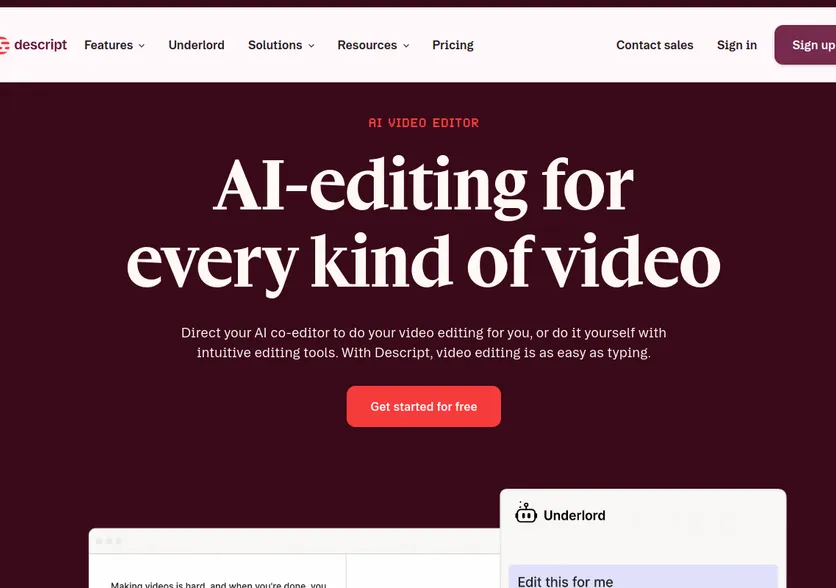
A 4K talking-head video starts as a script, and this Descript plan costs sixteen dollars a person a month billed annually on Hobbyist, with the Creator tier adding 4K export. Editing the transcript cuts the video, and Studio Sound cleans up noisy room audio in one click. Timelines export to Premiere, Final Cut and Resolve, so Descript handles the rough cut and a pro app finishes it.
What we like
- Edit video by deleting words in the transcript
- Studio Sound cleans up noisy recordings
- Exports timelines to Premiere, Final Cut and Resolve
Watch out for
- Pricing is per person, so teams pay per seat
- Media hours cap how much you can upload
How to try it
- Import the recording and let it transcribe
- Delete words in the transcript to cut the video
- Export the finished video in 4K
Prices above were checked on each vendor’s own website on Nov 29, 2026 and can change — the vendor’s page is the final word. Vendor links are editorial: nobody paid to be listed or ranked here. Vendors who want a featured listing can see how it works on our Get listed page.
How to edit 4K without a top-end computer
Turn on proxy editing before the first cut, because proxies let a modest computer play 4K footage smoothly while the export still uses the full-quality files. Keep the media on a fast drive, since a slow disk stalls playback more often than a slow processor does. Cut the story first and grade last, because colour work on every clip wastes time on footage that will never make the final cut. Render a short test export before the full job, and check it on the screen the audience will actually watch. Keep the timeline simple and use keyboard shortcuts for the cuts you repeat, because speed on 4K comes from the workflow as much as from the hardware.
Before you buy
- Confirm the editor offers proxy editing before buying for 4K work
- Check the computer has enough memory and a fast drive for 4K media
- Test a short export before rendering the full project
- Keep the original camera files separate from the proxy files
- Grade the colour last, after the story is cut
Official websites
Official websites of the products reviewed above. Features and prices were checked against these sites when this guide was written, and they can change, so confirm on the vendor site before you buy.
Frequently asked questions
What is the best video editing software for 4K videos?
DaVinci Resolve Studio is the best overall pick here, at two hundred and ninety-five dollars once, because it buys pro colour and 4K editing outright with no subscription. Adobe Premiere Pro is the better pick for client work, at twenty-two dollars and ninety-nine cents a month billed annually. Final Cut Pro is the fastest 4K timeline on a Mac, at two hundred and ninety-nine dollars and ninety-nine cents once.
How much does DaVinci Resolve Studio cost?
DaVinci Resolve Studio costs two hundred and ninety-five dollars once for a perpetual licence, with free major updates. The free DaVinci Resolve covers editing and colour up to Ultra HD, so many editors never need the paid tier. Studio adds noise reduction, advanced HDR grading and resolutions up to 32K, which is what the price buys.
Can I edit 4K video for free?
Yes, with DaVinci Resolve, whose free version edits and grades up to Ultra HD with no watermark and no time limit. Filmora and CapCut also offer free plans, though both watermark exports or cap features. A free plan suits a hobbyist, while a creator publishing 4K every week will usually need a paid plan.
Do I need a powerful computer for 4K editing?
Not always, because proxy editing lets a modest computer cut 4K smoothly while the export uses the full-quality files. A fast drive matters more than a top-end processor, and enough memory keeps playback from stuttering. Test the editor on real 4K footage during the free trial before committing to a purchase.
Which 4K editor is cheapest over three years?
DaVinci Resolve Studio at two hundred and ninety-five dollars once is the cheapest pro option over three years, since there is no yearly bill. Final Cut Pro at two hundred and ninety-nine dollars and ninety-nine cents once is close behind for Mac editors. Filmora at forty-nine dollars and ninety-nine cents a year costs about one hundred and fifty dollars over three years, which is cheaper still for casual use.
Compare the eight tools above, then download the free DaVinci Resolve and test it on real 4K footage before paying for any editor.
Browse Video Tools tools