On this page
A free video editor for PC should cut real projects, not just trim clips. DaVinci Resolve Studio leads this list because its free version already covers pro color, effects, and audio, while the one-time Studio license removes the last limits. We checked eight paid editors on their own pricing pages and compared free versions, export limits, and the true cost of going pro on Windows.
How we researched this
We read each vendor pricing page on November 26, 2026 and kept only editors with a published price and a free version or trial you can actually use. We then weighed editing power, export limits, and how much the paid tier costs over a full year of regular use.
Compare the tools
| Name | Best for | Starting price | Free plan | |
|---|---|---|---|---|
 DaVinci Resolve Studio | Editors who want pro color and effects for one payment | $295 | Free version with most editing features | Visit |
 Filmora | Beginners who want templates and AI tools fast | $49.99/year | Free version with watermark on exports | Visit |
 CapCut Pro | Short-form creators who edit on desktop and phone | $19.99/month | Free version with core editing tools | Visit |
 Lightworks | Editors who want pro trimming on a subscription | $23.99/month | Free version with 720p exports | Visit |
 VSDC Video Editor | Windows users who want cheap pro features | $29.99/year | Free version with core editing tools | Visit |
 Movavi Video Editor | Casual editors who want a clean simple timeline | $49.95/year | Free trial with watermark on exports | Visit |
 PowerDirector 365 | Editors who want AI tools and stock content bundled | $79.99/year | Free version with watermark on exports | Visit |
 Corel VideoStudio Ultimate | Template-driven projects on a buy-once budget | $99.99 | 30-day free trial, no free plan | Visit |
The 8 best video editors for PC
1. DaVinci Resolve Studio
Best for: Editors who want pro color and effects for one payment
Paid tool Starting price: $295 · One-time purchase, no subscription
Free plan: Free version with most editing features
DaVinci Resolve Studio is the closest thing to a pro editing suite you can own outright. This DaVinci Resolve Studio license adds stereoscopic tools, extra effects, and AI features on top of a free version that already edits, colors, and mixes. It asks for a strong PC and a learning curve, but nothing else here matches its color tools at any price.
What we like
- Best color grading tools in this price range
- One-time purchase with no subscription
- Free version covers full projects
Watch out for
- Needs a powerful PC for smooth playback
- Steep learning curve for beginners
How to try it
- Download the free version and edit one full project end to end
- Learn the color page with a short tutorial before buying Studio
- Buy Studio only when you need its AI tools or extra effects
2. Filmora
Best for: Beginners who want templates and AI tools fast
Paid tool Starting price: $49.99/year · Basic annual plan
Free plan: Free version with watermark on exports
Filmora is the fastest way for a beginner to finish a video that looks polished. This Filmora Basic plan removes the watermark and unlocks templates, AI tools, and a stock library for under fifty dollars a year. The subscription never ends, but the price is low enough that most casual editors will not mind.
What we like
- Easiest editor here to learn in a day
- Huge template and effects library
- Very low yearly price
Watch out for
- Subscription keeps charging every year
- Free version watermarks every export
How to try it
- Install Filmora and pick a template for your video type
- Drop in your clips and let the AI tools clean up the audio
- Export without the watermark once you switch to Basic
3. CapCut Pro
Best for: Short-form creators who edit on desktop and phone
Paid tool Starting price: $19.99/month · Pro monthly plan
Free plan: Free version with core editing tools
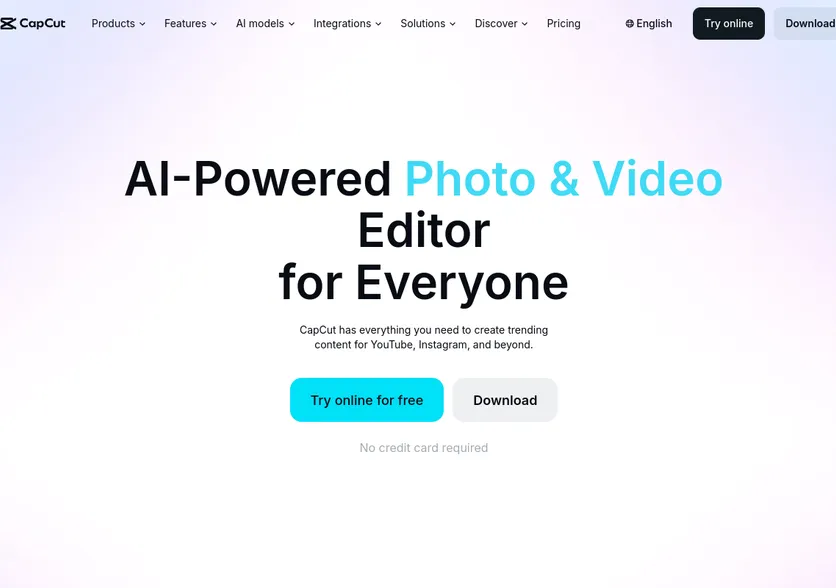
CapCut Pro is built for creators who shoot vertical video and publish every day. This CapCut Pro plan adds cloud storage, premium effects, and AI tools that cut editing time on phones and desktops alike. It is the best pick for short-form work, though long projects feel cramped next to desktop-first editors.
What we like
- Best short-form editing workflow here
- Syncs between phone and desktop
- Strong AI captions and effects
Watch out for
- Monthly price adds up fast
- Weak for long-form projects
How to try it
- Edit a short video in the free version first
- Turn on Pro to unlock premium effects and cloud storage
- Sync the project to your phone for a final check
4. Lightworks
Best for: Editors who want pro trimming on a subscription
Paid tool Starting price: $23.99/month · Pro monthly plan; Create plan costs less
Free plan: Free version with 720p exports
Lightworks has cut Hollywood films, and its trimming tools still feel faster than most rivals. This Lightworks Pro plan adds high-resolution exports, advanced effects, and timeline tools for about twenty-four dollars a month. The interface looks dated, but editors who learn its shortcuts rarely go back.
What we like
- Fastest trimming workflow of the group
- Proven on real feature films
- Flexible monthly billing
Watch out for
- Interface feels dated next to rivals
- Free version caps exports at 720p
How to try it
- Learn the keyboard shortcuts for trimming in the free version
- Test a high-resolution export on the Pro trial
- Set up your project bins before a long edit
5. VSDC Video Editor
Best for: Windows users who want cheap pro features
Paid tool Starting price: $29.99/year · Pro annual subscription
Free plan: Free version with core editing tools
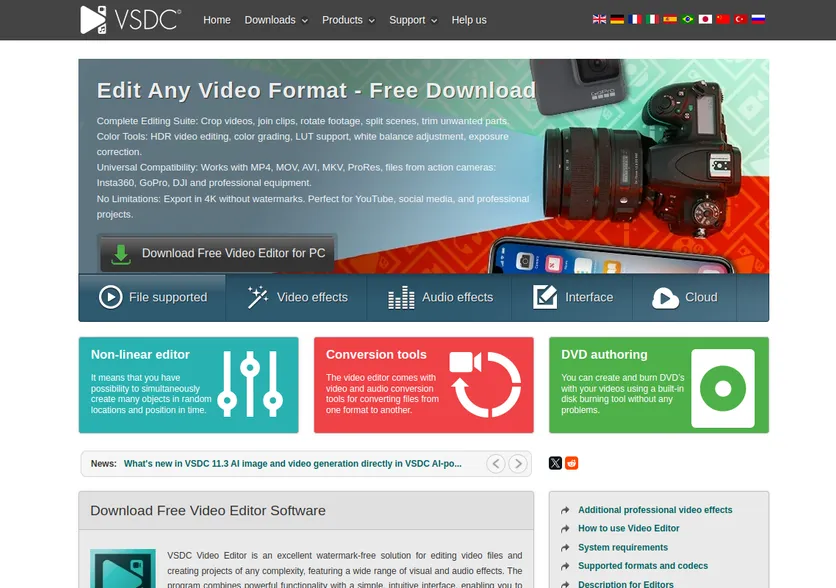
VSDC Video Editor is the budget pick for Windows users who want pro features without a pro bill. This VSDC Video Editor Pro plan adds hardware acceleration, masking, and motion tracking for about thirty dollars a year. The design feels old-fashioned, yet the feature list embarrasses editors that cost three times as much.
What we like
- Cheapest pro feature set here
- No watermark on free exports
- Runs well on modest PCs
Watch out for
- Dated interface that takes getting used to
- Windows only, no Mac version
How to try it
- Install the free version and test hardware acceleration on your PC
- Try masking and motion tracking on a short clip
- Upgrade to Pro for faster exports and extra effects
6. Movavi Video Editor
Best for: Casual editors who want a clean simple timeline
Paid tool Starting price: $49.95/year · One-year license for Video Editor
Free plan: Free trial with watermark on exports
Movavi Video Editor is the friendliest timeline on this list, built for people who edit a few videos a month. This Movavi Video Editor license adds effects, transitions, and AI tools for about fifty dollars a year. It will not satisfy a pro colorist, but it turns a weekend project into a finished video with almost no learning curve.
What we like
- Friendliest timeline for casual editors
- Fast exports with hardware support
- Simple AI tools for cleanup
Watch out for
- Limited pro color and audio tools
- Trial watermarks every export
How to try it
- Try the free trial on a real family or work video
- Pick a preset for titles and transitions
- Buy the one-year license when the trial ends
7. PowerDirector 365
Best for: Editors who want AI tools and stock content bundled
Paid tool Starting price: $79.99/year · List price for the 365 annual plan
Free plan: Free version with watermark on exports
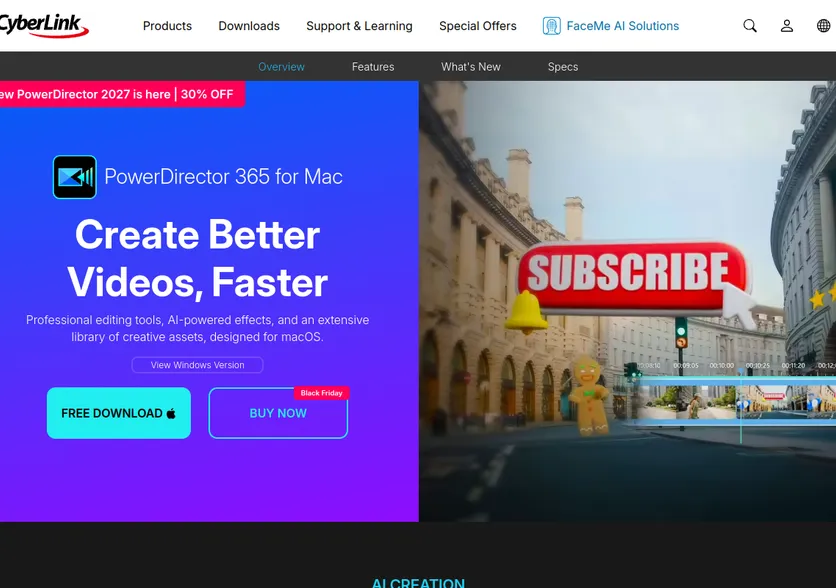
PowerDirector 365 is the all-in-one pick, with editing, stock media, and AI tools in a single subscription. This PowerDirector 365 plan adds thousands of templates, AI background removal, and cloud storage for about eighty dollars a year. It is the easiest editor here to grow with, though the subscription adds up over several years.
What we like
- Huge template and stock media library
- Strong AI tools for quick edits
- Good balance of power and ease
Watch out for
- Yearly cost adds up over time
- Free version watermarks exports
How to try it
- Start with the free version and browse the template library
- Try the AI background removal on one clip
- Subscribe to 365 for the full stock library
8. Corel VideoStudio Ultimate
Best for: Template-driven projects on a buy-once budget
Paid tool Starting price: $99.99 · One-time purchase for Ultimate
Free plan: 30-day free trial, no free plan
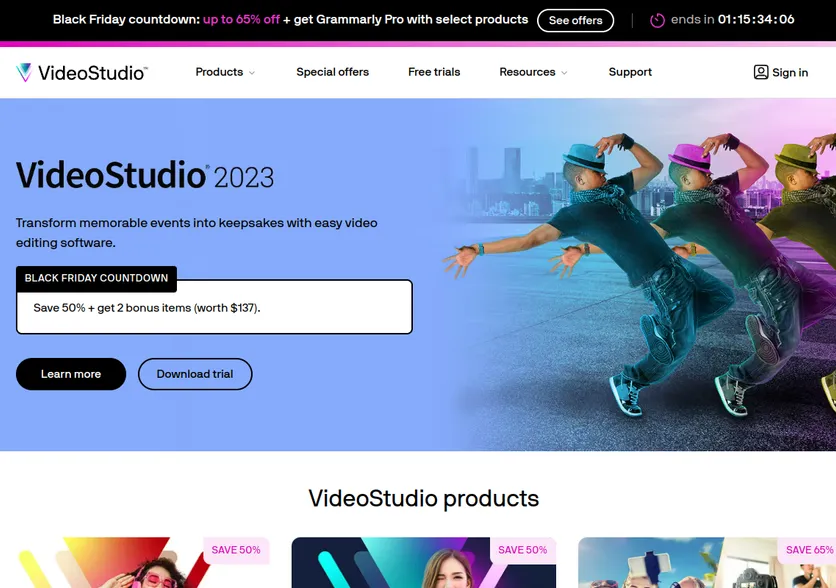
Corel VideoStudio Ultimate is the template-driven workhorse for editors who want fast results. This Corel VideoStudio Ultimate license is a one-time purchase that covers multi-camera editing, masking, and color tools with no monthly bill. It lacks the cloud polish of newer rivals, but owning the version you buy outright is a rare comfort.
What we like
- One-time purchase, no subscription
- Strong multi-camera editing
- Good template library for fast projects
Watch out for
- No free version, only a trial
- Interface lags behind newer editors
How to try it
- Try the 30-day trial on a multi-camera project
- Use an instant project template for a quick finish
- Buy Ultimate once and skip the subscription
Prices above were checked on each vendor’s own website on Nov 26, 2026 and can change — the vendor’s page is the final word. Vendor links are editorial: nobody paid to be listed or ranked here. Vendors who want a featured listing can see how it works on our Get listed page.
How to choose a video editor for your PC
How to choose a video editor for your PC
Match the editor to your hardware first. A pro suite like DaVinci Resolve wants a strong graphics card, while Filmora and Movavi run happily on a mid-range laptop. Check the free export before you buy, since watermarks and resolution caps are the most common surprises. If you publish weekly, a subscription with fresh templates may earn its price; if you edit a few times a year, a one-time license is the cheaper path.
Finally, think about your footage. Short-form creators should favor CapCut and its phone sync, while long-form editors should favor Resolve or PowerDirector for timeline depth. The right editor is the one you open without dreading the learning curve.
Before you buy
- Does the free version export at the resolution you actually publish, or does it cap you at 720p?
- Is the price a one-time purchase or a subscription that keeps charging every year?
- Will the editor run smoothly on your current PC, or does it need a new graphics card?
- Are the templates and AI tools included, or do they cost extra as add-ons?
- Can you export without a watermark before you pay anything?
Official websites
Official websites of the products reviewed above. Features and prices were checked against these sites when this guide was written, and they can change, so confirm on the vendor site before you buy.
Frequently asked questions
What is the best free video editor for PC?
DaVinci Resolve has the strongest free version, with pro color tools, effects, and audio mixing at no cost. Filmora and CapCut are easier to learn, though both watermark free exports until you pay. If you want a free editor with no watermark and no time limit, start with Resolve and accept the steeper learning curve.
Is DaVinci Resolve Studio worth the one-time price?
Studio costs just under three hundred dollars once, and it adds AI tools, extra effects, and stereoscopic support to an already powerful free editor. Most hobbyists will never need it, since the free version covers full projects. Buy Studio only when you hit a specific free-version limit, such as noise reduction or high-end HDR work.
Which video editor is easiest for beginners on Windows?
Filmora and Movavi are the easiest editors on this list, with drag-and-drop timelines and templates that finish a project in an evening. Both cost under fifty dollars a year and include guided tools for titles, transitions, and music. PowerDirector sits between the two, with more power and a slightly longer setup.
Do free video editors put a watermark on exports?
Filmora, CapCut, and PowerDirector all watermark free exports, which is how they push you toward the paid plan. DaVinci Resolve, Lightworks, and VSDC export clean video on their free versions, though Lightworks caps free exports at lower resolution. Always test an export before you invest hours in a project.
Should I buy a video editor once or pay monthly?
A one-time purchase like DaVinci Resolve Studio or Corel VideoStudio Ultimate wins if you edit for years, since the cost stops after day one. Subscriptions like Filmora or PowerDirector make sense when you want fresh templates and AI tools every month. Add up three years of the subscription before you decide, since that is the honest comparison.
Start with the free version that matches your skill level, export one real project, then pay for the editor that felt fastest.
Browse Video Tools tools