On this page
A gamer needs a tool that captures the game, shows the webcam, reads the chat and never slows down the frames. The eight tools below were checked on price and fit for gamers, from a free open-source studio to a full production switcher, and every one of them can put a stream on Twitch and YouTube. OBS Studio leads because it costs nothing and does the job, and every other tool is judged on the same test: how smooth the stream stays for the price.
How we researched this
We checked every price on the vendor pricing page on November 28, 2026, and only included tools with a published US dollar list price. Switcher Studio was left out because its current prices conflict across listings, and Resi and Castr were not a fit for a gaming audience. Prices change, so confirm the current figure on the vendor site before you buy.
Compare the tools
| Name | Best for | Starting price | Free plan | |
|---|---|---|---|---|
| OBS Studio | Gamers that want a free open-source studio with full control | $0/month | Free plan | Visit |
| Streamlabs | Gamers that want alerts, overlays and donations built in | $19/month | Free plan | Visit |
| XSplit | Gamers that want a polished studio for Windows with a video editor | $14.99/month | Free plan | Visit |
 Lightstream | Gamers that want the stream to run in the cloud, not on the computer | $7/month | Free plan | Visit |
 StreamYard | Gamers that want a browser studio with guests and banners | $18.99/month | Free plan | Visit |
 Restream | Gamers that want one stream on Twitch, YouTube and Facebook at once | $19/month | Free plan | Visit |
 vMix | Gamers that want a full production switcher they buy once | $60 one-time | 60-day free trial | Visit |
| Medal.tv | Gamers that want their best moments clipped automatically | $7.99/month | Free plan | Visit |
The live streaming software for gamers, compared
1. OBS Studio
Best for: Gamers that want a free open-source studio with full control
Paid tool Starting price: $0/month · Zero dollars: OBS Studio is free open-source software with no paid plan and no pricing page. The download page shows it as free
Free plan: Free plan
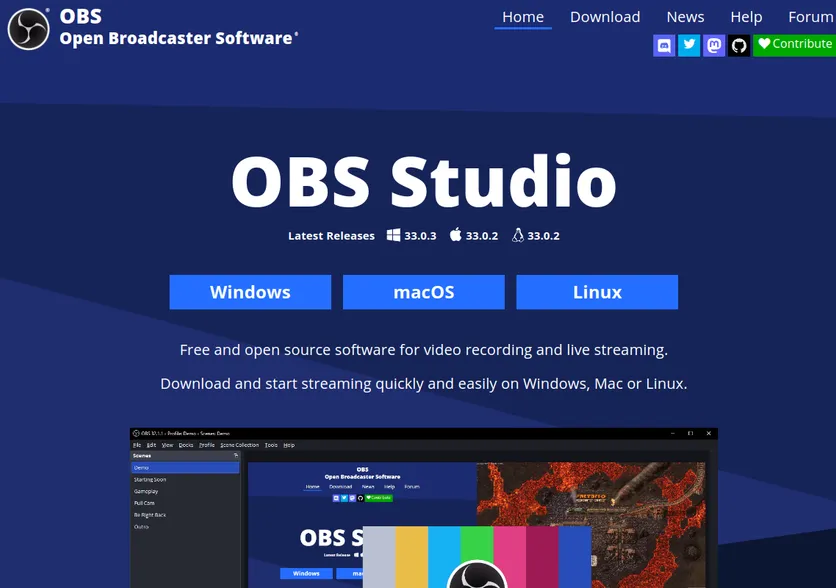
This OBS Studio plan costs zero dollars, and it is the free open-source streaming software that most gamers start with. A streamer gets scenes, sources, overlays and recording for nothing, and the tool runs on Windows, Mac and Linux. It is the pick for a gamer who wants full control and will spend time learning the setup.
What we like
- Free and open source with no subscription at all
- Scenes, sources and overlays with full control
- Runs on Windows, Mac and Linux
Watch out for
- The setup is complex for a first-time streamer
- No built-in alerts, donations or chat widgets
How to try it
- Download OBS Studio and add your game as a source
- Build scenes for the game, the webcam and the break screen
- Set your bitrate and go live on Twitch
2. Streamlabs
Best for: Gamers that want alerts, overlays and donations built in
Paid tool Starting price: $19/month · Nineteen dollars per month on the Ultra plan ($149 per year, or $12.42 per month billed annually). Some listings show $27 per month or $189 per year, which does not match the majority of recent reads
Free plan: Free plan
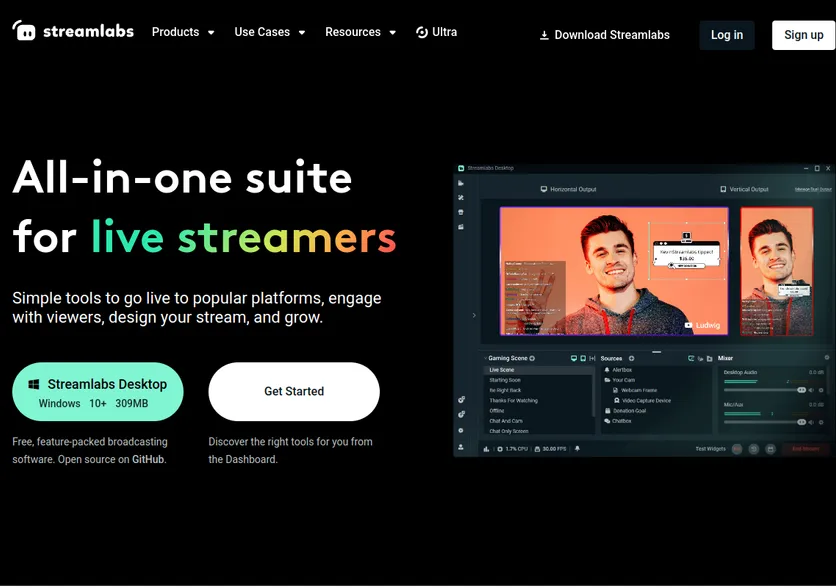
This Streamlabs plan costs nineteen dollars a month, and it is the streaming suite built on top of OBS, with alerts, overlays and donation tools included. A gamer gets a simpler setup than raw OBS, plus widgets for followers, tips and chat, and a cloud backup for the whole layout. It is the pick for a streamer who wants the extras without building them by hand.
What we like
- Alerts, overlays and donations built in
- Cloud backup for your whole stream layout
- Simpler setup than raw OBS Studio
Watch out for
- The free version shows Streamlabs branding on screen
- Some premium themes cost extra on top of Ultra
How to try it
- Install Streamlabs Desktop and connect your Twitch account
- Pick an overlay theme and set up your alerts
- Add a donation link and go live
3. XSplit
Best for: Gamers that want a polished studio for Windows with a video editor
Paid tool Starting price: $14.99/month · Fourteen dollars and ninety-nine cents per month on the Premium plan ($59.99 per year, shown as $5 per month); Lifetime is $199.99 once. The free plan streams at 720p with 4 scenes and is for personal use only
Free plan: Free plan
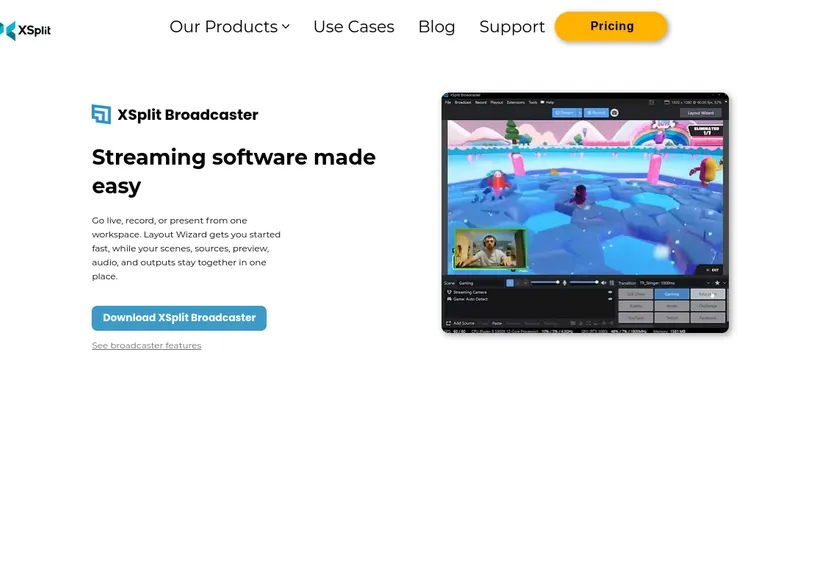
At fourteen dollars and ninety-nine cents a month, this XSplit plan gives a gamer a polished streaming studio for Windows, with scenes, overlays and a built-in video editor. A streamer gets a clean interface, a library of overlays and a simple way to record and edit highlights after the stream. It is the pick for a Windows gamer who wants everything in one place.
What we like
- Polished studio with a built-in video editor
- Library of overlays and themes included
- Simple setup for a Windows gamer
Watch out for
- Windows only, no Mac version
- The free plan is capped at 720p and four scenes
How to try it
- Install XSplit Broadcaster on your Windows computer
- Add your game and webcam as sources
- Pick an overlay and go live on Twitch
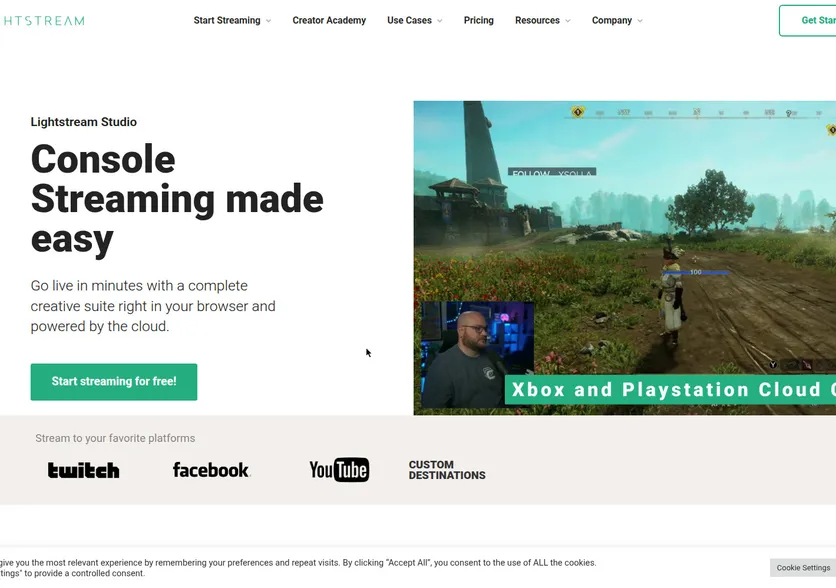
4. Lightstream
Best for: Gamers that want the stream to run in the cloud, not on the computer
Paid tool Starting price: $7/month · Seven dollars per month on the Gamer plan billed annually ($12 billed monthly); Creator is $20 per month billed annually ($25 billed monthly). A listing that shows $7 per year is a garbled annual display
Free plan: Free plan
At seven dollars a month billed annually, this Lightstream plan runs a gamer's stream in the cloud, so the computer stays free for the game itself. A streamer gets overlays, alerts and guest invites without installing anything, and the game keeps every frame it can. It is the pick for a gamer whose computer struggles to run a game and a stream at once.
What we like
- Cloud encoding keeps your computer free for the game
- Overlays and alerts with no software to install
- Guest invites built in for co-op streams
Watch out for
- The Gamer plan caps at 720p streaming
- Fewer advanced features than OBS Studio
How to try it
- Open Lightstream in your browser and connect Twitch
- Add overlays, alerts and a guest invite link
- Go live and let the cloud do the encoding
5. StreamYard
Best for: Gamers that want a browser studio with guests and banners
Paid tool Starting price: $18.99/month · Eighteen dollars and ninety-nine cents per month on the Essential plan ($14.99 billed annually); Core is $44.99 per month ($35.99 billed annually) and Advanced is $88.99 per month ($68.99 billed annually). The older Basic $25 and Professional $49 plans are retired
Free plan: Free plan
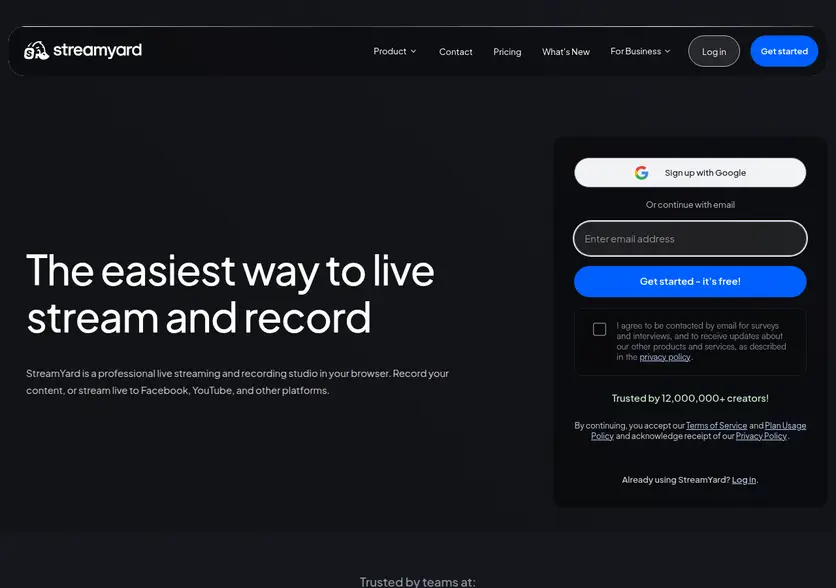
For a gamer, this StreamYard plan costs eighteen dollars and ninety-nine cents a month, and it runs a stream straight from the browser with no software to install. A streamer can bring in a guest, add banners and stream to Twitch, YouTube and Facebook at once. It is the pick for a gamer who streams talk shows and interviews more than gameplay.
What we like
- Runs in the browser with no software to install
- Streams to Twitch, YouTube and Facebook at once
- Guest interviews and banners built in
Watch out for
- The Essential plan caps streams at 720p
- Not built for capturing gameplay directly
How to try it
- Open StreamYard in your browser and connect your channels
- Invite a guest and add banners for the show
- Go live on Twitch, YouTube and Facebook at once
6. Restream
Best for: Gamers that want one stream on Twitch, YouTube and Facebook at once
Paid tool Starting price: $19/month · Nineteen dollars per month on the Standard plan ($16 billed annually); Professional is $49 per month ($39 billed annually) and Business is $239 per month ($199 billed annually)
Free plan: Free plan
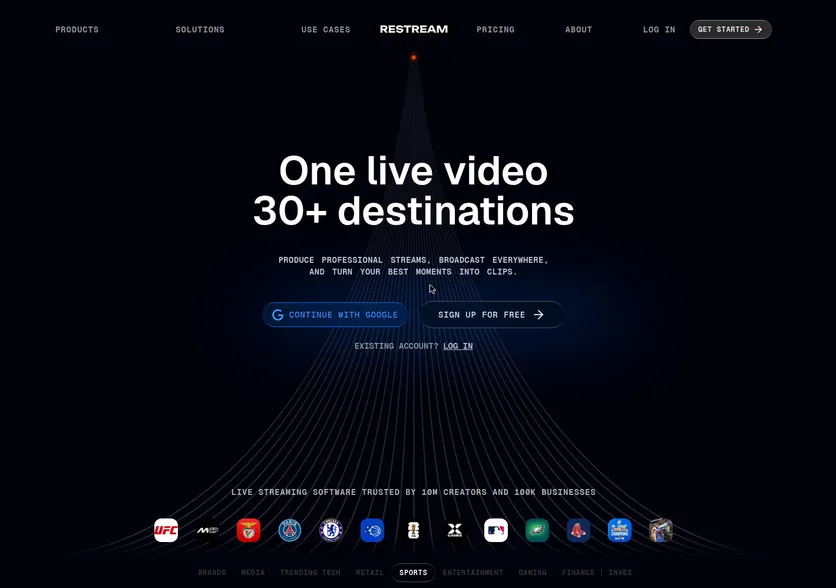
For a gamer, this Restream plan costs nineteen dollars a month, and it sends one stream to Twitch, YouTube and Facebook at once, from a single broadcast. A streamer can reach viewers on every platform, read every comment in one chat window, and add a title and call to action that stays on screen. It is the simplest way to be everywhere without running three streams.
What we like
- One stream goes to every platform at once
- All comments from every platform in one window
- Titles and calls to action built into the stream
Watch out for
- The Standard plan caps at three channels
- Full HD streaming needs the Professional plan
How to try it
- Connect your Twitch, YouTube and Facebook accounts
- Add a title and a subscribe link to your stream
- Go live and answer comments from one chat window
7. vMix
Best for: Gamers that want a full production switcher they buy once
Paid tool Starting price: $60 one-time · Sixty dollars once on the Basic HD plan; HD is $350, 4K is $700 and Pro is $1,200 once, and MAX is $50 per month as a subscription. The license includes 12 months of updates, and a further year costs $60
Free plan: 60-day free trial
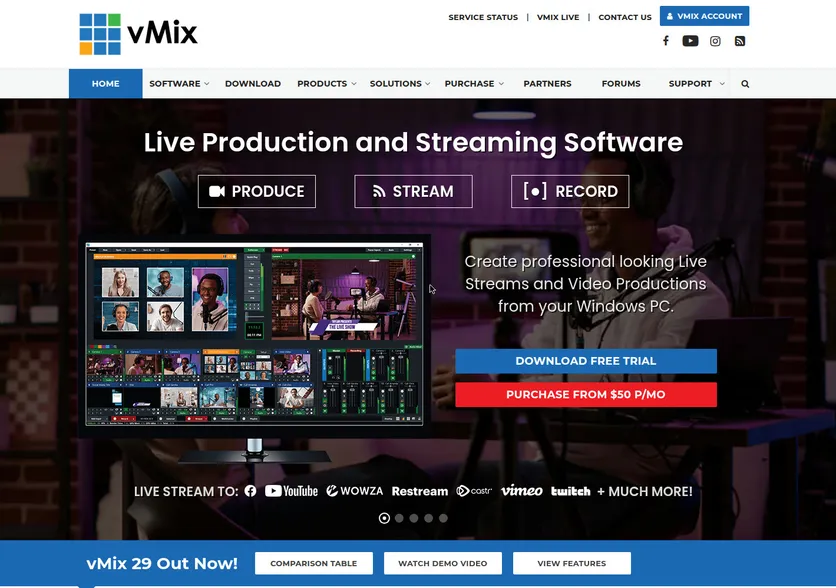
For a gamer, this vMix plan costs sixty dollars once, and it is the only tool in this list you buy instead of rent. A streamer gets a full live production switcher for Windows, with multiple cameras, instant replay and lower-third graphics, and the license includes twelve months of updates. It is the pick for a streamer who wants professional production without a monthly bill.
What we like
- One-time price with no monthly bill
- Multiple cameras, replay and graphics built in
- Full HD and 4K on the higher one-time tiers
Watch out for
- Windows only, no Mac version
- The learning curve is steep for a first-time streamer
How to try it
- Install vMix on a Windows computer and add your game capture
- Build a layout for the game, the webcam and the replay
- Set up lower thirds and go live on Twitch
8. Medal.tv
Best for: Gamers that want their best moments clipped automatically
Paid tool Starting price: $7.99/month · Seven dollars and ninety-nine cents per month on the Premium plan billed annually ($9.99 billed monthly). The free tier records at 1080p and 60 frames per second with a watermark and ads
Free plan: Free plan
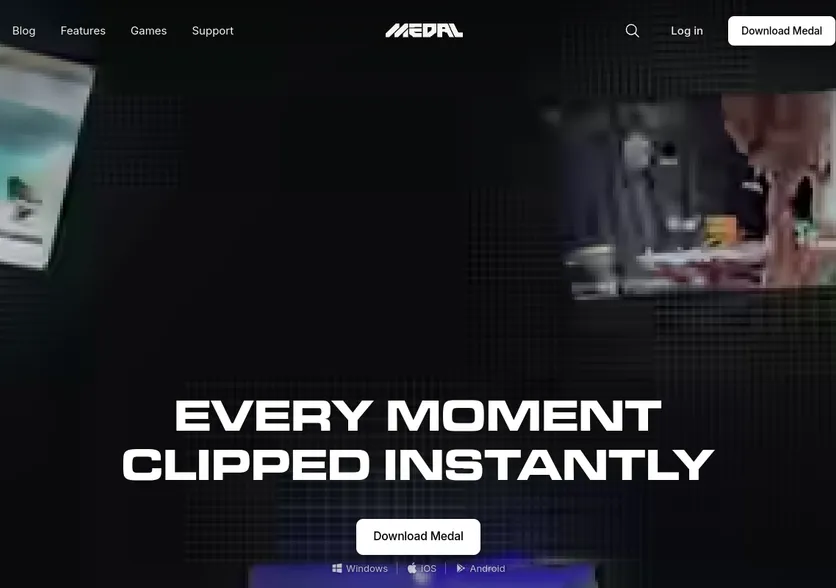
At seven dollars and ninety-nine cents a month billed annually, this Medal.tv plan records a gamer's best moments automatically and turns them into shareable clips. A streamer gets automatic clip detection, a library of highlights and a community feed, all for less than most streaming tools. It is the pick for a gamer who wants clips for social media without editing them by hand.
What we like
- Automatic clip detection for your best moments
- Shareable clips for TikTok and YouTube
- Community feed for discovering other gamers
Watch out for
- The free tier adds a watermark and shows ads
- Clips are capped at twenty minutes on the free tier
How to try it
- Install Medal.tv and connect your game
- Set the clip length and the hotkey
- Share your best clips to TikTok and YouTube
Prices above were checked on each vendor’s own website on Nov 28, 2026 and can change — the vendor’s page is the final word. Vendor links are editorial: nobody paid to be listed or ranked here. Vendors who want a featured listing can see how it works on our Get listed page.
How to set up a gaming stream that does not lag
Start with OBS Studio, because it is free and it shows you what your computer can handle before you pay for anything. Set the bitrate to match your upload speed, not the maximum, and test the stream with your actual game running, because a stream that lags ruins the show. Add overlays and alerts one at a time, and check the frame rate after each one, so you know which widget costs frames. If the game stutters, move the encoding to the cloud with Lightstream or lower the output to 720p, and save your best moments as clips for social media after every stream.
Before you buy
- Check the tool can stream to Twitch and YouTube at the same time without a second computer
- Confirm overlays and alerts stay on screen even when the game uses the full screen
- Make sure the stream delay is low enough for chat to react to what happens in the game
- Ask whether clips and highlights are saved automatically, or only when you press record
- Test the setup with your actual game running, because a stream that lags ruins the show
Official websites
Official websites of the products reviewed above. Features and prices were checked against these sites when this guide was written, and they can change, so confirm on the vendor site before you buy.
Frequently asked questions
What makes live streaming software good for gamers?
A gamer needs a tool that captures the game, shows the webcam, reads the chat and stays out of the way of the frames. The best tools in this list run the stream without slowing the game, keep overlays and alerts on screen, and save clips automatically for social media. A tool that drops frames or crashes mid-game costs more viewers than any missing feature.
How much does Streamlabs cost for a gamer?
OBS Studio costs zero dollars, because it is free open-source software with no paid plan. Streamlabs Ultra costs nineteen dollars a month, or twelve dollars and forty-two cents a month billed annually at one hundred and forty-nine dollars a year. Some listings show twenty-seven dollars a month or one hundred and eighty-nine dollars a year, which does not match the majority of recent reads.
Can a gamer start live streaming for free?
Yes, with OBS Studio, which is completely free and open source, and with Streamlabs, which has a free plan. XSplit has a free plan for personal use at 720p, and Lightstream has a free plan with a watermark. A free plan is enough to start streaming, but a gamer who streams every week will want a paid plan for better video quality and no watermark.
Which tool is cheapest for a gamer?
Lightstream is the cheapest paid plan at seven dollars a month billed annually, because it runs the stream in the cloud and keeps your computer free for the game. Medal.tv is the next cheapest at seven dollars and ninety-nine cents a month billed annually for automatic clips. OBS Studio is free, and it is the best pick when you want full control and will spend time learning the setup.
How do I know if my stream is growing?
Watch the average viewers, the chat activity and the number of clips that get shared after the stream. A stream that keeps viewers chatting and clips spreading on social media is working, even if the viewer count is small. If the stream lags or drops frames, lower the bitrate or move the encoding to the cloud before you buy a new tool.
Pick the tool that fits your game and your budget, then run a short test stream for friends first and fix the audio and the overlays before you go live for real viewers.
Browse Video Tools tools