On this page
A remote photography team needs the same look from every photographer and a library nobody has to chase. The eight tools below cover editing, organising and delivery for teams that never share an office. Adobe Photoshop leads because its cloud documents and batch tools let editors in different cities work the same files for twenty-two dollars and ninety-nine cents a month, and the rest are ranked on editing depth, team workflow and value.
How we researched this
We checked every price against the vendor pricing page or a current November 2026 read on November 28, 2026, and only included tools with a published US dollar list price. Affinity Photo and Adobe Bridge are now free, so they have no buyable price and are not in this list. Prices change, so confirm the current figure on the vendor site before you buy.
Compare the tools
| Name | Best for | Starting price | Free plan | |
|---|---|---|---|---|
 Adobe Photoshop | Teams that need full retouching and compositing power | $22.99/month | 7-day free trial | Visit |
 Adobe Lightroom | Remote teams that need one shared cloud catalogue | $9.99/month | Free mobile app; 7-day free trial | Visit |
 Capture One | Photographers who want the best raw colour and tethered capture | $18/month | Free trial | Visit |
 ON1 Photo RAW | Photographers who want a one-time purchase with AI tools | $99.99 one-time | Free trial | Visit |
| Luminar Neo | Teams that want fast AI edits without a subscription | $99 one-time | No free trial; 30-day money-back guarantee | Visit |
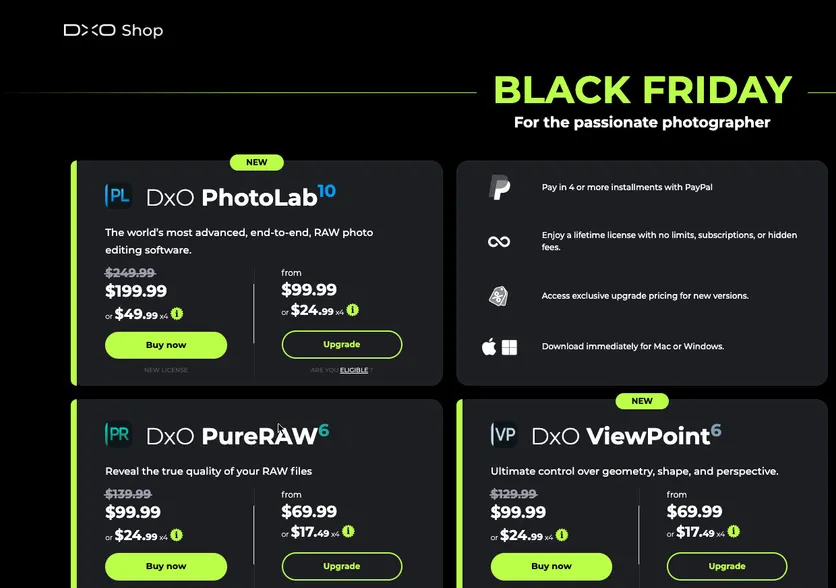
 DxO PhotoLab | Photographers who want the best lens corrections and noise reduction | $249.99 one-time | Free trial | Visit |
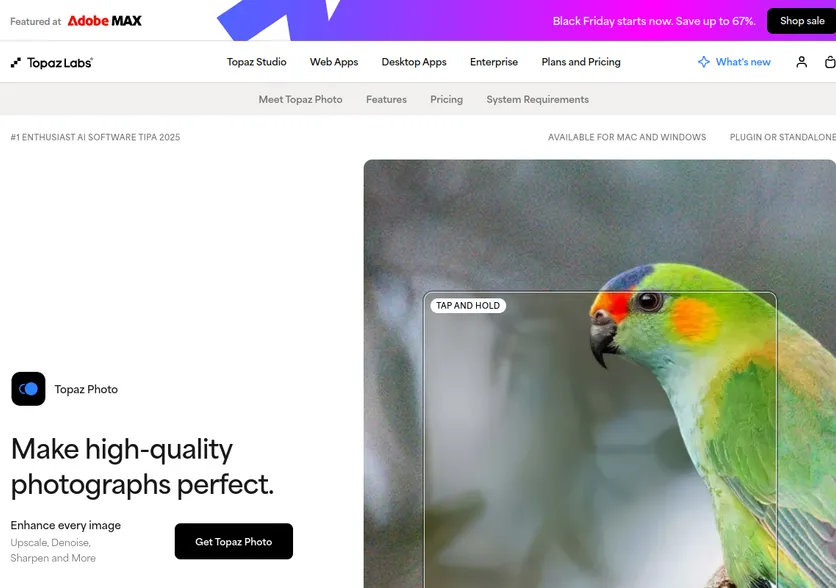
| Topaz Photo AI | Teams that need to rescue soft, noisy or low-resolution images | $199/year | No free trial; 30-day money-back guarantee | Visit |
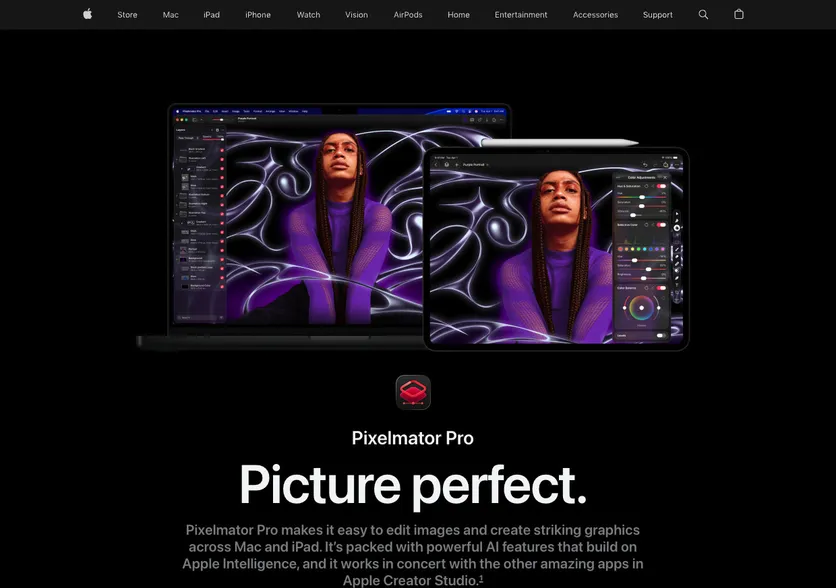
 Pixelmator Pro | Mac teams that want pro editing for a single payment | $49.99 one-time | No free trial | Visit |
The photography software for remote teams, compared
1. Adobe Photoshop
Best for: Teams that need full retouching and compositing power
Paid tool Starting price: $22.99/month · Twenty-two dollars and ninety-nine cents a month on the annual plan billed monthly; thirty-four dollars and forty-nine cents a month billed monthly; a seven-day free trial is included
Free plan: 7-day free trial
Remote teams that retouch together need the industry standard, and this Adobe Photoshop plan costs twenty-two dollars and ninety-nine cents a month billed annually with the deepest editing toolkit in this list. Cloud documents let two editors open the same file from different cities. Generative Fill speeds up the background and object fixes that eat a retoucher's day.
What we like
- Industry-standard retouching, masking and compositing
- Generative Fill speeds up background and object edits
- Huge library of brushes, actions and plug-ins
Watch out for
- Subscription-only, so the cost never ends
- Steep learning curve for new team members
How to try it
- Open the image and duplicate the background layer before editing
- Use Camera Raw and adjustment layers for non-destructive edits
- Export in the size and format the channel needs, then save the layered file
2. Adobe Lightroom
Best for: Remote teams that need one shared cloud catalogue
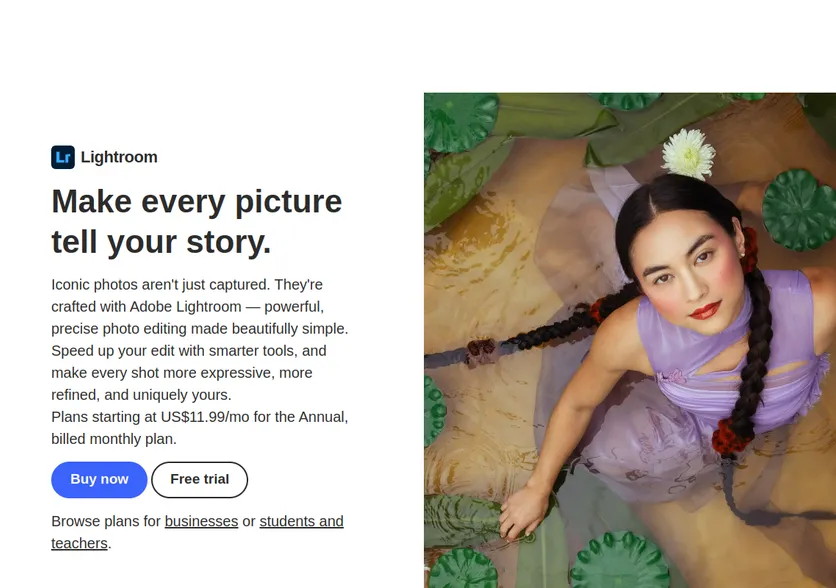
Paid tool Starting price: $9.99/month · Nine dollars and ninety-nine cents a month on the standalone Lightroom plan billed annually (one hundred and nineteen dollars and eighty-eight cents a year prepaid); eleven dollars and ninety-nine cents a month billed monthly; the Photography plan with Photoshop and one terabyte now lists at nineteen dollars and ninety-nine cents a month, so confirm the plan at checkout
Free plan: Free mobile app; 7-day free trial
A shared library is the heart of a remote photo team, and this Adobe Lightroom plan costs nine dollars and ninety-nine cents a month billed annually for a cloud catalogue every member can search. Presets keep the look consistent across photographers and time zones. Client albums and proofing links close the loop without a separate tool.
What we like
- Cloud catalogue keeps every shoot searchable from anywhere
- Presets and profiles sync across desktop, web and mobile
- Built-in sharing, albums and client proofing links
Watch out for
- Storage caps push larger teams to the dearer one-terabyte plan
- Keywording and metadata tools are weaker than desktop-only rivals
How to try it
- Create a shared catalogue and invite the team with the same Adobe plan
- Import each shoot into dated folders and apply shared presets on import
- Tag and rate selects, then share an album link for client approval
3. Capture One
Best for: Photographers who want the best raw colour and tethered capture
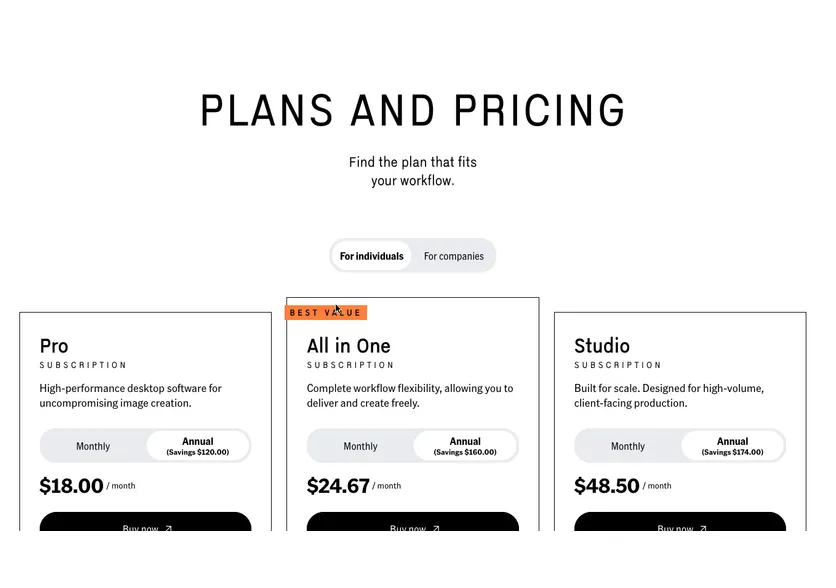
Paid tool Starting price: $18/month · Eighteen dollars a month for Pro billed annually (two hundred and sixteen dollars a year); twenty-eight dollars a month billed monthly; All in One is twenty-four dollars and sixty-seven cents a month and Studio is forty-eight dollars and fifty cents
Free plan: Free trial
Studio and product teams that shoot tethered will pick this Capture One plan, which costs eighteen dollars a month billed annually with live capture and colour the client can trust. Sessions keep each job self-contained and easy to hand over. Remote reviewers can rate selects in the same files the studio captured.
What we like
- Superb raw processing with true-to-life colour
- Fast tethered shooting for studio sessions
- Layers, styles and keystone tools built in
Watch out for
- No free plan, and the monthly rate is steep
- Smaller plug-in library than Photoshop
How to try it
- Import the shoot into a session or catalogue and pick a camera profile
- Apply a style and adjust exposure, colour and lens corrections
- Export full-resolution files or publish straight to a web gallery
4. ON1 Photo RAW
Best for: Photographers who want a one-time purchase with AI tools
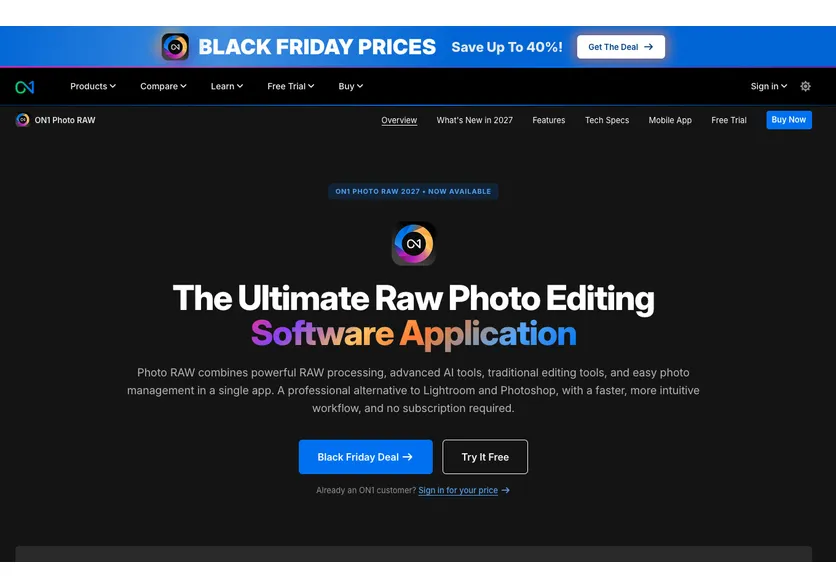
Paid tool Starting price: $99.99 one-time · Ninety-nine dollars and ninety-nine cents one time for a perpetual licence; the fifty-nine dollars and ninety-nine cents Black Friday price is a promotion, not the list price; upgrades are paid separately
Free plan: Free trial
A team that wants powerful editing without a monthly bill can choose this ON1 Photo RAW plan, which costs ninety-nine dollars and ninety-nine cents one time with AI masking and upscaling included. Folder browsing means no catalogue to sync between machines. Batch presets keep a whole shoot consistent in one pass.
What we like
- Perpetual licence with no subscription required
- AI masking, noise reduction and upscaling built in
- Browse, edit and resize without importing a catalogue
Watch out for
- Smaller community and fewer tutorials than the big two
- Some AI features need a current subscription tier
How to try it
- Browse straight to the shoot folder and cull with ratings and flags
- Apply AI masking and presets to the keepers in Develop
- Export with the resize and sharpening settings the output needs
5. Luminar Neo
Best for: Teams that want fast AI edits without a subscription
Paid tool Starting price: $99 one-time · Ninety-nine dollars one time for the Desktop Only licence; All Platforms is one hundred and thirty-nine dollars and Max is one hundred and fifty-nine dollars; the vendor page also shows a four hundred and seventeen dollars anchor price, which is a crossed-out list figure rather than the selling price
Free plan: No free trial; 30-day money-back guarantee
Fast AI edits suit a remote team on a deadline, and this Luminar Neo plan costs ninety-nine dollars one time with one-click tools for skies, portraits and relighting. It runs standalone or as a plug-in inside the editor the team already uses. The one-time price makes it easy to put on every machine.

What we like
- One-click AI tools for skies, portraits and relighting
- Works as a standalone app or a plug-in
- One-time purchase with no monthly bill
Watch out for
- No free trial, only a money-back guarantee
- Catalogue and team features are thin
How to try it
- Import the shoot and let Luminar catalogue the folders
- Apply an AI preset to the keepers and fine-tune the sky or portrait tools
- Export the finals at the resolution the client asked for
6. DxO PhotoLab
Best for: Photographers who want the best lens corrections and noise reduction
Paid tool Starting price: $249.99 one-time · Two hundred and forty-nine dollars and ninety-nine cents one time for the Elite edition list price; the one hundred and ninety-nine dollars and ninety-nine cents figure is a current special, not the list price; the Essential edition is cheaper with fewer tools
Free plan: Free trial
Image quality is the selling point for a remote photo team, and this DxO PhotoLab plan costs two hundred and forty-nine dollars and ninety-nine cents one time for the Elite edition with the best lens corrections and noise reduction here. DeepPRIME rescues high-ISO frames that other editors would discard. The result is cleaner files for every client, whatever the camera.
What we like
- Best-in-class lens corrections from lab-measured profiles
- DeepPRIME noise reduction rescues high-ISO shots
- U Point local adjustments are fast and precise
Watch out for
- No catalogue or cloud sync for teams
- Perpetual pricing means paid upgrades for new versions
How to try it
- Open the folder and let PhotoLab apply the camera and lens profile
- Run DeepPRIME on the high-ISO keepers and adjust local contrast
- Export full-resolution files to the shared catalogue or client gallery
7. Topaz Photo AI
Best for: Teams that need to rescue soft, noisy or low-resolution images
Paid tool Starting price: $199/year · One hundred and ninety-nine dollars a year list price, renewing at the same rate; the first year is one hundred and sixty-nine dollars, which is an introductory figure, not the list price; twenty-one dollars a month on an annual commitment for the first year and thirty-nine dollars a month billed monthly
Free plan: No free trial; 30-day money-back guarantee
Soft or noisy frames happen on every shoot, and this Topaz Photo AI plan costs one hundred and ninety-nine dollars a year to sharpen, denoise and upscale them in one pass. Autopilot picks sensible settings per image, so the team spends less time tuning. Batch processing handles a whole event overnight.
What we like
- Sharpen, denoise and upscale in one pass
- Autopilot picks sensible settings per image
- Batch processing handles whole shoots at once
Watch out for
- No free trial, only a money-back guarantee
- Yearly renewal is dear for a single-purpose tool
How to try it
- Drop the folder of images into Photo AI and let Autopilot analyse them
- Check the sharpen and denoise strength on a few samples before batching
- Export the enhanced files and file them beside the originals
8. Pixelmator Pro
Best for: Mac teams that want pro editing for a single payment
Paid tool Starting price: $49.99 one-time · Forty-nine dollars and ninety-nine cents one time on the Mac App Store; also included in Apple Creator Studio at twelve dollars and ninety-nine cents a month or one hundred and twenty-nine dollars a year
Free plan: No free trial
Mac-based teams get a full pro editor here, since this Pixelmator Pro plan costs forty-nine dollars and ninety-nine cents one time with machine-learning tools for upscaling and background removal. It is fast on Apple silicon and feels native on every Mac. The one-time price covers the whole team without a subscription to track.
What we like
- Full pro editor for a single one-time payment
- Machine-learning tools for upscaling and background removal
- Native Mac speed with Apple silicon support
Watch out for
- Mac only, so mixed-platform teams cannot share it
- No free trial before buying
How to try it
- Open the image and use the ML tools to clean up the shot
- Work in layers with masks and adjustment layers
- Export in the format and size the project needs
Prices above were checked on each vendor’s own website on Nov 28, 2026 and can change — the vendor’s page is the final word. Vendor links are editorial: nobody paid to be listed or ranked here. Vendors who want a featured listing can see how it works on our Get listed page.
How to keep a remote photography team in sync
Agree on one shared library and one naming convention before the next shoot, because a team that files differently will lose work no matter how good the editor is. Keep the raw masters separate from the exports so nobody overwrites the original. Use shared presets for the look, so a client cannot tell which photographer shot which image. Set clear roles for who edits, who approves and who delivers, and write them down. Run a small job through the whole pipeline first, from shoot to delivery, and fix the friction before the busy season.
Before you buy
- Confirm every team member can reach the same library from any device and location
- Check whether the plan covers enough cloud storage for the raw files you shoot
- Ask if the tool keeps the layered originals safe while the team works on copies
- Make sure the export presets cover every format and size your clients need
- Test the handover from photographer to editor to client on a real job first
Official websites
Official websites of the products reviewed above. Features and prices were checked against these sites when this guide was written, and they can change, so confirm on the vendor site before you buy.
Frequently asked questions
What is the best photography software for remote teams?
Adobe Photoshop is the best overall pick for remote photography teams, because its cloud documents and batch tools let editors in different cities work the same files for twenty-two dollars and ninety-nine cents a month. Lightroom is the best choice for shared libraries at nine dollars and ninety-nine cents a month. Pixelmator Pro is the best one-time purchase for Mac teams at forty-nine dollars and ninety-nine cents. Pick by whether the team needs deep editing or shared libraries most.
How much does photography software cost for a remote team?
Most tools in this list cost between forty-nine dollars and ninety-nine cents one time and eighteen dollars a month. Pixelmator Pro at forty-nine dollars and ninety-nine cents once and ON1 Photo RAW at ninety-nine dollars and ninety-nine cents once are the cheapest long-term buys. Subscriptions such as Photoshop at twenty-two dollars and ninety-nine cents a month and Lightroom at nine dollars and ninety-nine cents a month suit teams that also need cloud sync.
Can remote photography teams work for free?
Partly. GIMP and other free editors cover basic editing, but none of the eight tools in this list has a free tier for team work. Lightroom and Photoshop both offer seven-day free trials, and Luminar offers a thirty-day money-back guarantee instead of a trial. A working team will save more time with a paid tool that syncs libraries and presets than with a free editor that does not.
What is the difference between Photoshop and Lightroom for teams?
Photoshop is the deep editor for retouching, compositing and layered work, while Lightroom is the organiser for cataloguing, batch edits and client delivery. Most remote teams need both, which is why Adobe sells them together in the Photography plan. Photoshop costs twenty-two dollars and ninety-nine cents a month and Lightroom costs nine dollars and ninety-nine cents a month as a standalone plan. Start with Lightroom for the library and add Photoshop for the retouching.
Which tool is best for cleaning up noisy or soft photos?
Topaz Photo AI is the best tool for rescue work, because it sharpens, denoises and upscales in one pass for one hundred and ninety-nine dollars a year. DxO PhotoLab is the best alternative, with DeepPRIME noise reduction and lab-measured lens profiles for two hundred and forty-nine dollars and ninety-nine cents one time. Both work as a step before the main edit, so the team can rescue a frame and then retouch it normally.
Compare the eight tools above, then start with a free trial on the tool that matches how the team already edits and shares photos before paying for a full year.
Browse Image Tools tools