On this page
Screenshots turn a timesheet from a claim into evidence, but they also turn a tracker into something the team can resent, so the plan that unlocks them matters as much as the price. The seven tools below all capture screenshots, yet they split on when the feature arrives: some include it on the cheapest plan, others lock it behind a dearer tier. Hubstaff leads because it costs four dollars and ninety-nine cents a user a month billed annually and includes screenshots from Starter, while the rest range from budget monitoring to full workforce analytics.
How we researched this
We checked every price on the vendor pricing page on November 29, 2026, and only included tools with a published US dollar list price and a real screenshot feature. Tools without screenshots, including Toggl Track, Everhour, Harvest and RescueTime, were left out even though they track time well. Prices change, so confirm the current figure on the vendor site before you buy.
Compare the tools
| Name | Best for | Starting price | Free plan | |
|---|---|---|---|---|
 Hubstaff | Remote teams that need screenshots and activity levels | $4.99/user/month | No free plan; 14-day free trial | Visit |
 Time Doctor | Remote teams that want proof of work with screenshots | $6.67/user/month | No free plan; 14-day free trial | Visit |
 DeskTime | Hybrid teams that want automatic tracking and productivity scores | $6.42/user/month | Free plan (Lite, 1 user) | Visit |
 Monitask | Small teams that want budget monitoring with screenshots | $4.99/user/month | Free plan (limited) | Visit |
 Insightful | Mid-size teams that want monitoring plus time tracking | $8/user/month | No free plan; 7-day free trial | Visit |
 Clockify | Teams that want the cheapest paid plan that still bills clients | $3.99/user/month | Free plan (up to 5 users) | Visit |
 TimeCamp | Small teams that want automatic tracking for free | $3.99/user/month | Free plan (unlimited users) | Visit |
The time tracking software with screenshots for remote teams, compared
1. Hubstaff
Best for: Remote teams that need screenshots and activity levels
Paid tool Starting price: $4.99/user/month · Four dollars and ninety-nine cents per user a month billed annually on Starter ($7 billed monthly); Grow is $7.50 billed annually, Team is $10 and Enterprise is $25; Starter, Grow and Team carry a two-seat minimum
Free plan: No free plan; 14-day free trial
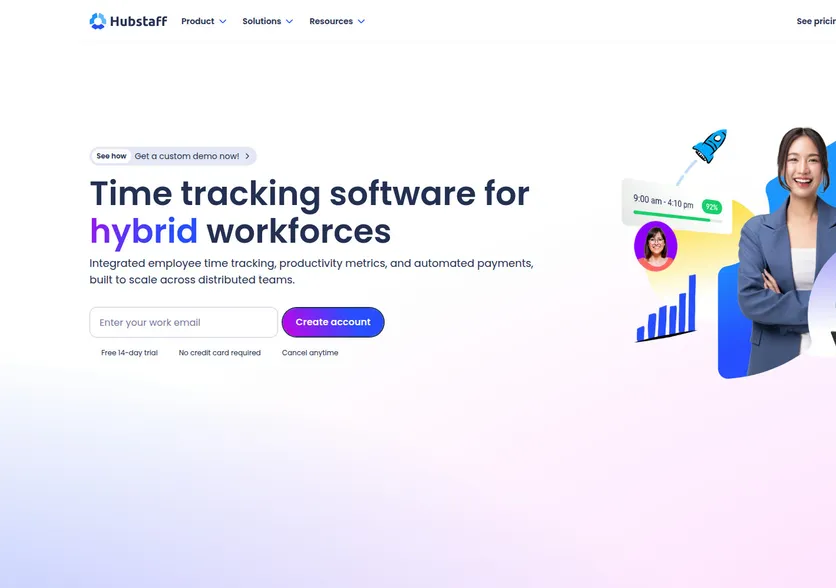
For a remote team that needs visual proof of work, Hubstaff costs four dollars and ninety-nine cents a user a month billed annually and captures screenshots through the working day. It pairs a simple timer with screenshots, app tracking and activity levels, so a manager can see what the hours actually contained. The same data feeds payroll and client invoices, which is why distributed teams keep it after the trial ends.
What we like
- Screenshots and activity levels show real work, not just hours
- Automated payroll turns approved time into payments
- GPS tracking and geofencing for field and hybrid crews
Watch out for
- Every person counts as a paid seat, including managers who never track time
- Add-ons for insights and locations cost extra per seat
How to try it
- Install the desktop app on each team member's computer
- Set screenshot frequency and activity tracking in the organization settings
- Review timesheets weekly and approve them for payroll
2. Time Doctor
Best for: Remote teams that want proof of work with screenshots
Paid tool Starting price: $6.67/user/month · Six dollars and sixty-seven cents per user a month billed annually on Basic ($8 billed monthly); Standard is $11.67 billed annually and Premium is $16.70; older listings showing five dollars and ninety cents for Basic are stale
Free plan: No free plan; 14-day free trial
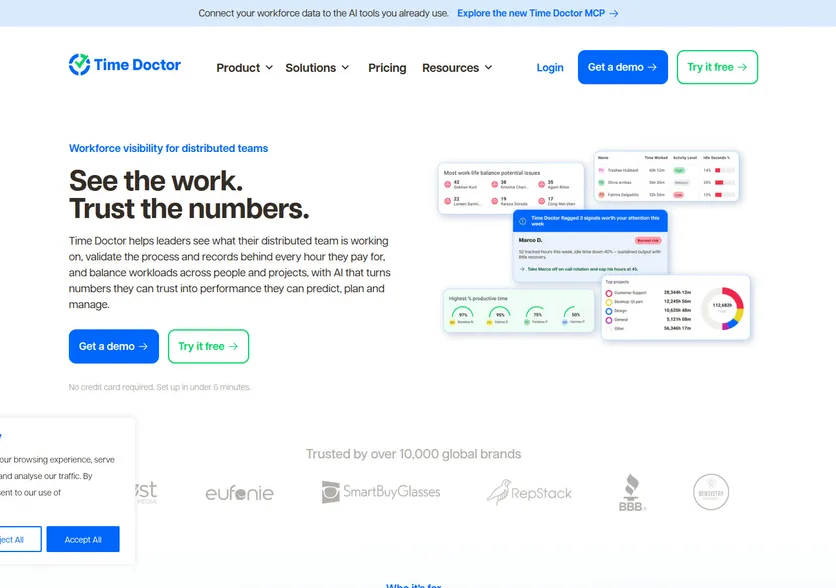
A manager who wants to see the work behind the hours gets it here, since Time Doctor costs six dollars and sixty-seven cents a user a month billed annually and records the screen at set intervals. It records screenshots, app use and a minute-by-minute timeline, then turns that record into payroll-ready timesheets. The Basic plan already includes the monitoring most managers ask for, while payroll and integrations wait for Standard.
What we like
- Screenshots and app tracking from the cheapest plan
- Payroll and timesheet approvals on Standard
- Distraction alerts nudge staff back to work
Watch out for
- No free plan, only a fourteen-day trial
- Video screen recording and single sign-on need Premium
How to try it
- Create the team and install the desktop tracker on each computer
- Turn on screenshots and set the privacy rules for the team
- Check the daily timeline and approve timesheets for payroll
3. DeskTime
Best for: Hybrid teams that want automatic tracking and productivity scores
Paid tool Starting price: $6.42/user/month · Six dollars and forty-two cents per user a month billed annually on Pro ($7 billed monthly); Premium is $9.17 billed annually and adds screenshots and scheduling; prices exclude VAT
Free plan: Free plan (Lite, 1 user)
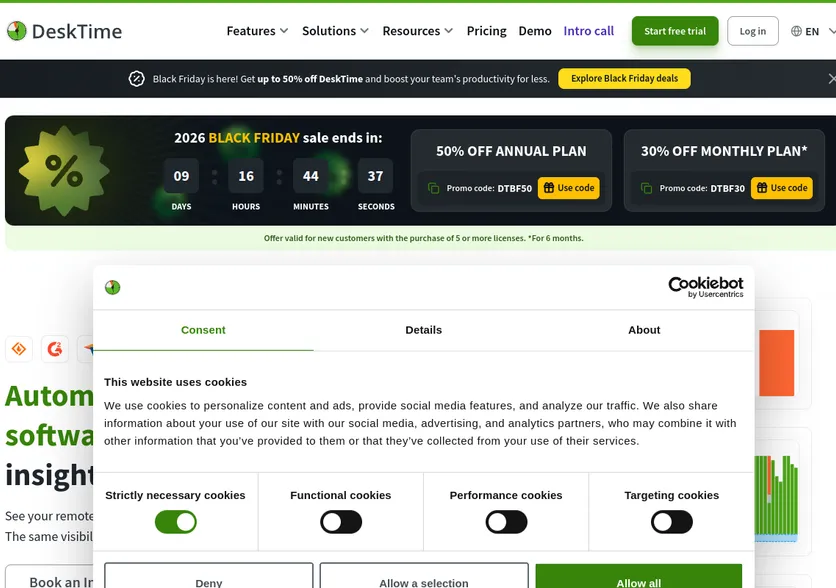
Remote teams that need screenshots without spyware will like this one, because DeskTime costs six dollars and forty-two cents a user a month billed annually and keeps the capture transparent. It starts recording the moment a computer turns on, then scores every app as productive or not and turns the day into a simple report. Managers get an honest picture of the working day without asking anyone to start a timer.
What we like
- Automatic tracking starts when the computer turns on
- Productivity scores rank apps without manual input
- Shift scheduling and absence calendar on Premium
Watch out for
- Screenshots need the Premium plan, not Pro
- Prices exclude VAT, so the real bill is higher in Europe
How to try it
- Install DeskTime on each computer and set productive and unproductive apps
- Let it record work automatically through the day
- Check the productivity report and adjust schedules on Premium
4. Monitask
Best for: Small teams that want budget monitoring with screenshots
Paid tool Starting price: $4.99/user/month · Four dollars and ninety-nine cents per user a month billed annually on Pro ($5.99 billed monthly); Business is $6.99 billed annually and Enterprise is listed at $19.99 a user a month in some directories, with other listings showing it as custom-priced
Free plan: Free plan (limited)
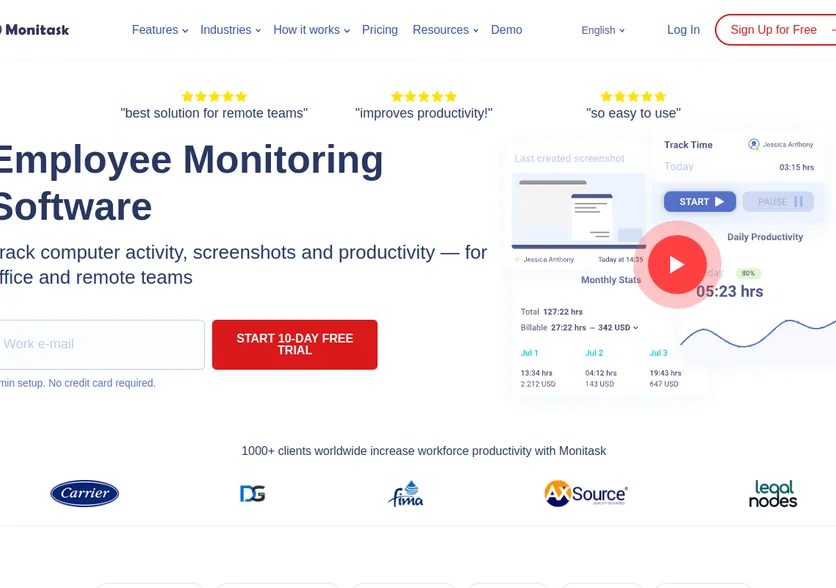
For a remote team that needs visual proof of work, Monitask costs four dollars and ninety-nine cents a user a month billed annually and captures screenshots through the working day. It covers the monitoring basics, screenshots, app tracking and timesheets, for less than most rivals charge for a timer alone. Small teams get real visibility into the working day without paying enterprise prices.
What we like
- Screenshots and activity tracking at a budget price
- Internet monitoring shows where work time goes
- Simple reports that managers read in minutes
Watch out for
- Screenshot storage is short on the Pro plan
- Advanced reporting and scheduling need Business
How to try it
- Install Monitask on team computers and set the screenshot interval
- Create projects and assign the team to them
- Review the daily activity report and approve the timesheets
5. Insightful
Best for: Mid-size teams that want monitoring plus time tracking
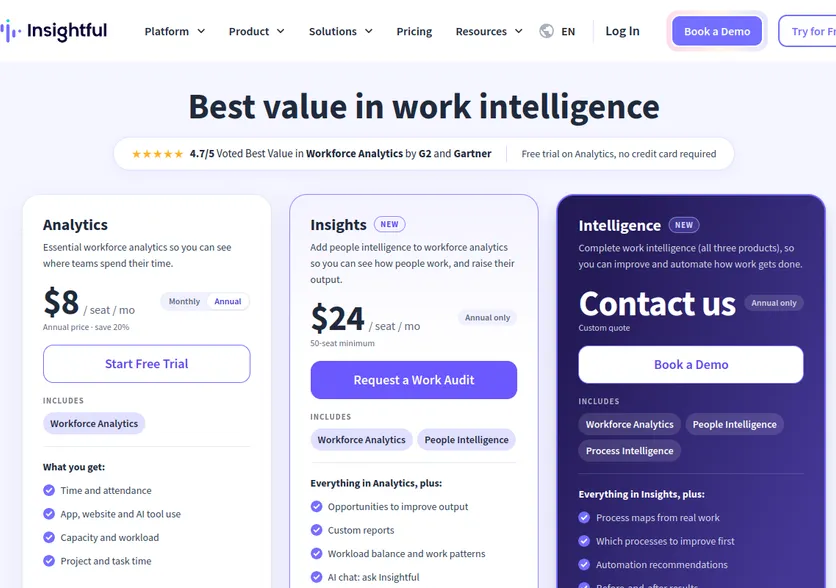
Paid tool Starting price: $8/user/month · Eight dollars per user a month billed annually on Workforce Analytics; Workflow Optimization is $12 billed annually and the Combo plan is $16; some older listings show an Employee Monitoring tier at six dollars and forty cents billed annually, which no longer appears on the vendor pricing page
Free plan: No free plan; 7-day free trial
A manager who wants to see the work behind the hours gets it here, since Insightful costs eight dollars a user a month billed annually and records the screen at set intervals. Formerly Workpuls, it combines employee monitoring with project time tracking, so the same install covers both oversight and billing. Its analytics turn raw activity into trends a manager can act on, rather than a feed of individual actions.
What we like
- Screenshots up to thirty times an hour with no keystroke logging
- Project time tracking with budgets and invoicing
- Fifty-plus integrations plus a REST API
Watch out for
- No free plan, and the trial lasts only seven days
- Workflow Optimization is a separate tier, not included
How to try it
- Install the Insightful agent on team computers
- Set productivity rules for apps and websites
- Review workforce analytics and export the time reports
6. Clockify
Best for: Teams that want the cheapest paid plan that still bills clients
Paid tool Starting price: $3.99/user/month · Three dollars and ninety-nine cents per user a month billed annually on Basic ($4.99 billed monthly); Standard is $5.49 billed annually and Pro is $7.99; Enterprise is $11.99; the free plan covers up to five users
Free plan: Free plan (up to 5 users)
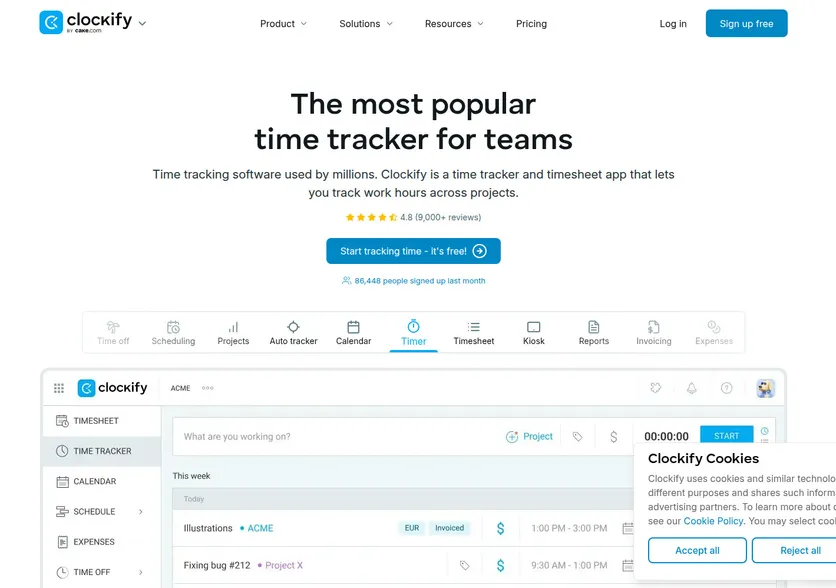
Remote teams that need screenshots without spyware will like this one, because Clockify costs three dollars and ninety-nine cents a user a month billed annually and keeps the capture transparent. It covers timers, timesheets, a calendar view and reports on the free plan, which is more than most rivals give away. Paid tiers add the pieces a growing team actually needs, like approvals, invoicing and activity tracking, without a jump in price.
What we like
- Free plan covers unlimited projects and time tracking
- Kiosk mode turns any tablet into a clock-in station
- Timesheet approvals and invoicing from Standard
Watch out for
- Screenshots and GPS tracking need the Pro plan
- The free plan lost billable rates and exports in April 2026
How to try it
- Create a workspace and invite the team with their hourly rates
- Start the timer or fill the timesheet at the end of each day
- Approve the weekly timesheet and export it for payroll or invoicing
7. TimeCamp
Best for: Small teams that want automatic tracking for free
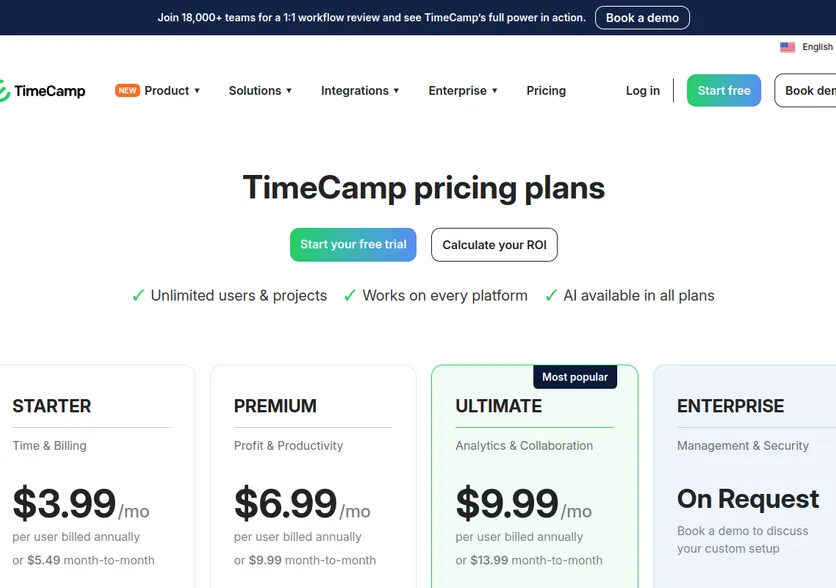
Paid tool Starting price: $3.99/user/month · Three dollars and ninety-nine cents per user a month billed annually on Starter ($5.49 billed monthly); Premium is $6.99 billed annually and Ultimate is $9.99; one November 2026 read lists lower Starter, Premium and Ultimate figures, which conflict with the vendor page reads, so confirm at checkout
Free plan: Free plan (unlimited users)
For a remote team that needs visual proof of work, TimeCamp costs three dollars and ninety-nine cents a user a month billed annually and captures screenshots through the working day. Its free plan has no user cap, which is rare, and its automatic tracker fills in the day from the apps and sites the team actually used. Invoicing arrives on the cheapest paid plan, so a small team can bill clients without a big subscription.
What we like
- Free plan covers unlimited users and projects
- Automatic tracking captures apps and sites with no timer
- Invoicing starts on the cheapest paid plan
Watch out for
- Timesheet approvals wait for the Ultimate plan
- Premium allows only one synchronised tool integration
How to try it
- Create the workspace and invite the team
- Let the automatic tracker record apps and websites
- Turn the captured time into invoices from the Starter plan
Prices above were checked on each vendor’s own website on Nov 29, 2026 and can change — the vendor’s page is the final word. Vendor links are editorial: nobody paid to be listed or ranked here. Vendors who want a featured listing can see how it works on our Get listed page.
How to use screenshots without turning the team against you
Tell the team what screenshots are for before the first one is taken, and put it in writing: they exist to prove hours for clients and payroll, not to catch people. Set the capture interval low and turn on blur for sensitive screens, since a screenshot every ten minutes with blurred passwords earns far more trust than a sharp one every minute. Let everyone see their own screenshots, and review them only when the hours look wrong, not as a daily habit. If the team still objects, drop the frequency or switch to a tool without screenshots, because a resentful team finds ways around any tracker.
Before you buy
- Confirm which plan includes screenshots, since some tools lock them behind a dearer tier
- Check whether screenshot frequency and blur can be adjusted to fit company policy
- Make sure employees can see their own screenshots, since transparency keeps monitoring honest
- Ask how long screenshots are stored, because short storage limits on cheap plans can hide disputes
- Run a two-week trial with a small group and ask them what felt fair before buying for everyone
Official websites
Official websites of the products reviewed above. Features and prices were checked against these sites when this guide was written, and they can change, so confirm on the vendor site before you buy.
Frequently asked questions
What is the best time tracking software with screenshots for remote teams?
Hubstaff is the best overall pick, at four dollars and ninety-nine cents a user a month billed annually on Starter, with screenshots, activity levels and payroll included. Time Doctor is the best choice when screenshots matter most, from six dollars and sixty-seven cents a user a month on Basic. DeskTime suits teams that want automatic tracking, with screenshots on Premium at nine dollars and seventeen cents a user a month billed annually.
Which plan do I need for screenshots on each tool?
Hubstaff includes screenshots on Starter, Time Doctor includes them on Basic, Monitask includes them on Pro and Insightful includes them on Workforce Analytics. DeskTime locks screenshots behind Premium, Clockify locks them behind Pro at seven dollars and ninety-nine cents a user a month billed annually, and TimeCamp locks them behind Ultimate at nine dollars and ninety-nine cents. Always check the tier, because the headline price often buys a plan without screenshots.
Can employees see their own screenshots?
Yes, on the better tools. Hubstaff, Time Doctor and DeskTime all let employees view their own screenshots and timelines, and that transparency is the single best defence against resentment. Monitask and Insightful also show workers their own activity. If a vendor hides the captures from the person in them, treat that as a warning sign and choose a more open tool instead.
How often are screenshots taken?
Most tools capture a screenshot every ten minutes by default, and the interval can usually be changed in settings. Hubstaff allows up to five hundred screenshots per seat a month on Starter and fifteen hundred on Grow, while Insightful captures up to thirty screenshots an hour. DeskTime captures at random intervals between five and thirty minutes on Premium, so the exact timing cannot be predicted or gamed.
Are screenshot time trackers legal for remote teams?
In most US states it is legal to capture screenshots on company devices, but some states require employee notice or consent, and the rules are stricter for personal devices. Always tell the team in writing what is captured, how often, who can see it and how long it is stored. The tools in this list let you adjust frequency and blur, which helps, but they do not replace legal advice for the states where the team works.
Compare the seven tools above, then trial the one that puts screenshots on the cheapest plan the team will accept before paying for a full year.
Browse Productivity Tools tools