On this page
Social feeds punish big files, so a manager who posts client video every day needs compression that keeps quality and kills the upload wait. The eight tools below shrink footage for every platform, from desktop converters that chew through batches to browser editors that caption and resize in one pass. VideoProc Converter AI leads because it compresses fast with GPU acceleration for twenty-nine dollars and ninety-five cents a year, and the rest are ranked on speed, quality and how little setup each one needs.
How we researched this
We checked every price on the vendor pricing page on November 29, 2026, and only included tools with a published US dollar list price. Freemake Video Converter publishes no verifiable price, so it is not in this list, and the tools that need a quote were left out too. Prices change, so confirm the current figure on the vendor site before you buy.
Compare the tools
| Name | Best for | Starting price | Free plan | |
|---|---|---|---|---|
 VideoProc Converter AI | Social managers who compress client footage daily | $29.95/year | Free trial available | Visit |
 Wondershare UniConverter | Teams that convert, compress and edit in one place | $49.99/year | Free plan (watermarked exports) | Visit |
 Movavi Video Converter | Beginners who want a converter with no learning curve | $54.95/year | 7-day free trial | Visit |
 Any Video Converter Ultimate | Creators who convert almost any format for free first | $59.95/year | Free plan | Visit |
 HitPaw Video Converter | Editors who want AI enhancement with compression | $39.95/year | Free plan (watermarked exports) | Visit |
 Kapwing | Social teams captioning and resizing together | $16/member/month | Free plan | Visit |
 VEED | Marketers making captioned social clips fast | $12.25/month | Free plan | Visit |
 Clipchamp | Windows teams editing in the browser for free | $11.99/month | Free plan (1080p exports) | Visit |
The video compression software for social media managers, compared
1. VideoProc Converter AI
Best for: Social managers who compress client footage daily
Paid tool Starting price: $29.95/year · Twenty-nine dollars and ninety-five cents a year for the one-year plan covering three computers; a lifetime licence for one computer is thirty-nine dollars and ninety-five cents once
Free plan: Free trial available
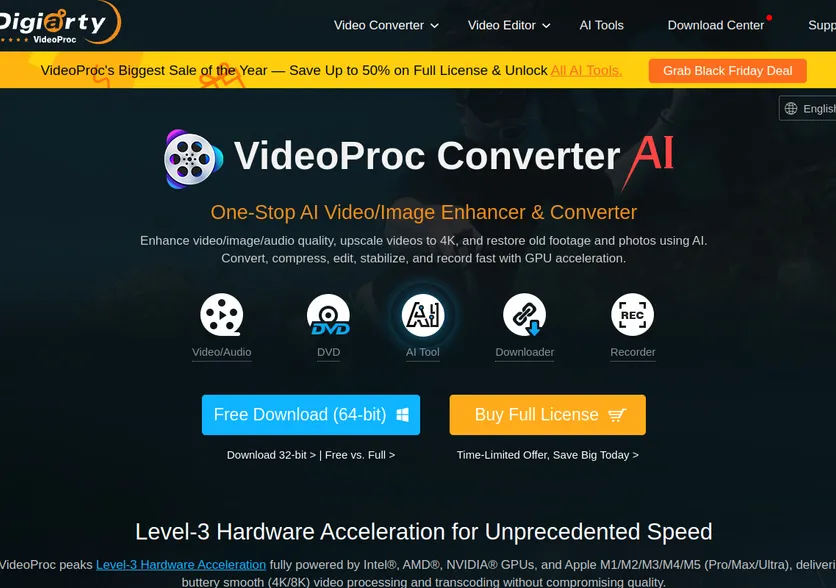
For a social media manager who shrinks client footage every day, this VideoProc Converter AI plan costs twenty-nine dollars and ninety-five cents a year, and it compresses large files without visible quality loss. GPU acceleration keeps whole batches moving while AI upscaling rescues shaky phone clips. It also records screens and trims footage, so one desktop app covers most of the weekly posting workflow.
What we like
- GPU acceleration keeps big batches moving fast
- AI upscaling and stabilisation rescue shaky phone clips
- Converts, compresses, records and edits in one app
Watch out for
- The interface packs in a lot and takes a day to learn
- Lifetime licence covers one computer only
How to try it
- Import the clips and pick the target size or format
- Set the quality slider to balance size against sharpness
- Export the batch and check one file before uploading
2. Wondershare UniConverter
Best for: Teams that convert, compress and edit in one place
Paid tool Starting price: $49.99/year · Forty-nine dollars and ninety-nine cents a year on the annual plan; a Basic tier is listed at thirty-nine dollars and ninety-nine cents a year on some store pages, and the perpetual licence is seventy-nine dollars and ninety-nine cents once
Free plan: Free plan (watermarked exports)
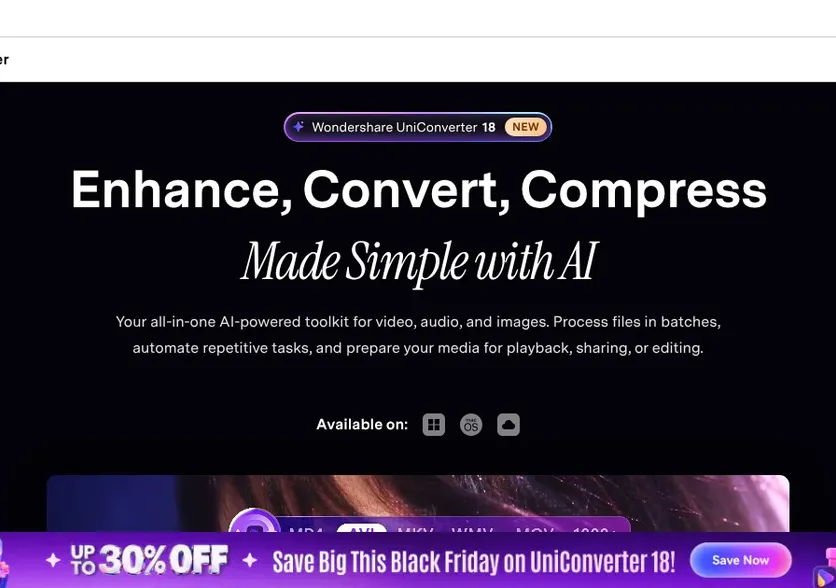
When the job mixes converting, compressing and light editing, this Wondershare UniConverter plan costs forty-nine dollars and ninety-nine cents a year, and it handles more than a thousand formats in one window. Batch queues chew through a whole shoot while the built-in editor trims clips and adds watermarks before export. It also downloads online video and burns discs, which covers the odd offline request without a second app.
What we like
- Converts over a thousand formats with batch queues
- Built-in editor trims and watermarks before export
- Downloads and burns discs from the same window
Watch out for
- The full feature set can feel heavy for simple jobs
- Some export presets hide behind the higher tier
How to try it
- Add the videos to the converter queue
- Choose the social platform preset that matches the post
- Compress the batch and preview the output size
3. Movavi Video Converter
Best for: Beginners who want a converter with no learning curve
Paid tool Starting price: $54.95/year · Fifty-four dollars and ninety-five cents a year for the one-year licence; a one-month licence is nineteen dollars and ninety-five cents and the lifetime licence is sixty-nine dollars and ninety-five cents; an older forty-nine dollars and ninety-five cents offer ended on November 22, 2026
Free plan: 7-day free trial
A manager who hands conversion to a junior staffer needs a tool nobody has to learn, and this Movavi Video Converter plan costs fifty-four dollars and ninety-five cents a year for that job. Device presets remove every format question, so the team picks the platform and the file comes out right. Batch conversion covers whole folders at once, and the light interface runs fine on the office laptop nobody wants to replace.
What we like
- Device presets remove all guesswork about formats
- Batch conversion handles whole folders at once
- Light interface that runs well on older machines
Watch out for
- No timeline editing beyond basic trimming
- The free trial watermarks exported videos
How to try it
- Drop the files into the converter window
- Pick the device or platform preset for the post
- Start the conversion and check the finished file
4. Any Video Converter Ultimate
Best for: Creators who convert almost any format for free first
Paid tool Starting price: $59.95/year · Fifty-nine dollars and ninety-five cents a year for the Ultimate edition; a monthly option is twenty-nine dollars and ninety-five cents and the perpetual licence is sixty-nine dollars and ninety-five cents once
Free plan: Free plan
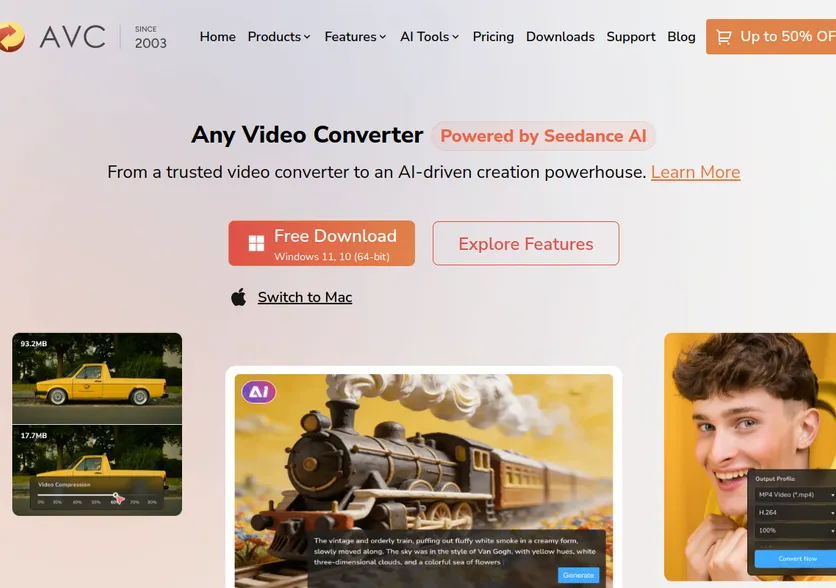
For a team that converts the odd file for free and pays only when the job grows, this Any Video Converter Ultimate plan costs fifty-nine dollars and ninety-five cents a year, and the free edition already covers the common formats. The paid tier adds DVD burning and screen recording, so one licence stretches from quick conversions to full client deliverables. Batch processing handles whole folders, which matters when a shoot returns hundreds of clips.
What we like
- Free edition converts the common formats at no cost
- Ultimate adds DVD burning and screen recording
- Batch processing covers whole folders in one run
Watch out for
- The free edition lacks the newest codecs
- Interface looks dated next to newer converters
How to try it
- Open the converter and add the source files
- Select the output format from the profile list
- Convert the files and check the finished quality
5. HitPaw Video Converter
Best for: Editors who want AI enhancement with compression
Paid tool Starting price: $39.95/year · Thirty-nine dollars and ninety-five cents a year against a seventy-nine dollars and ninety cents list price; a monthly plan is nineteen dollars and ninety-five cents and the perpetual licence is seventy-nine dollars and ninety-five cents once; the product is now sold as HitPaw Univd
Free plan: Free plan (watermarked exports)
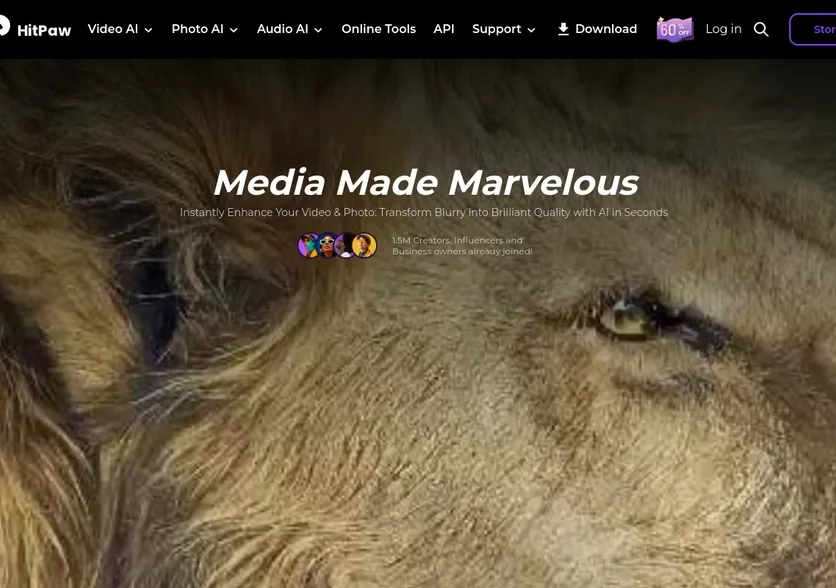
Soft phone footage looks rough after compression, so this HitPaw Video Converter plan costs thirty-nine dollars and ninety-five cents a year, and it sharpens clips while it shrinks them. AI upscaling, denoising and stabilisation run in the same pass as the conversion, which saves a second round of editing. It also converts audio and images, so one app handles the mixed assets that arrive with every social campaign.
What we like
- AI tools upscale, denoise and sharpen in one pass
- Converts video, audio and images together
- Simple drag-and-drop layout for quick jobs
Watch out for
- The free plan watermarks every export
- AI processing is slower on older computers
How to try it
- Drag the clips into the converter panel
- Turn on the AI enhancement for soft footage
- Choose the output size and export the batch
6. Kapwing
Best for: Social teams captioning and resizing together
Paid tool Starting price: $16/member/month · Sixteen dollars a member a month billed annually on Pro, or twenty-four dollars a member a month billed monthly; Business is fifty dollars a member a month billed annually
Free plan: Free plan
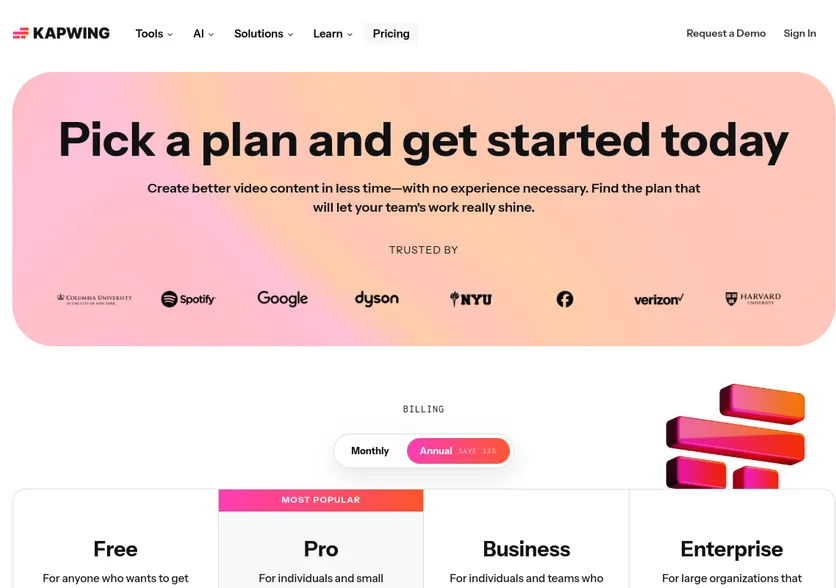
A social team that captions and resizes together needs a browser tool, and this Kapwing plan costs sixteen dollars a member a month billed annually, with auto captions and smart cut built in. Brand kits keep every post on style while the team edits the same project from different machines. It exports in the exact sizes each platform wants, so one master clip becomes a Reel, a Short and a TikTok without re-editing.
What we like
- Browser editor, so nothing installs on any machine
- Auto captions and smart cut speed up short-form edits
- Brand kits keep every post on style
Watch out for
- The free plan exports with a Kapwing watermark
- Long videos process slowly in the browser
How to try it
- Upload the clip to the Kapwing studio
- Add captions and resize for the target platform
- Export the finished post in the right format
7. VEED
Best for: Marketers making captioned social clips fast
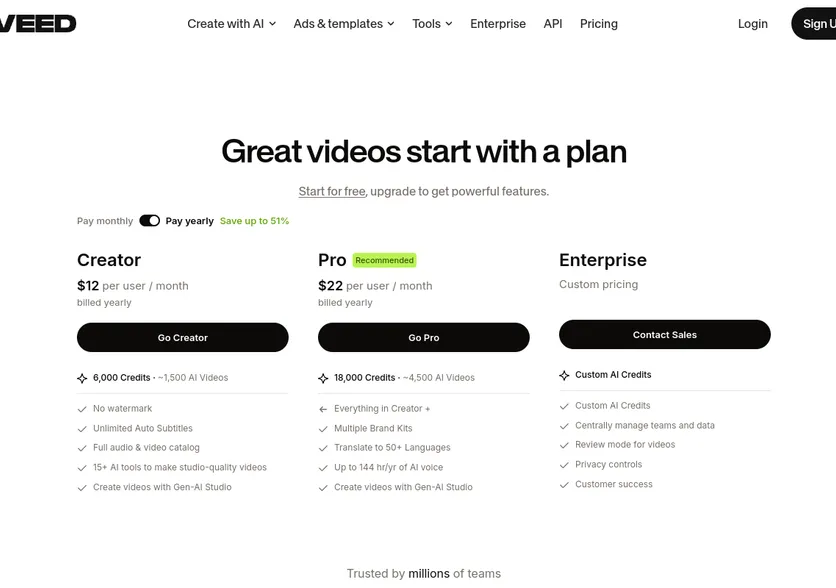
Paid tool Starting price: $12.25/month · Twelve dollars and twenty-five cents a month billed annually on Creator, or one hundred and forty-seven dollars a year; Pro is twenty-two dollars and eight cents a month billed annually; a November 27, 2026 read lists ten dollars a month, which may be a Black Friday promotion ending around December 3, 2026
Free plan: Free plan
Captioned clips get watched longer, and this VEED plan costs twelve dollars and twenty-five cents a month billed annually, with one-click subtitles that land on time. Templates and stock media speed up every post, and the editor exports in the exact sizes each social feed wants. It is the fastest route from a raw recording to a polished captioned clip in this list.
What we like
- One-click subtitles with accurate timing
- Templates and stock media speed up every post
- Exports in the exact sizes each platform wants
Watch out for
- The free plan caps exports and adds a watermark
- Advanced editing stays basic next to desktop tools
How to try it
- Upload the video to the VEED studio
- Generate subtitles and trim the dead air
- Export the clip sized for the social feed
8. Clipchamp
Best for: Windows teams editing in the browser for free
Paid tool Starting price: $11.99/month · Eleven dollars and ninety-nine cents a month on Premium, or one hundred and nineteen dollars and ninety-nine cents a year; Microsoft 365 Personal at ninety-nine dollars and ninety-nine cents a year includes Premium at nine dollars and ninety-nine cents a month
Free plan: Free plan (1080p exports)
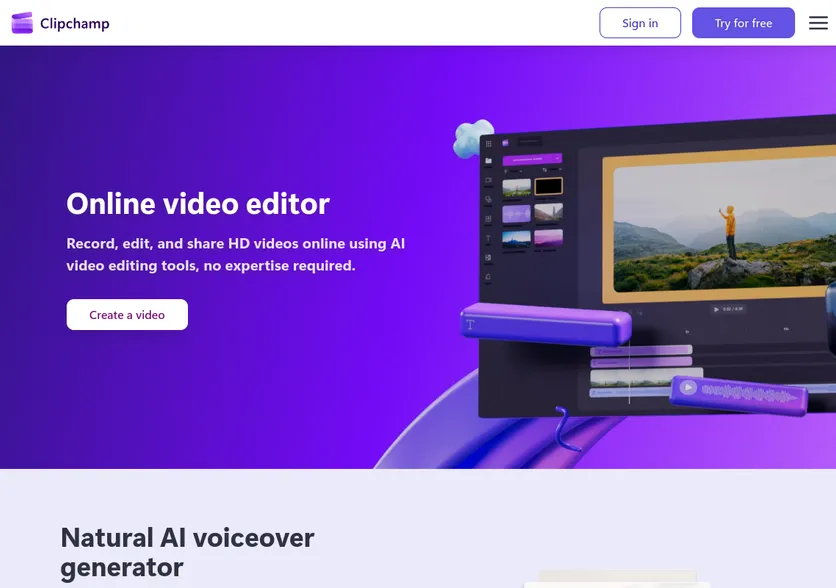
A Windows team that edits in the browser gets a free start here, since this Clipchamp plan costs eleven dollars and ninety-nine cents a month, and the free plan already exports 1080p without a watermark. Templates turn a rough cut into a polished post, and auto captions cover the accessibility basics. It lives inside Microsoft 365, so OneDrive storage and sharing come with the editor.
What we like
- Free plan exports 1080p without a watermark
- Runs inside Microsoft 365 with OneDrive storage
- Auto captions and templates cover the basics
Watch out for
- The free plan caps stock media and some effects
- Needs a steady connection for large uploads
How to try it
- Open Clipchamp in the browser and start a project
- Drop in clips and pick a social media template
- Add captions, then export at 1080p
Prices above were checked on each vendor’s own website on Nov 29, 2026 and can change — the vendor’s page is the final word. Vendor links are editorial: nobody paid to be listed or ranked here. Vendors who want a featured listing can see how it works on our Get listed page.
How to shrink social video without ruining it
Start from the master file, never from a copy that is already compressed, because every round of compression throws away detail you cannot get back. Pick the preset for the platform you are posting to, since each feed has its own size and bitrate limits, and a file tuned for one feed looks wrong on another. Test one clip before the whole batch, and watch it on a phone, because that is where most viewers will see it. Keep the original files in a separate folder, and name the compressed versions clearly, so nobody uploads the wrong file by mistake. Check the file size against the platform limit before scheduling, and leave a margin for the platform to re-encode the video again.
Before you buy
- Confirm the export preset matches the platform the post is going to, not just any small file
- Check the file size against the platform upload limit before scheduling the post
- Watch the compressed clip on a phone, where most viewers will actually see it
- Keep the master files separate so a re-export never starts from a compressed copy
- Test the tool on one real client clip before paying for a full year
Official websites
Official websites of the products reviewed above. Features and prices were checked against these sites when this guide was written, and they can change, so confirm on the vendor site before you buy.
Frequently asked questions
What is the best video compression software for social media managers?
VideoProc Converter AI is the best overall pick here, at twenty-nine dollars and ninety-five cents a year, because GPU acceleration compresses whole batches fast without visible quality loss. Kapwing is the better pick for a team that edits together, with captions and brand kits in the browser. Clipchamp is the best free start, since its free plan exports 1080p without a watermark.
How much does VideoProc Converter AI cost?
VideoProc Converter AI costs twenty-nine dollars and ninety-five cents a year for the one-year plan covering three computers. A lifetime licence for one computer is thirty-nine dollars and ninety-five cents once. The plan includes AI upscaling and stabilisation, screen recording and trimming, so one desktop app covers most of the weekly posting workflow.
Can I compress video for free?
Yes, with Clipchamp, which exports 1080p without a watermark on its free plan, and Any Video Converter, whose free edition covers the common formats. Kapwing and VEED also offer free plans, though both add a watermark to exports. Free plans cap resolution or add branding, so a manager posting client work daily will usually need a paid plan.
Does compression hurt video quality?
Some quality loss is unavoidable, because compression throws away data to shrink the file, but a good tool keeps the loss invisible at normal viewing sizes. Start from the master file rather than a copy that is already compressed, and test one clip on a phone before the whole batch. Pick the preset for the platform, since each feed re-encodes the video again.
Which tool is best for a team that edits together?
Kapwing is the best pick for a team, at sixteen dollars a member a month billed annually, because the whole team edits the same project in the browser with captions and brand kits. VEED is the faster option for captioned clips, with one-click subtitles that land on time. Both export in the exact sizes each platform wants, so one master clip serves every feed.
Compare the eight tools above, then start with the free Clipchamp plan or a VideoProc trial on a real client clip before paying for a full year.
Browse Video Converters tools