
Blank pages, outdated slides, and duplicate sheets creep into every long PDF. This free tool removes exactly the pages you tick and hands you back a clean copy — no retyping, no printing and rescanning, and no uploading your document to a stranger's server.
When the file you cleaned up is still too heavy to email, run it through the Compress PDF tool next. And if you would rather keep only a few pages instead of deleting the rest, the Extract PDF Pages tool does the opposite job.
How to use
- Drop your PDF into the box above, or click to browse for it.
- Tick the pages you want to delete — the rest are kept in their original order.
- Click Delete pages, then download the cleaned PDF and check the new page count.
Why use Toolsvine
Deleting a page should be a ten-second job, not a reason to install a PDF editor or create an account on a conversion site. Toolsvine does it where the file already is — in your browser — so there is no upload wait, no queue, and no copy of your document sitting on a server afterwards. The original stays safe, so a mistake is easy to undo.
What happens when a page is deleted?
Deleting pages rebuilds the document from the pages you keep. Everything on a kept page — text, images, links, and form fields — is carried over unchanged. The pages that remain keep their original order and their printed page numbers, so a table of contents that refers to printed numbers still lines up after the cleanup.
The download is a brand-new file, and your original PDF is never modified. That matters more than it sounds: if you delete the wrong page, you just reload the original and tick the pages again. Keep the original until you have checked the result, and only then replace it.
Worked example: a 40-page report minus 3 pages
Here is a real example. Taylor in Austin, Texas, has a 40-page project report that needs cleaning up before Friday's client meeting, with a blank page 2, an outdated slide on page 17, and a duplicate sheet on page 38.
Ticking those three pages and deleting them leaves a clean 37-page PDF, because 40 − 3 = 37, and the result message confirms the new count before anything is downloaded.
| Page | Why it goes | Pages left |
|---|---|---|
| Page 2 | Blank page | 39 |
| Page 17 | Outdated slide | 38 |
| Page 38 | Duplicate sheet | 37 |
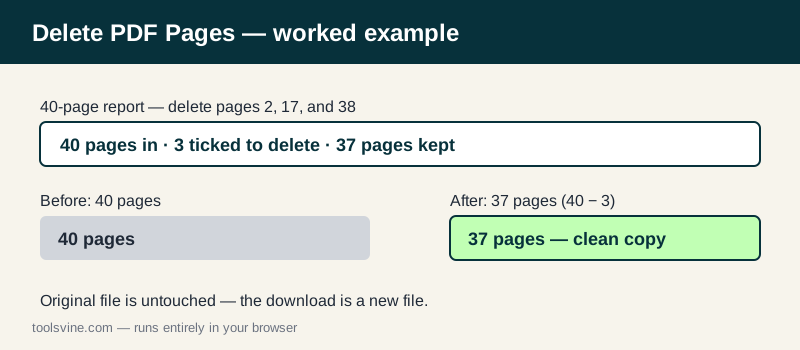
The math is the whole check: start with 40 pages, remove 3, and the result must say 37. If it says anything else, a tick was missed or an extra page was caught, and you can run the original through again. Deleting is fast enough that a second pass costs less than a minute.
Should I delete pages or extract the ones I want?
Delete when you want to keep most of the file and drop a few pages — for example, removing 3 pages from a 40-page report — and extract when you want to keep only a few pages out of many.
Both tools produce the same kind of file, so pick whichever means fewer ticks: deleting 3 pages out of 40 is quicker than extracting 37, and extracting 3 pages out of 40 is quicker than deleting 37.
What about links and bookmarks?
Links on kept pages keep working. Bookmarks that pointed at deleted pages may stop working, because the page they pointed to no longer exists — that is normal for any PDF editor, and it is one more reason to keep the original file until you have checked the cleaned copy.
Frequently asked questions
Can I undo a deletion?
Not inside the tool — the download is a new file, and your original PDF is untouched. If you deleted the wrong page, just reload the original and tick the pages again. Keep the original until you have checked the result, because the cleaned copy replaces nothing on its own. That safety net is built into how the tool works.
Does deleting pages shrink the file much?
It depends on what was on the deleted pages. Removing image-heavy pages shrinks the file a lot; removing plain text pages barely changes the size. For a smaller file overall, use the Compress PDF tool after deleting. The result message reports the new size, so you can see exactly what the cleanup saved before you send the file on.
Can I delete a range like pages 5 to 9?
Yes — tick each page in the range. The list shows every page number, so you can work through a chapter or a block of blank pages in one pass. There is no separate range box here, because ticking is faster for the small sets this tool is made for; for whole chapters, the Split PDF tool may be quicker.
Will links and bookmarks still work?
Links on kept pages keep working, because the pages themselves are copied unchanged. Bookmarks that pointed at deleted pages may stop working, because the page they pointed to no longer exists — that is normal for any PDF editor. Bookmarks to pages you kept are carried over and still land on the right page.
What file types can I delete pages from?
Standard PDF files, including ones made by Word, Google Docs, scanners, and most PDF software. Encrypted or password-protected PDFs cannot be opened here, so remove the password in your reader first. Scanned PDFs work fine too — a scanned page deletes just like a text page, and the rest of the file is untouched.