
Scanned a document backwards, or merged two files in the wrong order? This free tool lists every page of your PDF and lets you move pages up and down until the order is right, then saves a corrected copy. No dragging files to a server, no desktop software, and no account.
It pairs naturally with the Merge PDF tool, which combines files in a chosen order, and the Split PDF tool, which breaks a file into parts you can reorder separately. As with every Toolsvine tool, the whole job happens in your browser.
How to use
- Drop your PDF into the box above, or click to browse for it.
- Use the Up and Down buttons to move pages into the right order.
- Click Save reordered PDF, then download the fixed file and open it to confirm.
Why use Toolsvine
Page order is a small problem that usually demands a big, expensive PDF editor. Toolsvine treats it as what it is — a ten-second fix. The file never leaves your device, so a mis-scanned contract or a jumbled exam paper can be fixed in the same minute you notice it, with nothing to install and no watermark on the result.
How does reordering PDF pages work?
A PDF stores its pages as an ordered list, and reordering simply writes that list in a new sequence. The pages themselves are copied untouched — their content, images, and fonts are not re-rendered — so quality is identical to the original and the process is fast even for long documents.
Nothing on any page changes, only where it sits in the file.
The most common reorder jobs are a cover page scanned last, two-sided scans that came out as odd pages then even pages, and appendices that belong before the references. Check the result message, which reports the new first pages, and open the download to confirm the order before sharing it with anyone else.
Worked example: fixing an 8-page two-sided scan
Here is a real example. Alex in Dallas, Texas, scanned an 8-page form on a two-sided scanner, and the pages came out as 1, 3, 5, 7, 2, 4, 6, 8 — all the odd pages first, then all the even pages.
Moving pages 2, 4, 6, and 8 up into their proper places turns the file back into 1, 2, 3, 4, 5, 6, 7, 8, with every page's content unchanged.
| Position | Before (scanned) | After (fixed) |
|---|---|---|
| 1st | Page 1 | Page 1 |
| 2nd | Page 3 | Page 2 |
| 3rd | Page 5 | Page 3 |
| 4th | Page 7 | Page 4 |
| 5th–8th | Pages 2, 4, 6, 8 | Pages 5, 6, 7, 8 |
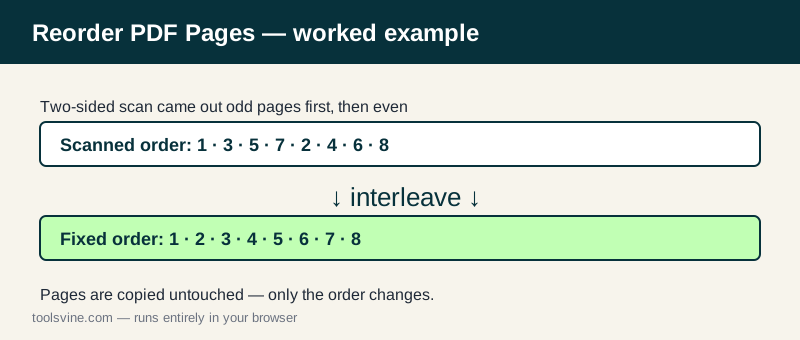
Four moves fix the whole file, because only the even pages are out of place. The same idea works for a cover page that ended up last — one move brings it to position 1 — and for two files merged backwards, where the second block moves up before the first. Each click moves a page one place, and the list updates immediately.
Does reordering change anything on the pages?
No. Reordering changes the order of the pages, not the text on them. If a page footer says “Page 5,” it will still say “Page 5” in its new position, and the page will look exactly as it did before.
That is worth knowing for documents with printed page numbers: the file order is fixed, but printed numbers are part of the page content and stay put.
When splitting first is faster
For a very long file, it is often quicker to split the PDF into parts, reorder the parts, and merge them back. Moving one page hundreds of places takes many clicks, while moving three blocks takes three. Use whichever route means the fewest moves for the file in front of you.
Frequently asked questions
Does reordering change the quality of my pages?
No. Pages are copied, not re-rendered, so text, images, and fonts are byte-identical to the original. Only the order of the pages changes. A reordered file opened side by side with the original shows the same pages, just in a different sequence, and the file size stays almost exactly the same.
Can I move a page more than one step at a time?
Use the Up and Down buttons repeatedly — each click moves the page one place. For a page that needs to travel far, a few clicks do it, and the list updates immediately so you can see the new order. For very long trips, splitting the file into parts and merging them back in order is usually faster than dozens of clicks.
What if my PDF has hundreds of pages?
The list shows every page, so very long files take longer to scroll through. For huge files it is often quicker to split the PDF into parts, reorder the parts, and merge them back. That turns hundreds of small moves into a handful of big ones, and each step is still free, local, and instant for ordinary documents.
Does the tool renumber the printed page numbers?
No. Numbers printed on the pages stay as they were — the tool changes the order of pages, not the text on them. If the footer says “Page 5” it will still say that in its new position. That is normal for every PDF editor, because printed numbers are part of the page content itself.
Is my document uploaded anywhere?
No. The PDF is read and rewritten entirely in your browser with JavaScript. It never leaves your device, and the tool works offline once the page has loaded. Your contract, exam paper, or scanned form stays on your own computer or phone from start to finish, with nothing stored on a server.