
Need just a few pages out of a long PDF? This free extractor pulls the pages you tick and saves them as a brand-new PDF, in the order you choose. The original file is never changed, and nothing is uploaded anywhere — the whole job runs on your own device.
It works well alongside the Split PDF tool when you want whole ranges, and the Merge PDF tool when you want to combine the pages you extracted with pages from another file. Everything runs locally, so even a confidential report stays on your device.
How to use
- Drop your PDF into the box above, or click to browse for it.
- Tick the pages you want to keep — use Select all to keep the whole file.
- Click Extract pages, then download your new PDF and check its page count.
Why use Toolsvine
Most extractors make you upload the whole document to a server first, then make you wait in a queue. Toolsvine opens the PDF in your own browser, so extraction starts instantly and your pages never cross the internet. There is no account, no watermark, and no page-count limit to trip over — just the pages you asked for, in a fresh file.
How does page extraction work?
A PDF is a sequence of independent pages, so pulling some out is a matter of copying the chosen pages into a fresh document. Fonts, images, and links on those pages travel with them, and the new file opens in any PDF reader.
Page numbers printed inside the content stay as they were — the tool does not renumber the text on the page itself.
Extraction is the right choice when the pages you want are scattered — pages 2, 7, and 11, for example. If the pages you want form one continuous block, splitting by a range is faster. Either way, check the page count in the result message before you send the new file on, because it tells you at a glance whether you picked what you meant to pick.
Worked example: three pages from a 14-page handbook
Here is a real example. Jordan in Dallas, Texas, has a 14-page employee handbook and needs only three pages for a new hire: page 2 (benefits), page 7 (time off), and page 11 (safety). Ticking those three pages produces a new 3-page PDF — 14 minus 11 pages left behind — while the original handbook stays exactly as it was.
| Page picked | What is on it | New position |
|---|---|---|
| Page 2 | Benefits | Page 1 of 3 |
| Page 7 | Time off | Page 2 of 3 |
| Page 11 | Safety | Page 3 of 3 |
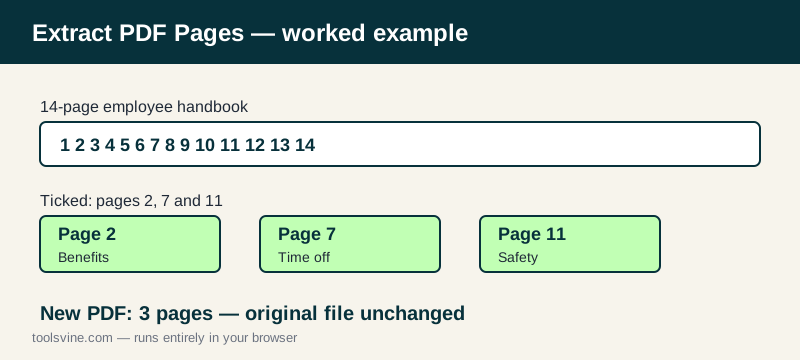
The extracted pages keep their original order in the new file, so page 2 comes first, then page 7, then page 11. If you need a different order, extract the pages first and then combine them in your chosen order with the merge tool. And if you later realize you need a fourth page, just extract again — the original is never modified.
What stays the same, and what changes?
Everything on a kept page is carried over unchanged: images, fonts, tables, vector graphics, and selectable text. What changes is only the file around them — the new PDF has fewer pages, a new file size, and no memory of the pages you left behind.
Bookmarks that pointed at pages you did not extract will not be in the new file, which is expected.
Extracting versus splitting
Think of it this way: extraction is for scattered pages, splitting is for continuous ranges, and merging is for combining files. The three tools cover every way of taking a document apart and putting it back together, and all three run locally, so no step ever sends your file to a server.
Frequently asked questions
Does extracting pages change my original PDF?
No. The original file is only read, never modified. The tool builds a completely new PDF containing copies of the pages you selected, and your original stays exactly as it was. You can extract from the same file again and again, picking different pages each time, and the source document will never change or lose a page.
Can I extract pages in a different order?
The extracted pages keep their original order in the new file, so page 2 comes before page 7. If you need a different order, extract the pages first and then use the Merge PDF tool to combine them in your chosen order. That two-step approach works for any arrangement, including reversing a section or moving a chapter to the front.
Is there a limit on how many pages I can extract?
No fixed limit. Very large files (over 100 MB) are refused because the browser would struggle, but a normal report, thesis, or manual works fine. Extraction is fastest when you keep the selection to the pages you actually need, and the result message always reports the new page count so you can confirm it.
Will the extracted PDF keep its images and formatting?
Yes. Pages are copied whole, so images, fonts, tables, and vector graphics are preserved exactly as they appeared in the original. Text stays selectable on pages where it was selectable before. The only thing that changes is the file itself — fewer pages, a smaller size, and nothing else touched.
What if my PDF is password-protected?
Password-protected and encrypted PDFs cannot be opened by this tool, because the browser cannot read their pages without the password. Remove the password in your PDF reader first, then extract the pages here. Your reader's security settings stay in charge the whole time; the tool never asks for or stores a password.