
Convert PNG images to WebP without uploading anything. Drop one file or a whole batch, and each picture is converted in your browser — the originals never leave your device. Download files one by one, or grab everything as a single ZIP.
WebP is Google's modern image format: it keeps PNG-quality transparency and sharp edges while shrinking files by roughly a quarter to a third at the same visual quality. If you need a different output first, the PNG to JPG Converter handles the most common swap, and the JPG to WebP Converter shrinks pictures before you convert them.
How to use
- Drop your PNG file(s) on the box above, or click to browse — you can add several at once.
- Set the WebP quality — the default of 85% is a good balance between size and sharpness.
- Each file converts automatically; watch the before-and-after sizes in the list.
- Download a single file, or use Download all (ZIP) for the whole batch. Press Start over to convert more files.
Why use Toolsvine
Every PNG file you drop here becomes a WebP in seconds, with the real sizes shown. Most image converters upload your pictures to a server, queue them, and show you ads while you wait. This one converts locally with the same engines browsers use, reports the real before-and-after size of every file, and never asks for an account — your PNG files stay on your device from start to finish.
Why is WebP smaller than PNG?
PNG is lossless: it stores every pixel exactly, which is safe but wasteful for photographs. WebP uses lossy compression borrowed from video codecs — predictive coding that guesses each pixel from its neighbors and stores only the difference. The result is a file that looks the same at normal viewing sizes but needs far fewer bytes, typically 25–35% smaller than the same image as a PNG.
Unlike JPG, WebP also keeps transparency, so logos and screenshots with see-through areas survive the swap. At quality 100 it even has a lossless mode that matches PNG pixel for pixel, though that mode saves much less space than the lossy default of 85.
PNG vs WebP, at a glance
| Property | PNG | WebP |
|---|---|---|
| Compression | Lossless only | Lossy or lossless |
| Transparency | Yes, full alpha | Yes, full alpha |
| Typical photo size | Baseline | 65–75% of PNG |
| Browser support | Everywhere | All modern browsers |
Quality 85 is a good default for photos and screenshots; drop to 70 for thumbnails where size matters more than fine detail, and raise it toward 95 for images that will be viewed large or printed.
Worked example: one photo, three WebP qualities
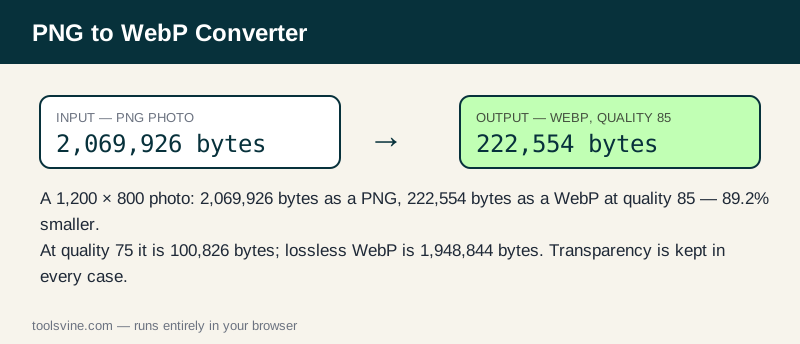
The savings are easy to see on a real file. Take a 1,200 × 800 test photo with a gradient sky and fine detail: as a PNG it is 2,069,926 bytes. Converting it at different quality levels shows how size falls steeply while the picture stays clean, and a screenshot shows the same pattern at a smaller scale.
| Version | Size | vs the PNG |
|---|---|---|
| PNG (original) | 2,069,926 bytes | — |
| WebP, quality 85 | 222,554 bytes | 89.2% smaller |
| WebP, quality 75 | 100,826 bytes | 95.1% smaller |
| WebP, lossless | 1,948,844 bytes | 5.8% smaller |
Even the lossless WebP is a little smaller than the PNG, while quality 85 cuts the file to about a ninth of its size. A flat 1,200 × 800 screenshot shows the same effect on a small file: its PNG is 4,696 bytes and its quality-85 WebP is 3,176 bytes, 32% smaller, with the text just as sharp.
Where can I use WebP files?
Every modern browser — Chrome, Edge, Firefox, Safari 14 and later — displays WebP, and so do WordPress, Shopify, and most social platforms, which now accept WebP uploads directly. That makes WebP the best default for website images, blog illustrations, and anything served over the web. Only very old software cannot open it, so keep a PNG or JPG copy for those cases, or convert back with the Image Compressor when a site insists on an older format.
One caution: some desktop apps, email clients, and printers still expect JPG or PNG. If you are sending an image to a person rather than uploading it to a website, check that their software can open WebP first — or send the JPG version instead.
Frequently asked questions
Is converting PNG to WebP free?
Yes — free, with no account and no limit on the number of files. Everything runs in your browser, so there is no server queue and no waiting for an upload. You can convert one image or a whole folder of PNGs in a single session.
Will my PNG files be uploaded anywhere?
No. The conversion happens entirely on your device using browser technology. Your files never leave your computer or phone, and the tool keeps working offline once the page has loaded, so private screenshots and client work stay private at any stage of the process.
Can I convert several images at once?
Yes — drop as many PNG files as you like and they convert one after another. Use the Download all (ZIP) button to save the whole batch in one click instead of downloading files one by one, which saves a lot of time on large sets.
Why is my WebP file bigger than the original PNG?
It is rare, but it happens with very small or very simple images, where PNG's lossless compression of flat colors beats WebP's overhead. The list shows the real sizes for every file, so you can judge for yourself and keep whichever version is smaller.
What is the largest PNG file I can convert?
Files up to 50 MB each are accepted. Very large images are converted on a downscaled copy only if the browser runs low on memory — in practice, anything from a phone camera or a screenshot converts fine at full size.