
Convert PNG images to PDF without uploading anything. Drop one file or a whole batch, and each picture is converted in your browser — the originals never leave your device. Download files one by one, or grab everything as a single ZIP.
PDF is the format for documents that must look the same everywhere. Putting a PNG on a PDF page is the quickest way to print it, share it, or attach it to a form that only accepts PDFs. If you need a different output first, the JPG to WebP Converter handles the most common swap, and the Image Compressor shrinks pictures before you convert them.
How to use
- Drop your PNG file(s) on the box above, or click to browse — you can add several at once.
- Each file converts automatically; every image becomes one full page in the PDF.
- Download a single file, or use Download all (ZIP) for the whole batch.
- Press Start over to clear the list and convert more files.
Why use Toolsvine
Every PNG file you drop here becomes a PDF in seconds, with the real sizes shown. Most image converters upload your pictures to a server, queue them, and show you ads while you wait. This one converts locally with the same engines browsers use, reports the real before-and-after size of every file, and never asks for an account — your PNG files stay on your device from start to finish.
What does a PNG-to-PDF conversion actually do?
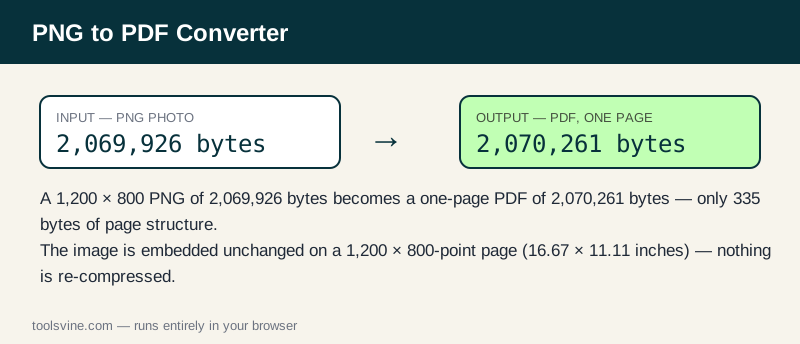
A PDF is not an image format but a document container, so the PNG is embedded inside a page at full resolution: the image bytes go into the PDF unchanged, and the page is sized exactly to the picture in points — one point per pixel — so nothing is cropped, stretched, or re-compressed. A 1,200 × 800 image becomes a 1,200 × 800-point page, which is 16.67 × 11.11 inches, and the picture stays as sharp when printed as it is on screen.
Because the image is embedded rather than converted, the PDF is roughly the size of the original PNG plus a few hundred bytes of page structure. Drop in several images and each becomes its own page, so a folder of scans turns into a multi-page document in one pass.
PNG vs PDF, at a glance
| Property | PNG | |
|---|---|---|
| Pages | — | One per image |
| Page size | — | Matches the image, in points |
| Image quality | Original pixels | Original pixels, unchanged |
| Best for | Web, editing | Printing, sharing, forms |
Worked example: one photo, one page
Take the same 1,200 × 800 test photo used on the other converter pages: as a PNG it is 2,069,926 bytes. The PDF built from it is 2,070,261 bytes — only 335 bytes larger, which is the entire PDF page structure around the embedded image. The page is 1,200 × 800 points (16.67 × 11.11 inches), and the photo inside is pixel-identical to the original. A flat 1,200 × 800 screenshot shows the same pattern at a smaller scale: its PNG is 4,696 bytes and its PDF is 5,397 bytes, just 701 bytes of overhead.
| Image | PNG size | PDF size | PDF overhead |
|---|---|---|---|
| 1,200 × 800 photo | 2,069,926 bytes | 2,070,261 bytes | 335 bytes |
| 1,200 × 800 screenshot | 4,696 bytes | 5,397 bytes | 701 bytes |
If you need several images in a single document, convert them all in one batch and then combine the PDFs with the Merge PDF tool — each converted file is one page, so the merged result reads like a single scanned document.
When is PDF the wrong container?
PDF is the wrong choice when the image will live on a web page: browsers show PNG and JPG directly, and a PDF forces a download or a viewer. It is also the wrong choice for shrinking a file — a PDF of a photo is the same size as the PNG, while a JPG or WebP is far smaller. Use PDF when the destination is a printer, a form, an email attachment that must look identical everywhere, or an archive. For everything else, keep the image format it started in.
Frequently asked questions
Is converting PNG to PDF free?
Yes — free, with no account and no limit on the number of files. Everything runs in your browser, so there is no server queue and no waiting for an upload. You can convert one image or a whole folder of PNGs in a single session.
Will my PNG files be uploaded anywhere?
No. The conversion happens entirely on your device using browser technology. Your files never leave your computer or phone, and the tool keeps working offline once the page has loaded, so private screenshots and client work stay private at any stage of the process.
Can I convert several images at once?
Yes — drop as many PNG files as you like and they convert one after another. Each image becomes its own PDF file with one page. Use the Download all (ZIP) button to save the whole batch, then merge them if you need a single document.
Why is my PDF about the same size as the PNG?
Because the PNG is embedded unchanged inside the PDF — the image is not re-compressed, so the file is the PNG size plus a few hundred bytes of page structure. If you need a smaller file, convert the image to JPG or WebP first, then make the PDF.
What is the largest PNG file I can convert?
Files up to 50 MB each are accepted. Very large images are converted on a downscaled copy only if the browser runs low on memory — in practice, anything from a phone camera or a screenshot converts fine at full size.