
Convert PNG images to GIF without uploading anything. Drop one file or a whole batch, and each picture is converted in your browser — the originals never leave your device. Download files one by one, or grab everything as a single ZIP.
GIF is the 1987 format that refuses to die: it supports simple animation and one transparent color, but only 256 colors per image, so photos come out banded and flat. If you need a different output first, the PNG to JPG Converter handles the most common swap, and the JPG to WebP Converter shrinks pictures before you convert them.
How to use
- Drop your PNG file(s) on the box above, or click to browse — you can add several at once.
- Each file converts automatically; colors are reduced to a 256-color palette during conversion.
- Check the before-and-after sizes in the list, then download a single file or use Download all (ZIP).
- Press Start over to clear the list and convert more files.
Why use Toolsvine
Every PNG file you drop here becomes a GIF in seconds, with the real sizes shown. Most image converters upload your pictures to a server, queue them, and show you ads while you wait. This one converts locally with the same engines browsers use, reports the real before-and-after size of every file, and never asks for an account — your PNG files stay on your device from start to finish.
Why do photos look bad as GIFs?
GIF can hold at most 256 colors in a single image. A photograph has thousands of shades — a sky alone may use hundreds — so converting one forces every pixel into the nearest of 256 palette colors. The result is banding: smooth gradients break into visible steps, skin tones turn blotchy, and fine detail smears. This tool makes a single still GIF frame, and it cannot animate.
Transparency is also limited: GIF has one transparent color, not a smooth alpha channel. A pixel is either fully see-through or fully solid, so soft edges and shadows become jagged. Transparent pixels are filled with white unless the image is fully opaque.
PNG vs GIF, at a glance
| Property | PNG | GIF |
|---|---|---|
| Colors | Millions | Maximum 256 |
| Transparency | Smooth alpha | One color only |
| Animation | No | Not in this tool (still frame) |
| Best for | Photos, screenshots | Logos, icons, flat art |
Worked example: a photo vs a flat screenshot
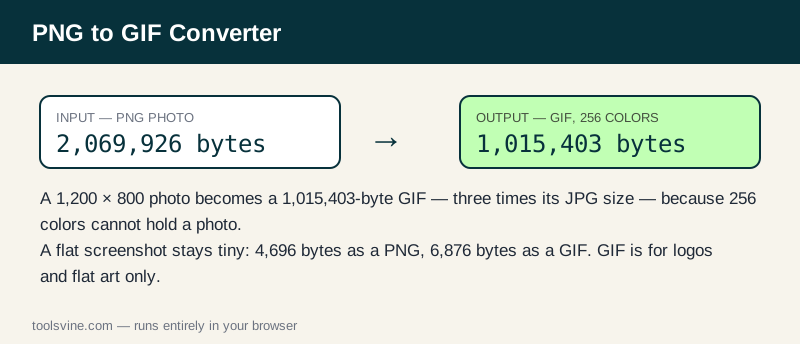
The 256-color limit shows up directly in file size. Take the same 1,200 × 800 photo used on the other converter pages: as a PNG it is 2,069,926 bytes, and as a GIF it is 1,015,403 bytes — about 992 KB. That is three times larger than the same photo as a JPG at quality 92 (322,123 bytes), and the picture looks worse. Now take a flat 1,200 × 800 screenshot of a web page: its PNG is 4,696 bytes and its GIF is 6,876 bytes — tiny, because a few flat colors fit the palette perfectly.
| Image | PNG size | GIF size | JPG at quality 92 |
|---|---|---|---|
| 1,200 × 800 photo | 2,069,926 bytes | 1,015,403 bytes | 322,123 bytes |
| 1,200 × 800 screenshot | 4,696 bytes | 6,876 bytes | 34,856 bytes |
The lesson is simple: GIF is only efficient when the picture has few distinct colors. For anything photographic, JPG or WebP beats it on both size and quality — the exact GIF byte count varies slightly between encoders, but the pattern is the same on every one.
When is GIF the right format?
GIF is at its best for logos, icons, and flat illustrations with few colors — exactly the images where its 256-color palette is no limitation at all. A two-color logo converts to a GIF that looks identical to the PNG and is often smaller, and a simple diagram with a handful of flat colors stays crisp. For those images, GIF's universal support — every browser, email client, and chat app since the 1990s — is a real advantage. For photos, use the PNG to JPG Converter instead; for screenshots with text, keep the PNG.
Frequently asked questions
Is converting PNG to GIF free?
Yes — free, with no account and no limit on the number of files. Everything runs in your browser, so there is no server queue and no waiting for an upload. You can convert one image or a whole folder of PNGs in a single session.
Will my PNG files be uploaded anywhere?
No. The conversion happens entirely on your device using browser technology. Your files never leave your computer or phone, and the tool keeps working offline once the page has loaded, so private screenshots and client work stay private at any stage of the process.
Can I convert several images at once?
Yes — drop as many PNG files as you like and they convert one after another. Use the Download all (ZIP) button to save the whole batch in one click instead of downloading files one by one, which is handy when a site needs a set of icons.
Why does my photo look posterized as a GIF?
GIF holds at most 256 colors, so a photo's thousands of shades are forced into the nearest palette color. Smooth gradients turn into visible bands and skin tones turn blotchy. GIF is made for logos and flat art; photos belong in JPG or WebP.
Can this tool make an animated GIF?
No — it makes a single still GIF frame from each PNG. It cannot combine several images into an animation. If you need a moving image, use a dedicated GIF animator, or keep the frames as separate PNGs and animate them in video software.