
Convert SRT subtitles to SUB without uploading your files. Paste the subtitle text or drop a .srt file, and the SUB version appears instantly — every cue keeps its exact start and end time. Copy the result or download it as a .sub file.
SRT (SubRip) counts time in seconds and milliseconds. SUB (MicroDVD) counts time in video frames instead, which is how DVD-era players synchronised subtitles. The frame rate defaults to 25 frames per second and you can change it in the box above the output. If the video needs web subtitles instead, SRT to VTT is the browser format, and SRT to SBV writes YouTube's format.
How to use
- Paste your SRT subtitles into the input box, or drop a .srt file to load it.
- The SUB output appears automatically, with every cue's times converted to frame numbers.
- Change the frame rate in the box above the output if your video is not 25 frames per second.
- Copy the result, or download it as a .sub file with the Download button.
Why use Toolsvine
SUB is a frame-counted format from the DVD era, and almost no modern tool offers it — the few that do make you upload the script first. This converter runs locally in your browser, converts every cue's times to frames at the rate you choose, and never asks for an account. The frame math is the whole job, and it is done where you can see it.
How does SRT to SUB work?
SRT to SUB turns each cue's clock times into frame numbers: the start frame is the start time in seconds multiplied by the frame rate, rounded to the nearest frame, and the end frame is worked out the same way. At 25 fps, one second is 25 frames, so a cue at 1 second starts at frame 25.
The frame rate matters because the same file means different times at different rates: a cue at frame 25 starts at 1 second in a 25 fps video and at about 1.04 seconds in a 24 fps video. Always match the rate to the video — the box above the output defaults to 25, and film is usually 24, while US broadcast video is usually 29.97 or 30. Multi-line cues join their lines with a pipe character, which is how SUB marks a line break.
What changes in the conversion
| Detail | SUB |
|---|---|
| Timing | Frame numbers, not clock time |
| Frame rate | 25 fps by default, adjustable from 1 to 120 |
| Start frame | Round(start seconds × fps) |
| End frame | Round(end seconds × fps) |
| Line breaks | Pipe | separates lines |
Rounding to the nearest frame can shift a cue by up to half a frame — about 20 milliseconds at 25 fps — which is too small to notice while watching. The order of cues never changes, and the text is untouched. If the subtitles drift slowly out of sync across a long video, the video's actual frame rate is probably not the one you picked: check it and convert again.
Worked example: two SRT cues become frame numbers
Press Sample and the tool loads two cues: "Hello world" from 1 second to 4.5 seconds, and "Second line here" from 5 seconds to 7.25 seconds. At 25 frames per second, multiply each time by 25 and round: 1 second becomes frame 25, 4.5 seconds becomes frame 113, and 7.25 seconds becomes frame 181.
Example input:
1\n00:00:01,000 --> 00:00:04,500\nHello world\n\n2\n00:00:05,000 --> 00:00:07,250\nSecond line here
Becomes:
{25}{113}Hello world\n{125}{181}Second line here
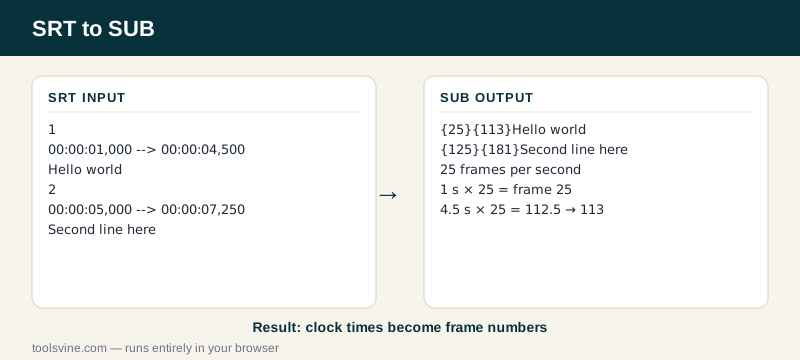
Try it yourself: change the frame rate to 24 and watch both lines change — the first cue becomes {24}{108}, because 4.5 times 24 is exactly 108. Now you can see why the rate matters: the same cue occupies different frames in a 24 fps video than in a 25 fps one. If the video goes to YouTube instead, the SRT to SBV converter writes the format YouTube's uploader expects.
How do I pick the right frame rate?
Match the video's actual frame rate: 24 for film, 25 for PAL television and most European video, and 29.97 or 30 for US broadcast and most phone footage. If you are not sure, check the video's properties in your player or editor — VLC shows it under Tools, then Media Information.
A wrong rate does not break the file — it shifts every cue by a growing amount as the video plays, so subtitles that start in sync drift later and later. That slow drift is the tell: if the first cue is right and the last cue is late, the frame rate is wrong, not the subtitles.
Frequently asked questions
Will the subtitle timings stay exact when converting SRT to SUB?
Almost exactly. Each time is multiplied by the frame rate and rounded to the nearest frame, so a cue shifts by at most half a frame — about 20 milliseconds at 25 fps, too small to notice. The moments each line appears and disappears stay the same in practice; only the measurement changes, from clock time to frame counts.
Is converting SRT to SUB free?
Yes, completely free with no account and no file-size games. The conversion runs in your browser, so your subtitles never leave your device. You can convert one cue or a two-hour feature film's worth of subtitles and the price stays the same: nothing.
Can I upload a .srt file instead of pasting?
Yes — drop the file on the box above and its text loads into the input automatically. You can also paste from your clipboard, which is handy for subtitles copied out of an editor. Either way, the file is read on your device and never uploaded anywhere.
What if my SRT file has errors?
The tool shows a plain-English error naming the problem — for example a cue with a missing timestamp — instead of producing a broken file. Fix that cue and the conversion runs. Blank cues and cues that end before they start are dropped quietly, since they cannot play anyway.
What frame rate should I use?
Use the video's own frame rate: 24 for film, 25 for PAL television and most European video, and 29.97 or 30 for US broadcast and phone footage. The box above the output defaults to 25. A wrong rate does not break the file — it shifts later cues gradually out of sync, so check the video's properties in VLC under Tools, then Media Information, if you are unsure.