
Some forms and job portals accept photos only under 20 KB — and a phone photo is a hundred times bigger. This free tool shrinks your photo to 20 KB or less automatically: it searches for the quality setting that hits the target, so you do not have to guess.
Everything runs in your browser, and the photo is never uploaded. For other exact limits, use Compress Image to 50KB or Compress Image to 100KB, and if you want to choose the quality yourself, use the Image Compressor.
How to use
- Drop a JPG, PNG, or WebP photo into the tool (up to 50 MB) or click to choose one.
- The tool tries different quality levels, starting from nearly the best, until the file fits under 20 KB.
- It reports the final size and the quality it settled on, so you can see the trade-off.
- Download the photo, ready to upload to the form — 20 KB is 20,480 bytes.
Why use Toolsvine
A 20 KB limit sounds tiny until you have a form that rejects anything bigger — then it is the only number that matters. Guessing quality by hand wastes attempts: too high and the form rejects it, too low and your face is a blur. This tool does the search for you, tries the quality levels systematically, and hands back a file that fits.
How does the tool hit exactly 20 KB?
The tool uses a binary search over JPEG quality, from 95% down to 5%. It tries a quality level, checks the file size, and narrows the range — too big, go lower; fits, try a little higher — until it finds the highest quality that still lands at or under 20,480 bytes.
That highest fitting quality is the one you download, so the photo looks as good as it possibly can at this size.
This matters because the relationship between quality and size is not a straight line. Dropping from quality 90 to 80 might save half the file, while dropping from 30 to 20 saves almost nothing. The search handles that curve for you, and it usually finds the answer in about six tries.
The 20 KB target in numbers
| Size | Bytes |
|---|---|
| 20 KB target | 20,480 bytes |
| 1 MB photo | 1,048,576 bytes |
| Reduction needed | About 98% smaller |
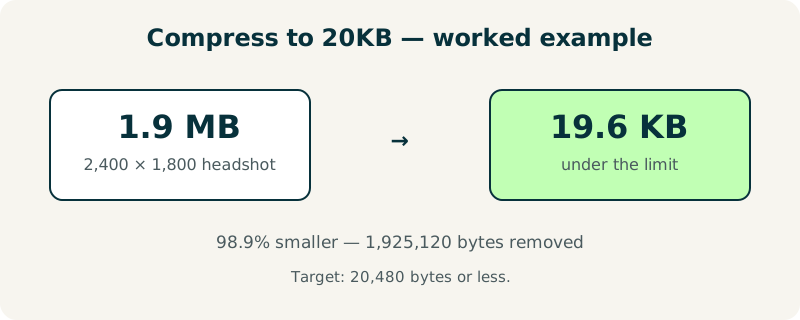
Worked example: a 1.9 MB headshot down to 20 KB
Take a 2,400 × 1,800 headshot of 1.9 MB — that is 1,945,600 bytes. To fit under 20 KB it must lose 1,925,120 bytes, a reduction of 98.9%: 1,925,120 ÷ 1,945,600 = 0.989. The tool's search lands near quality 55 for a photo like this.
Resizing to the portal's required dimensions does most of the work, and the quality search finishes it. The result is a 19.6 KB file that the form accepts.
Try it with your own photo: the tool reports the exact final size and quality, so you can see whether your portrait needed quality 60 or quality 35. A plain-background headshot will land at a higher quality than a busy outdoor scene.
What if a photo cannot reach 20 KB?
Very detailed or very large photos sometimes cannot fit under 20 KB even at the lowest quality, because JPEG cannot shrink a busy image past a floor. When that happens, the tool tells you plainly instead of handing back a file that is still too big.
The fix is to shrink the dimensions first — a 400 × 400 headshot has one ninth the pixels of a 1,200 × 1,200 one.
Resize with the Image Resizer to the size the form actually wants, then compress again here. The combination almost always fits: dimensions cut the pixels, and the quality search cuts the rest. If you need a bigger allowance, Compress Image to 50KB gives you two and a half times more room.
Frequently asked questions
What does 20 KB mean in bytes?
20 KB is 20,480 bytes, since computers count a kilobyte as 1,024 bytes. The tool aims for 20,480 bytes or less, and it reports the exact final size so you can check it against the form's limit. If a portal says 20 KB, it almost always means 20,480 bytes, and this tool's result will pass that check.
Will my photo still look good at 20 KB?
It depends on the photo's size and detail. A small headshot with a plain background can look sharp at 20 KB, because there is little detail to lose. A busy outdoor scene at 20 KB will look soft and blocky, because 20 KB simply cannot hold that much detail. Check the download yourself — if it looks too rough, resize the dimensions first and compress again.
Is my photo uploaded to a server?
No. The photo is processed entirely in your browser and never leaves your device. There is no account, no upload, and nothing stored after you close the page. That matters for passport and ID photos, which are exactly the kind of personal images you do not want sitting on a stranger's server.
What file types can I compress to 20 KB?
JPG, PNG, and WebP files up to 50 MB. PNG files with transparency are converted in a way that keeps the image visible, though the transparent background may be filled, so check the result. For most ID and form photos, JPG is the best starting point, because it compresses far more efficiently than PNG at small sizes.
How is this different from the regular image compressor?
The regular compressor lets you pick the quality and shows whatever size comes out — you control the trade-off. This tool works backwards: you name the exact size, 20 KB, and it searches for the highest quality that fits under it. Use this one when a form demands an exact limit, and the regular compressor when quality matters more than size.