
Real photo collections are never one format: a PNG screenshot next to a JPG photo next to a WebP download. This free tool takes them all at once — PNG, JPG, WebP, GIF, and BMP — and builds a single PDF, one image per page, in the order you arrange.
For a single-format batch, JPG to PDF does the same job for JPGs, and Merge PDF joins finished PDFs together. As always, the conversion happens entirely in your browser, so your images never leave your device.
How to use
- Drop your images into the box above, or click to browse — any mix of formats.
- Arrange the order with the Up and Down buttons and pick a page size.
- Click Create PDF, then download the finished document and check the page order.
Why use Toolsvine
Most image-to-PDF tools accept one format and silently fail on the rest, so you end up converting files before you can even start. Toolsvine decodes whatever you drop in — PNG, JPG, WebP, GIF, or BMP — and builds the PDF locally, so a messy folder of images becomes one tidy document in a minute, with no upload and no watermark.
How do mixed formats become one PDF?
Every image is decoded in the browser and re-encoded as a JPEG page image, which keeps the PDF compact and readable everywhere. Proportions are preserved and each image is centered on its page, so a portrait photo and a landscape screenshot sit sensibly side by side in the same document, each on its own page in the order you arranged.
Animated GIFs contribute only their first frame, because a PDF page is a still image. Very large images are scaled to fit the page, and files over 50 MB each are refused to keep the browser tab responsive. Transparency in a PNG is flattened onto a white background, the way a printed page would look.
Worked example: four mixed images, one 4-page PDF
Here is a real example with the tool's actual math, checked against the code. Alex in Austin, Texas, has four images: two JPG photos at 4032 by 3024, a PNG screenshot at 1920 by 1080, and a WebP download at 1200 by 800.
On Letter pages the usable area is 540 by 720 points, so the PNG screenshot scales to 540 by 304 points — the full width, centered — and the four images make a 4-page PDF in that order.
| Image | Format | Size on the page |
|---|---|---|
| Photo 1 | JPG, 4032 × 3024 | 540 × 405 pt |
| Photo 2 | JPG, 4032 × 3024 | 540 × 405 pt |
| Screenshot | PNG, 1920 × 1080 | 540 × 304 pt |
| Download | WebP, 1200 × 800 | 540 × 360 pt |
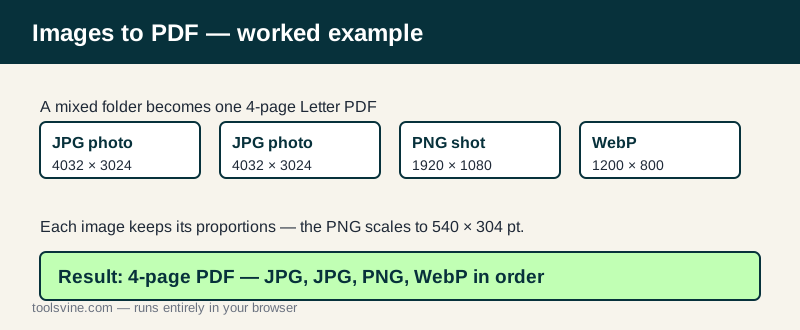
The scale factor is always the smaller of the width and height ratios, capped at 1, so nothing is ever enlarged or stretched. A 1200 by 800 WebP would fill a Letter page at 540 by 360 points, and a tall phone screenshot fills the page top to bottom. The same math applies in every format, because the tool measures each image the same way.
Which formats are accepted?
PNG, JPG, WebP, GIF, and BMP are all accepted, plus any other format your browser can display. That covers screenshots, phone photos, downloaded web images, and scanned documents in one pass. If a file is not a readable image, the tool says so plainly and skips it instead of failing the whole batch.
Letter, A4, or original size?
Letter is 612 by 792 points (8.5 by 11 inches) and is the US standard; A4 is 595.28 by 841.89 points and is the standard almost everywhere else. Choose the size your printer expects, or pick original size to make each page exactly the size of its image — handy for printing photos at their real dimensions, less tidy for mixed sets.
Frequently asked questions
Can I mix portrait and landscape images?
Yes. Each image keeps its own proportions on its own page, so a mix of orientations works fine. Choose Letter or A4 pages for a uniform look, or original size to match each image. The worked example on this page mixes two landscape photos, a wide screenshot, and a WebP download, and each one lands centered on its own page without stretching.
Will the PDF be large?
It depends on your images. Photos re-encode as JPEG at 92% quality, which keeps files reasonable. A dozen phone photos typically make a PDF of a few megabytes — easy to email. PNG screenshots of text compress well too, because flat colors and sharp edges re-encode cleanly. The result message reports the final size before you download.
What happens to a transparent PNG?
Transparency is flattened onto a white background, the way a printed page would look. Logos and screenshots with transparency come out cleanly, with no black boxes or odd edges. That is the right result for a document: a PDF page is a sheet of paper, and paper is white underneath. The original PNG file is never changed.
Can I add images after I start?
Yes — drop more images in at any time before you click Create PDF. They are added to the end of the list, and you can move them up or down. That makes it easy to build a document in rounds: add the photos first, then the screenshots, then a cover image, and arrange them all before the PDF is built. Nothing is final until you click Create PDF.
Are my images uploaded anywhere?
No. Decoding and PDF building happen entirely in your browser. Your images never leave your device, and nothing is stored on a server. That is what makes the tool safe for IDs, receipts, and family photos — the files are read, arranged, and packed into a PDF on your own computer or phone, and closing the tab leaves nothing behind.