
Need a PDF page as an image for a slide, a chat message, or a design? This free converter renders every page of your PDF into a PNG image, at the resolution you choose, and bundles them into a ZIP download. No upload, no watermark, no page limit.
PNG is the right choice when the page has text, diagrams, or sharp edges — it stays crisp where JPG would blur. For photos inside a PDF, the PDF to JPG tool makes smaller files, and for turning images back into a document, try JPG to PDF.
How to use
- Drop your PDF into the box above, or click to browse for it.
- Choose a resolution — higher means sharper text and a bigger file.
- Click Convert to PNG, then download the ZIP of images and unzip it.
Why use Toolsvine
Sending a whole PDF when someone only needs one page is clumsy, and screenshots of a PDF are often blurry. Toolsvine renders each page properly, in your browser, so the PNG you get is as sharp as the PDF itself — and your document never passes through a server to get there. There is no account and no watermark, either.
Why choose PNG instead of JPG for PDF pages?
PNG uses lossless compression: every pixel is preserved exactly, which is why text and line art stay sharp. The trade-off is larger files, especially for pages that are mostly photographs. JPG compresses more aggressively and is smaller, but it softens sharp edges. For a page that is mostly text or diagrams, PNG is the better format.
PNG also beats JPG when you need to edit the image afterwards. Because nothing is thrown away, you can crop, resize, or annotate a PNG without the softening that repeated JPG saves cause. If the image will be printed, archived, or dropped into a design tool, PNG is the safe choice.
Worked example: the same page in three formats
Here is a measured example. We rendered the same Letter page at 1.5× — 918 by 1188 pixels — and saved it in three formats. The PNG took 393 KB, the JPG at 85% quality took about 130 KB, and the WebP at 85% took about 60 KB.
The PNG is three times the JPG and more than six times the WebP — the price of keeping every pixel exactly.
| Format | Same page, 1.5× | Text sharpness |
|---|---|---|
| PNG | 393 KB | Perfect |
| JPG at 85% | About 130 KB | Good |
| WebP at 85% | About 60 KB | Very good |
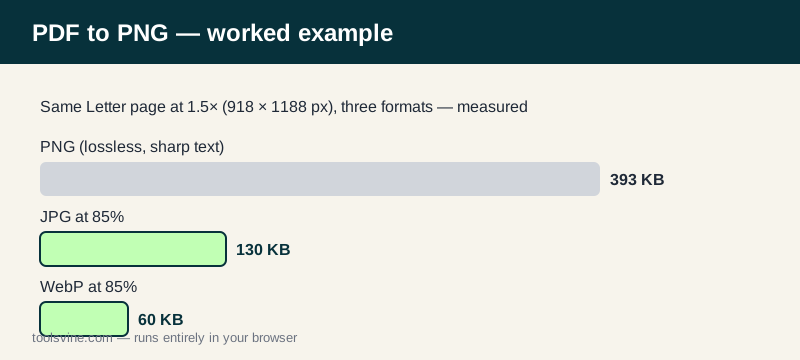
Those numbers came from one typical text-and-diagram page; a page full of photographs will be larger in every format, and a page of plain text will be smaller. The pattern stays the same, though: PNG is the biggest, JPG is in the middle, and WebP is the smallest. Pick the format by what the image is for, not by habit.
Which resolution should I choose?
Resolution is set with a scale factor in the tool's dropdown. At 1× a Letter page renders 612 pixels wide; 2× doubles that to 1224 pixels, which is sharp enough for printing, for most design work, and for zooming into small print.
Higher scales make bigger files, so 1.5× is a good middle ground for sharing on screen — 918 pixels wide, sharp at normal zoom, and still a manageable file size.
| Scale | Letter page width | Best for |
|---|---|---|
| 1× | 612 px | Quick previews, chat |
| 1.5× (default) | 918 px | Slides and documents |
| 2× | 1224 px | Printing, design work |
| 3× | 1836 px | High-quality print |
Do PNGs have a transparent background?
No — pages are rendered on a white background, exactly as they look in a PDF reader. A page that looks white in the reader will be white in the PNG. If you need transparency for a logo or a cut-out, extract the image from the PDF with a different tool instead, because a rendered page always includes its background.
Frequently asked questions
Why are my PNG files so large?
PNG is lossless, so a page full of photographs or gradients makes a big file. The worked example on this page measured 393 KB for one page — three times the same page as a JPG. If size matters more than pixel-perfect text, use the PDF to JPG tool instead, or pick a lower scale here. For text pages, the size is the price of perfect sharpness.
Can I convert just one page?
The tool converts every page and zips them together. If you only need one page, extract it first with Extract PDF Pages, then convert that single-page file — or just take the one image you need out of the ZIP. The files are named in order, so page-1 is always the first page and the rest follow in sequence.
Will the images have a transparent background?
No — pages are rendered on a white background, exactly as they look in a PDF reader. A page that looks white in the reader will be white in the PNG. That is true of every format here, because rendering draws the page the way a viewer shows it. Transparency only exists in images that were designed that way inside the PDF.
What resolution should I choose for printing?
Use 2× or 3×. A Letter page at 2× is 1224 pixels wide, which prints cleanly at normal sizes, and at 3× it is 1836 pixels wide for high-quality print. At 1× the text will look soft on paper, because 612 pixels across a whole page is not enough for a printer. The file will be bigger, but print is where PNG earns its size.
Is my PDF uploaded to a server?
No. Rendering happens entirely in your browser, and the ZIP is built on your device. Your PDF never leaves it, so contracts, IDs, and exam papers are safe. The tool works offline once the page has loaded, and closing the tab leaves no copy of your document behind on any server.