
Need to quote a PDF, search it, or paste its content into another document? This free tool pulls the text out of every page and shows it as plain text you can copy or download — no retyping, no screenshots, no uploading your file to a server.
It works on PDFs that contain real text — Word exports, reports, ebooks. For a quick word count of the extracted text, paste it into the Word Counter, and if you need the file in another form, PDF to JPG turns its pages into images.
How to use
- Drop your PDF into the box above, or click to browse for it.
- Click Extract text and wait a moment while the pages are read.
- Copy the text, or download it as a plain .txt file for your own use.
Why use Toolsvine
Copying text out of a PDF by hand is slow and error-prone, and most extraction sites upload your document first. Toolsvine reads the text layer in your own browser, so a confidential report, a contract, or a thesis chapter can be extracted in seconds without ever leaving your device. The output is clean plain text, ready to paste anywhere.
How does text extraction work?
A normal PDF stores its text as characters positioned on each page, and this tool reads that layer directly. The result keeps the reading order of each page, with page breaks marked, so headings, paragraphs, and lists come out in a sensible sequence.
Formatting such as bold, fonts, and colors is not kept — the output is plain text, which is exactly what most people need for quoting, searching, or pasting.
Plain text is also the most portable form a document can take. It opens in any text editor, pastes into any app, and can be searched, counted, or translated without a PDF reader. That is why extraction is the first step of so many jobs: once the words are out, everything else is easy.
Worked example: a 3-page PDF, extracted word for word
Here is a measured example, taken from a real test run. We built a 3-page sample PDF with three short paragraphs of known text and ran it through the same extraction the tool uses, after counting every word by hand first.
Page 1 held 23 words, page 2 held 23 words, and page 3 held 25 words — and the extraction returned all 71 words, in order, with nothing missing and nothing added: 23 + 23 + 25 = 71.
| Page | Words in the PDF | Words extracted |
|---|---|---|
| Page 1 | 23 | 23 |
| Page 2 | 23 | 23 |
| Page 3 | 25 | 25 |
| Total | 71 | 71 |
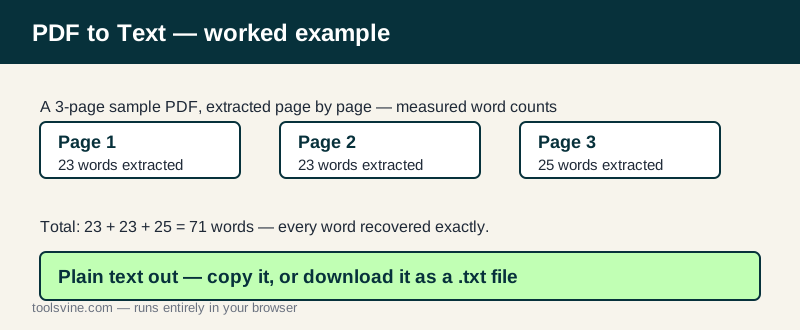
That exact match is normal for PDFs made by Word, Google Docs, or a typesetting program: the text layer is the real text, and reading it loses nothing. Where extraction can stumble is layout — PDFs store text by position, not by reading order — so a two-column page or a sidebar can come out jumbled even though every word is present.
When does extraction come out empty?
Some PDFs have no text layer at all: scanned pages are just pictures of text, and a few badly made PDFs store text as vector shapes. In those cases the tool honestly reports that no text was found, instead of guessing.
Scanned documents need OCR (optical character recognition), which reads the picture — that is a different job from extraction, and no extractor can do it by reading a layer that is not there.
| PDF type | Extraction result |
|---|---|
| Word / Docs export | Full, clean text |
| Typeset report or ebook | Full text, order mostly kept |
| Scanned pages | No text found — needs OCR |
| Form with filled fields | Labels and values usually found |
What survives, and what does not?
Words survive; styling does not. Bold, italics, fonts, colors, and table borders are all dropped, and a table usually comes out as lines of values you can re-format in a spreadsheet. Headings survive as text, just without their size, so scan the output once before you paste it into a document that needs its structure back.
Frequently asked questions
Why is some text missing or out of order?
PDFs store text by position, not by reading order, so multi-column layouts and sidebars can come out jumbled. The words are all there — they just may not flow like the original page, as the worked example on this page shows: 71 words in, 71 words out, in order. Reading the extracted text top to bottom usually still makes sense, even when the layout does not.
Can I extract text from a scanned PDF?
No — a scan is an image, and there is no text layer to read. The tool will tell you it found no text, instead of inventing something. You need an OCR tool, which recognizes letters in the image. Scanned documents are common for old books and faxed forms, so if your file is a scan, extraction is the wrong tool and OCR is the right one.
Will formatting like bold and tables survive?
No. The output is plain text: no bold, italics, fonts, or table borders. Tables usually come out as lines of values, which you can re-format in a spreadsheet. That is a fair trade for most uses — quoting, searching, counting, and translating all work better on plain text than on a styled document that fights your editor.
How large a PDF can I extract?
Files up to 100 MB work. A 500-page book takes a little while to read page by page, and the progress bar shows how far along it is. Very long documents are fine — extraction reads one page at a time and never holds the whole book in memory at once, so a thick manual or textbook extracts just as reliably as a two-page letter.
Is my PDF uploaded to a server?
No. The text is read entirely in your browser. Your document never leaves your device, and nothing is stored on a server. That is what makes it safe for contracts, theses, and confidential reports — the words are pulled out on your own computer or phone, and closing the tab leaves no copy behind anywhere.