
WebP gives you the sharpness of PNG at a fraction of the file size, which is why it is the format of choice for the modern web. This free tool renders every page of your PDF into a WebP image, zipped and ready to use on a website, in a slide deck, or in a chat.
If you need a format every app understands, the PDF to JPG tool is the universal choice, and JPG to PDF turns images back into a document. WebP sits between them: smaller than PNG, sharper than JPG.
How to use
- Drop your PDF into the box above, or click to browse for it.
- Choose a quality and resolution — higher quality means larger files.
- Click Convert to WebP, then download the ZIP of images and unzip it.
Why use Toolsvine
WebP is the best format for putting PDF pages on the web, but most converters charge for it or upload your file to do it. Toolsvine renders WebP locally in your browser, so you get modern, lightweight images with no account, no queue, and no copy of your document left on a server. The files are small enough to attach anywhere.
Why does WebP beat PNG and JPG on the web?
WebP was designed by Google to replace both PNG and JPG on websites. It compresses like JPG — with a quality setting you can tune — but keeps edges noticeably sharper at the same file size, and it supports transparency like PNG.
A text-heavy PDF page typically becomes a WebP about 25–35% smaller than the same page as a PNG, and the measured example below shows it can be far smaller than that.
The catch is compatibility: every modern browser and phone opens WebP, including Chrome, Safari, Edge, and Firefox, but very old software (before about 2020) may not. For a website, slides, or a chat message, WebP is the right call; for a print shop or an old desktop app, use PNG instead.
Worked example: one page in three formats
Here is a measured example. We rendered the same Letter page at 1.5× — 918 by 1188 pixels — in three formats. The PNG took 393 KB, the WebP at 85% quality took about 60 KB, and the WebP at 70% took about 36 KB.
That means the 85% WebP is about 85% smaller than the PNG of the same page, with text that still looks sharp on screen.
| Format | Same page, 1.5× | Versus PNG |
|---|---|---|
| PNG | 393 KB | — |
| WebP at 85% | About 60 KB | 85% smaller |
| WebP at 70% | About 36 KB | 91% smaller |
| JPG at 85% | About 130 KB | 67% smaller |
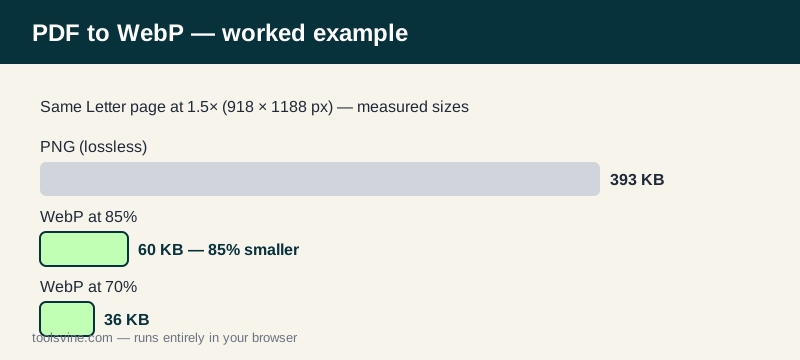
The 91% figure for WebP at 70% is real, but it comes with a warning: at 70%, very small print starts to soften. Start at 85% — it is the default for a reason — and drop to 70% only for quick sharing where size matters more than fine detail. The result message shows the total ZIP size, so you can judge the trade-off yourself.
What quality and resolution should I use?
The quality slider trades file size against fine detail: 85% is a good default for pages with text and diagrams, while 70% is fine for quick previews. Resolution works the same way as in the PNG converter — 1.5× suits screens, 2× suits print, and 3× is for high-quality print.
Lower both if the ZIP needs to stay small enough to email.
WebP, PNG, or JPG — which one wins?
For the web, WebP wins on size and sharpness. For print or design work, PNG wins on pixel-perfect quality. For maximum compatibility with every app on earth, JPG wins. The table in the example above settles it with numbers: the same page is 393 KB as a PNG, about 130 KB as a JPG, and about 60 KB as a WebP.
Frequently asked questions
Will WebP images open on my phone?
Yes — every modern browser and phone opens WebP, including Chrome, Safari, Edge, and Firefox. Very old software (before about 2020) may not, so use PNG for maximum compatibility. If you are sending images to someone whose setup you do not know, JPG is the safest universal format, and this site converts to that too.
Can I convert just one page to WebP?
The tool converts every page and zips them. For a single page, extract it first with Extract PDF Pages, convert that one-page file, and take the image you need. The ZIP names files in order, so the page you want is easy to find. Converting the whole file is also fine when the document is short — the ZIP is small either way.
Why is WebP smaller than PNG for the same page?
WebP uses smarter lossy compression, similar to JPG, while PNG is lossless and stores every pixel exactly. At 85% quality the visible difference is tiny, but the file is often a third smaller — and in the measured example on this page it was 85% smaller. PNG pays for perfection with size; WebP trades a little invisible detail for a much smaller file.
What quality setting should I use?
Start at 85%. Drop to 70% for quick sharing where size matters, or raise to 95% when the page will be printed or zoomed into. The result message shows the total size so you can judge. In the worked example above, 85% gave about 60 KB per page and 70% gave about 36 KB — a real saving, but only worth it when the small print still reads clearly.
Is my PDF uploaded anywhere?
No. The pages are rendered and compressed entirely in your browser. Nothing is sent to a server, nothing is stored, and the tool works offline once the page has loaded. That makes it safe for contracts, forms, and anything else private — the document never leaves your own device, and closing the tab leaves nothing behind.