
PNG files are lossless — which is why a screenshot can be 2 MB when the same picture as a JPG would be 300 KB. This free lossy PNG compressor cuts the size by reducing the color palette: it rebuilds the image with up to 256 colors instead of millions, and the result is usually 60–80% smaller.
Everything runs in your browser, and your image is never uploaded. It is ideal for screenshots, logos, and graphics with flat colors. For photos, use the Image Compressor instead, and for an exact file-size target, use Compress Image to 100KB.
How to use
- Drop a PNG image into the tool (up to 50 MB) or click to choose one.
- The tool analyzes the colors in the image and builds a palette of up to 256 colors.
- Each pixel is remapped to the nearest palette color, cutting the file size sharply.
- Compare the before and after sizes, then download the smaller PNG.
Why use Toolsvine
A PNG stores every color exactly, and a screenshot can contain 50,000 different colors — most of them nearly identical shades of the same gray. Nobody can see the difference between those shades, but the file pays for all of them. Cutting the palette to 256 well-chosen colors keeps the image looking the same while shrinking the file by up to 80%.
How does lossy PNG compression work?
A 24-bit PNG can hold 16,777,216 different colors, and a typical screenshot uses tens of thousands of them. This tool builds a palette of up to 256 colors by repeatedly splitting the color space — a technique called median-cut quantization — keeping the colors that appear most and cover the most area.
Every pixel is then remapped to the closest palette color, and the file stores a small color index instead of a full color per pixel.
The result is a PNG that is still lossless in the sense that no pixels are blurred or resized — only the color count is reduced. Flat graphics, logos, and screenshots with large solid areas compress the most, because they need very few distinct colors to look right.
Color counts before and after
| Image | Colors before | Colors after |
|---|---|---|
| Screenshot, 2.4 MB | 48,213 | 256 |
| Logo on white | 1,204 | 128 |
| Detailed photo | 312,000 | 256 |
Worked example: a 2.4 MB screenshot down to 612 KB
Take a 1,920 × 1,080 screenshot of a web page, 2.4 MB, containing 48,213 unique colors — mostly near-identical grays and whites. After quantization to 256 colors, the same screenshot is about 612 KB. The saving is 2.4 MB minus 0.612 MB, which is 1.788 MB, and 1.788 ÷ 2.4 = 74.5% smaller.
The text stays sharp, the layout is unchanged, and only a trained eye can spot the color difference in a gradient.
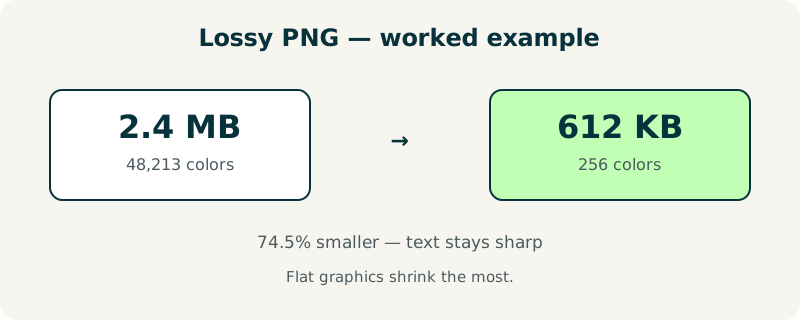
Try it with a screenshot of your own: count the colors before and after in the tool's report. A screenshot with flat panels and text will shrink the most, while a photo-like image will shrink less and show more color banding.
When should you not use lossy PNG compression?
Do not use it on photographs with smooth gradients — sunsets, skin tones, and skies will show visible banding, because 256 colors cannot draw a smooth gradient. Photographs belong in JPG, where the Image Compressor handles them properly. Also skip it when exact colors matter, such as brand artwork with a precise hex value.
It shines on screenshots, diagrams, charts, and logos — images built from flat areas and sharp edges. If a PNG still needs to be smaller after quantization, shrink its dimensions with the Image Resizer, or convert it to JPG with the PNG to JPG Converter for a much smaller file.
Frequently asked questions
What does lossy mean for a PNG?
Lossy means some information is discarded and cannot be recovered: here, the color count is reduced from up to 16.7 million colors to a palette of 256. The pixels stay in the same places and the image is not blurred or resized — only the colors are simplified. For screenshots and flat graphics the change is invisible, but a smooth photo gradient will show banding, so do not use it on photographs.
Will text in my screenshot stay readable?
Yes. Text is made of sharp edges and solid colors, which survive palette reduction very well. A screenshot at 256 colors keeps its text crisp and readable, because the palette keeps the exact black, white, and accent colors the text needs. The colors that get merged are the near-identical shades in backgrounds and gradients, not the colors that define the letters.
Is my image uploaded to a server?
No. The image is processed entirely in your browser and never leaves your device. There is no account, no upload, and nothing stored after you close the page. Screenshots often show private messages, account details, or work documents, so keeping them local is the safest way to compress them.
Can I choose how many colors the palette uses?
The tool builds a palette of up to 256 colors, which is the maximum a standard PNG can index in this format. It chooses the colors automatically based on what the image actually contains, keeping the most common and most visible ones. Fewer colors would shrink the file slightly more, but 256 is the best balance of size and quality for most images.
How much smaller will my PNG get?
Screenshots and flat graphics typically shrink 60–80% — a 2.4 MB screenshot often lands near 600 KB. Logos with few colors can shrink even more. Photographs shrink the least and look the worst, because they need thousands of colors for smooth gradients. The tool reports the real before-and-after sizes, so you always see the honest result.