
Resizing photos one by one is a chore when a whole shoot needs the same size. This free bulk image resizer shrinks dozens of JPG, PNG, and WebP photos at once — set the width, height, or percentage once, and download every result in a single ZIP.
Everything runs in your browser, and your photos are never uploaded. For a single photo, use the Image Resizer; to cut file size without changing dimensions, use the Bulk Image Compressor; and to trim edges in bulk, crop each photo first with the Image Cropper.
How to use
- Drop a batch of JPG, PNG, or WebP photos into the tool (up to 50 MB each), or select a whole folder.
- Set the target once: a width, a height, or a percentage of each original.
- Each photo is resized with its aspect ratio locked, and its new dimensions are shown in the list.
- Download all the results at once as a single ZIP file, or pick individual photos.
Why use Toolsvine
A product catalog, a real-estate listing, or a blog archive can mean a hundred photos that all need to be 1,200 pixels wide — and resizing them one at a time is an afternoon lost. This tool applies one size to the whole batch, keeps every aspect ratio intact, and returns a single ZIP. The afternoon becomes two minutes, and the files never leave your device.
How does bulk resizing work?
You drop in a batch, choose one target — a width, a height, or a percentage — and the tool resizes each photo in turn, locally in your browser. The aspect ratio stays locked for every file, so a 4,000 × 3,000 photo and a 3,000 × 2,000 photo both come out at the target width.
Each keeps its own correct height. The list shows the new dimensions per photo, so a portrait that came out taller than expected is easy to spot.
The output is saved at 90% JPEG quality, which looks clean on a screen while keeping files small. Because the work is local, there is no upload queue: a batch of 18 photos takes about as long as resizing them by hand, minus all the clicking.
A batch resized to 1,200 pixels wide
| Original | Resized | Scale |
|---|---|---|
| 4,000 × 3,000 | 1,200 × 900 | 30% |
| 3,000 × 2,000 | 1,200 × 800 | 40% |
| 2,400 × 2,400 | 1,200 × 1,200 | 50% |
Worked example: 18 photos, all to 1,200 pixels wide
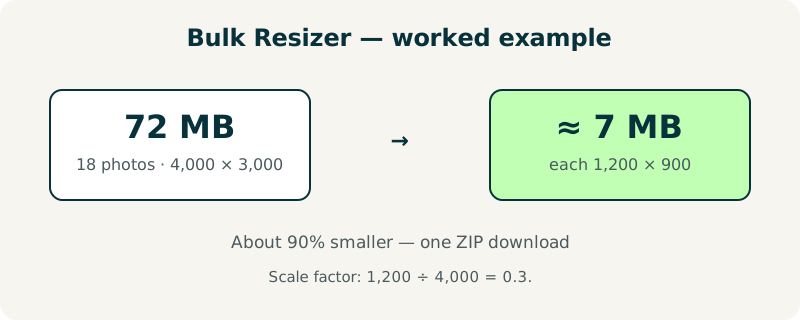
Take a batch of 18 photos, each 4,000 × 3,000 and about 4 MB — 72 MB in total. Resize the batch to 1,200 pixels wide: the scale factor is 1,200 ÷ 4,000 = 0.3, so each photo becomes 1,200 × 900, since 3,000 × 0.3 = 900.
The pixel count per photo drops from 12,000,000 to 1,080,000 — 9% of the original — and the batch lands near 7 MB in total, a saving of about 90%. One ZIP collects all 18 resized photos.
Try it with a folder of your own photos: watch the list as each file's new dimensions appear. A batch of mixed orientations is the best test — portraits and landscapes both keep their own correct heights.
What should I watch for with a mixed batch?
First, mixed orientations: a width target works well for a batch of landscapes, but a tall portrait will come out very tall at the same width — check the list. Second, mixed sizes: a photo that is already smaller than the target will not be enlarged usefully, so it will be returned nearly unchanged.
Third, very small thumbnails in the batch will stay small, which is correct — enlarging them would only add blur.
For a batch that needs smaller files rather than smaller dimensions, the Bulk Image Compressor is the matching tool. And if a few photos come out at the wrong size, re-run just those in the single Image Resizer with their own settings.
Frequently asked questions
How many photos can I resize at once?
There is no hard count, but batches of 20–30 photos work best. Each file can be up to 50 MB, and the tool processes them one at a time in your browser so memory stays manageable. For a hundred photos, split them into groups of 25 — the total time is about the same, and the browser stays responsive.
Are my photos uploaded to a server?
No. Every photo is resized locally in your browser and never leaves your device. There is no account, no upload queue, and nothing stored after you close the page. A batch is often a whole product shoot or a family vacation, so keeping it local is the safest way to handle it.
Will the aspect ratio stay correct for every photo?
Yes. The aspect ratio is locked for each photo, so a 4,000 × 3,000 photo set to 1,200 wide becomes 1,200 × 900, while a 3,000 × 2,000 photo set to the same width becomes 1,200 × 800. Each photo keeps its own proportions — circles stay circles, and people are never stretched or squashed.
What does the ZIP download contain?
The ZIP contains every resized photo from the batch, each with its original file name, so you can unzip it straight into the folder where the originals live. Photos that failed or were skipped are listed separately and are not included. The ZIP is built locally in your browser, just like the resizing itself.
Can I resize a batch to a percentage instead of a width?
Yes. You can set a percentage — for example 50% — and each photo is scaled by that amount, so a 4,000 × 3,000 photo becomes 2,000 × 1,500 and a 3,000 × 2,000 photo becomes 1,500 × 1,000. Percentages are useful when your batch has mixed sizes and you want each photo to keep its relative scale.