
Convert JPG images to PNG without uploading anything. Drop one file or a whole batch, and each picture is converted in your browser — the originals never leave your device. Download files one by one, or grab everything as a single ZIP.
PNG is the lossless format for screenshots, logos and anything with text: unlike JPG it never adds blurry artifacts around sharp edges, and it supports full transparency. If you need a different output first, the Image Resizer handles the most common swap, and the PNG to JPG Converter shrinks pictures before you convert them.
How to use
- Drop your JPG file(s) on the box above, or click to browse — you can add several at once.
- Each file converts automatically; watch the before-and-after sizes in the list.
- Download a single file, or use Download all (ZIP) for the whole batch.
- Press Start over to clear the list and convert more files.
Why use Toolsvine
Every JPG file you drop here becomes a PNG in seconds, with the real sizes shown. Most image converters upload your pictures to a server, queue them, and show you ads while you wait. This one converts locally with the same engines browsers use, reports the real before-and-after size of every file, and never asks for an account — your JPG files stay on your device from start to finish.
Does converting JPG to PNG improve quality?
No — and understanding why saves a lot of disappointment. JPG compression is lossy: every save throws away a little detail, and that detail is gone forever. Saving as PNG freezes the picture exactly as it is now, so repeated edits and re-saves no longer degrade it further, but it cannot restore what the JPG compression already threw away.
That freeze is the whole reason to convert. If you plan to edit a photo, add text, or crop it several times, working in PNG means the image is re-saved losslessly at every step. Do the same work in JPG and each save adds a fresh round of artifacts — the reason a much-edited JPG slowly turns mushy around edges and text.
JPG vs PNG, at a glance
| Property | JPG | PNG |
|---|---|---|
| Compression | Lossy | Lossless |
| Transparency | No | Yes, full alpha |
| Quality change | Loses detail every save | None — pixels preserved |
| Best for | Sharing photos | Editing, screenshots, logos |
Worked example: a photo and a screenshot
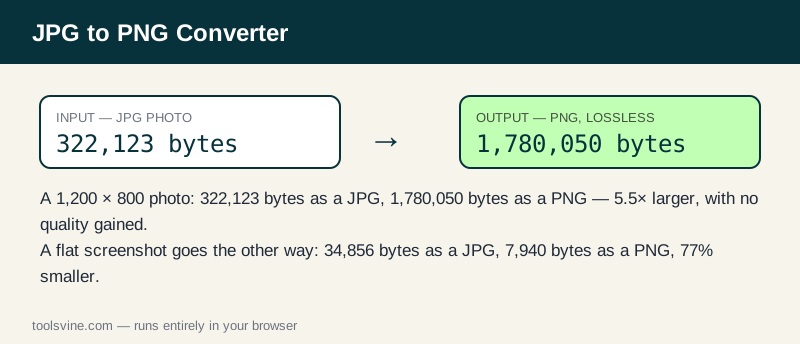
Take a 1,200 × 800 photo saved as a JPG at quality 92: the file is 322,123 bytes. Converting it to PNG gives 1,780,050 bytes — 5.5 times larger — because the PNG must store every pixel exactly, including the compression noise the JPG left behind. The picture looks identical; the PNG is simply a much less efficient container for a photo. Now take a flat 1,200 × 800 screenshot: as a JPG it is 34,856 bytes, and as a PNG it is only 7,940 bytes — 77% smaller — because PNG compresses flat colors far better than JPG does.
| Image | JPG size | PNG size | Change |
|---|---|---|---|
| 1,200 × 800 photo | 322,123 bytes | 1,780,050 bytes | 5.5× larger |
| 1,200 × 800 screenshot | 34,856 bytes | 7,940 bytes | 77% smaller |
The two rows point in opposite directions, and both are correct. Photos get bigger as PNGs; screenshots get smaller. The tool shows both sizes for every file, so you can see which way each of your images went before you download anything.
When is JPG to PNG worth it?
Convert when you are about to edit: cropping, annotating, or adding text to a screenshot is cleaner in PNG, because every re-save is lossless and text edges stay sharp. It is also worth it when a program requires PNG — many design tools, game engines, and print services accept only lossless formats. For simple sharing, though, keep the JPG: the PNG is bigger and looks the same. If the goal is a smaller file, the Image Compressor is the better next step.
Frequently asked questions
Is converting JPG to PNG free?
Yes — free, with no account and no limit on the number of files. Everything runs in your browser, so there is no server queue and no waiting for an upload. You can convert one image or a whole folder of JPGs in a single session.
Will my JPG files be uploaded anywhere?
No. The conversion happens entirely on your device using browser technology. Your files never leave your computer or phone, and the tool keeps working offline once the page has loaded, so private screenshots and client work stay private at any stage of the process.
Can I convert several images at once?
Yes — drop as many JPG files as you like and they convert one after another. Use the Download all (ZIP) button to save the whole batch in one click instead of downloading files one by one, which is handy when a project needs a whole set of images.
Will converting to PNG make my photo sharper?
No. Converting to PNG cannot restore detail that JPG compression already threw away — it only stops further loss. The picture will look exactly the same; the PNG is just a lossless container for the pixels you already have. Choose PNG to protect future edits, not to improve the current image.
Why is my PNG bigger than the original JPG?
Photos almost always grow, because PNG stores every pixel exactly while JPG discards detail to save space. A photo PNG is typically 3–6 times the JPG size. Screenshots are the exception: flat colors compress so well that a screenshot PNG can be smaller than its JPG.