
Paste CSV data and get JSON back instantly — no upload, no account, no waiting. The conversion runs in your browser with the PapaParse library, so your data never leaves your device. Copy the result, or download it as a .json file ready for an API, a config, or a script.
CSV is the table format spreadsheets export, and JSON is the format APIs and JavaScript expect — so moving data between them is a daily job for developers. The first row becomes the field names, and every row after it becomes one object. To go the other way, JSON to CSV flattens records into a table, and JSON to Excel (XLSX) builds a real workbook.
How to use
- Paste your CSV data into the input box, or press Sample to load a small customer table.
- The JSON output appears automatically as you type, pretty-printed with two-space indentation.
- Check the row count under the output, then copy the result or download it as a .json file.
- If a row is malformed, a plain-English error names the row — fix it and the output updates.
Why use Toolsvine
Spreadsheets export CSV and APIs speak JSON, and the usual way across is either a web tool that uploads your spreadsheet or a script you have to write and debug. This converter parses the CSV locally with PapaParse, turns the first row into field names, and pretty-prints the JSON — with every value kept as text, exactly as the CSV holds it.
How does CSV to JSON work?
CSV to JSON reads the first row of your CSV as the field names, then turns every row after it into one JSON object: the header name becomes the key, and the cell text becomes the value. A three-line CSV with a header and two data rows becomes a JSON array with two objects, each holding three fields.
Every value arrives as a string, because CSV has no types: the age 28 becomes the string "28", not the number 28, so a script that adds ages must convert them first. Empty rows are skipped, quoted cells keep their commas, and a row with fewer cells than the header gets only the fields it has — no invented values, no padding.
What happens to tricky values
| Detail | How it is handled |
|---|---|
| First row | Field names, used as the keys |
| Every value | A string, even numbers like "28" |
| Quoted cells | Commas inside quotes stay in the cell |
| Empty rows | Skipped |
| Short rows | Only the fields they have |
The output is pretty-printed with two-space indentation, so it is easy to read and to paste into an editor. If you need compact JSON, minify it after the conversion — the values are the same either way. A header row is required: paste a CSV without one and the first data row becomes the field names, which is almost never what you want.
Worked example: a customer table becomes JSON
Take the sample the tool loads when you press Sample: a header row, name, age, city, and two data rows for Alex and Jordan. The converter returns a JSON array with two objects. Look closely at the ages: 28 and 31 are strings here, in quotes, because CSV cannot say that a value is a number.
Example input:
name,age,city\nAlex,28,Austin\nJordan,31,Dallas
Becomes:
[\n {\n "name": "Alex",\n "age": "28",\n "city": "Austin"\n },\n {\n "name": "Jordan",\n "age": "31",\n "city": "Dallas"\n }\n]
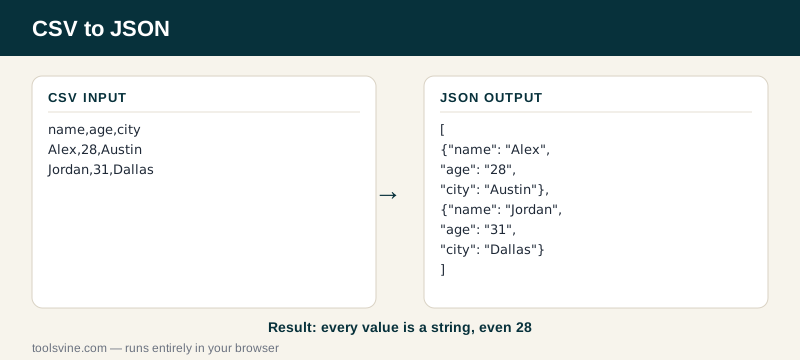
Try it yourself: change Alex's age to 29 in the CSV and watch the JSON update as you type — the value stays in quotes, because the converter never invents a type. The status line reads 2 rows → JSON, confirming both rows survived the trip. If the table needs to become a document instead, the JSON to Markdown Table converter writes it in pipe syntax.
Why are my numbers strings in the JSON?
Because CSV has no way to say that a cell holds a number: every cell is text, so the converter keeps that honest and writes "28" as the string "28". Guessing would be worse — a ZIP code like 78701 would become the number 78701, and a product code like 00123 would lose its leading zeros.
Convert the strings in your own code after the import — Number(age) in JavaScript, or int() in Python — where the type decision is yours and visible. The converter's rule is simple: it never invents information the CSV did not carry.
Frequently asked questions
Is converting CSV to JSON free?
Yes — completely free, with no account, no upload limits, and no watermark on the output. The conversion runs entirely in your browser using the PapaParse library, so there is no server involved and no cost to pass on. You can convert one row or ten thousand and the price stays the same: nothing.
Is my CSV data uploaded anywhere?
No. Everything happens locally in JavaScript on your own device, and the tool works offline once the page has loaded. That matters most with customer lists, internal IDs, or prices — data you would never paste into a random server keeps working here because it never leaves your machine.
What happens if a CSV row is malformed?
The tool shows a plain-English error naming the row with the problem — an unclosed quote is the usual suspect — and leaves the output empty instead of guessing. Fix that row in the input box and the JSON rebuilds automatically, usually before you finish typing the correction. Short rows are not errors: a row with fewer cells simply produces an object with fewer fields.
Why are all the values strings?
Because CSV stores every cell as text and the converter refuses to guess types. The age 28 becomes the string "28", a ZIP code keeps its leading zeros, and a product code like 00123 survives unchanged. Convert the values in your own code after the import, where the type decision is yours and visible to the next person reading it.
Does the CSV need a header row?
Yes — the first row becomes the field names, so paste a CSV whose first line holds the column names. If your CSV has no header, add one before converting: without it, the first data row is treated as the header and disappears from the output as data. The status line under the output shows the row count, so you can spot a missing row at a glance.