
Paste JSON data and get YAML back instantly — no upload, no account, no waiting. The conversion runs in your browser with the js-yaml library, so your data never leaves your device. Copy the result, or download it as a .yaml file ready for a config file, a CI pipeline, or a Docker Compose setup.
YAML is the configuration-file cousin of JSON: the same data, but with indentation instead of braces and no quotes around most strings. That makes it easier to read — and easier to break with one wrong space. If the data belongs in a spreadsheet instead, the JSON to CSV converter is the better stop, and JSON to XML fits systems that still speak XML.
How to use
- Paste your JSON data into the input box, or press Sample to load a short editor profile.
- The YAML output appears automatically as you type, indented with two spaces per level.
- Check the indentation in the preview — one wrong space changes the structure in YAML.
- Copy the result, or download it as a .yaml file with the Download button.
Why use Toolsvine
YAML looks friendly until a config file refuses to load over a single misplaced space, and most online JSON-to-YAML tools make the problem worse by sending your config — API keys and all — to their server. This converter runs js-yaml locally in your browser, quotes strings only when YAML would misread them, and shows a live preview so you can catch an indentation slip before it reaches your server.
How does JSON to YAML work?
JSON to YAML rewrites the same data with indentation instead of braces: each key sits on its own line, nested objects indent two spaces deeper, and arrays become dash-prefixed lines. The data does not change at all — {"name": "Alex"} and name: Alex describe exactly the same value.
Quoting is where YAML gets subtle, and js-yaml handles it for you: a string that looks like a number, a date, or a yes/no word gets quotes, so zip "78701" stays a string instead of becoming the number 78701, and answer "yes" stays the word yes instead of becoming the boolean true. A real null becomes the word null, not an empty value, and true and false stay lowercase.
What happens to tricky values
| Detail | How it is handled |
|---|---|
| Strings that look like numbers | Quoted, so "78701" stays a string |
| Yes/no/on/off words | Quoted, so they stay words, not booleans |
| Dates like 2026-11-12 | Quoted, so they stay text |
| Null | Written as null |
| Nested objects | Indented two more spaces per level |
Indentation is the whole format: two spaces per level, every level, no tabs. A line indented by three spaces instead of two belongs to a different parent, and most parsers will either fail or silently read a different structure. If your YAML loads but the values land in the wrong place, count the spaces first — it is the cause nine times out of ten.
Worked example: an editor profile becomes YAML
Press Sample and the tool loads a short profile: a name, a role, two tags, and an active flag. Watch how each type changes shape: strings lose their quotes, the tags array becomes two dash lines indented under tags, and the boolean true stays lowercase. The key order is unchanged.
Example input:
{"name":"Alex","role":"editor","tags":["news","sport"],"active":true}
Becomes:
name: Alex\nrole: editor\ntags:\n - news\n - sport\nactive: true
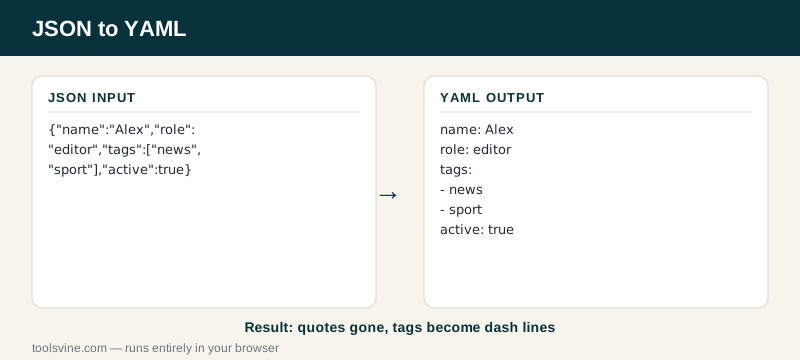
Try it yourself: add a third tag to the JSON array and watch a third dash line appear in the YAML. Then change editor to admin — notice the quotes vanish again, because admin is not a word YAML would misread. That is the rule: js-yaml quotes only when the meaning would change without them. If the input is messy, tidy it first with the JSON Formatter.
When should I choose YAML over JSON?
Choose YAML when a human has to read or edit the file regularly — config files, CI pipelines, and Docker Compose are the classic cases — because indentation is easier on the eyes than braces. Choose JSON when a program reads the file and nobody edits it by hand, since JSON is stricter and parsers never argue about spaces.
YAML's readability is also its risk: a file that looks fine can hide a wrong indent, while JSON either parses or it does not. Keep JSON as the stored format when you can, and generate YAML from it with this tool whenever a human needs to touch the file.
Frequently asked questions
Is converting JSON to YAML free?
Yes — completely free, with no account, no upload limits, and no watermark on the output. The conversion runs entirely in your browser using the js-yaml library, so there is no server involved and no cost to pass on. You can convert one object or a whole config file and the price stays the same: nothing.
Is my JSON data uploaded anywhere?
No. The YAML is produced on your device by a library running in the page, and nothing is sent anywhere. That matters for config files, which often hold API keys, database passwords, and internal hostnames. Your secrets stay in your browser, and the tool works offline once the page has loaded.
Why are some strings quoted in the YAML output?
Because YAML would misread them without quotes. A zip code like 78701 would become the number 78701, the word yes would become the boolean true, and a date like 2026-11-12 would become a date value. The converter quotes exactly those strings — and only those — so the value you get back is the value you put in.
What happens if my JSON is invalid?
The tool shows a plain-English error naming the line with the problem — a missing quote, a trailing comma, or an unclosed bracket, for example — and leaves the output empty instead of guessing. Fix the error in the input box and the YAML rebuilds automatically, usually before you finish typing the correction.
Can I download the YAML result as a file?
Yes — the Download button saves the result as a .yaml file with a sensible name, ready to drop into a project or a server. Copy works too, if you would rather paste the YAML straight into your editor. Either way, the file is generated on your device, not on a server.