
Paste JSON data and get an HTML table back instantly — no upload, no account, no waiting. The conversion runs in your browser, so your data never leaves your device. Copy the markup, or download it as a .html file ready to paste into a page.
An HTML table is the fastest way to put JSON records on a web page: one <table> with a header row and one <tr> per record, no framework needed. The output is plain, unstyled markup, so your site's own CSS decides how it looks. For a Markdown page instead, JSON to Markdown Table writes the same grid in pipe syntax, and JSON to CSV hands the data to a spreadsheet.
How to use
- Paste your JSON data into the input box, or press Sample to load two example customer records.
- The HTML table appears automatically as you type, and the rendered preview shows how it will look.
- Copy the markup, or download it as a .html file with the Download button.
- If the input is invalid, a plain-English error names the line with the problem — fix it and the output updates.
Why use Toolsvine
Embedding JSON data in a web page usually means writing a loop in JavaScript or hand-typing table rows — both slow for a quick report or a static page. This converter turns the records into clean table markup locally in your browser, escapes the cell text so a stray angle bracket never breaks your page, and shows a rendered preview so you can check the grid before you paste it.
How does JSON to HTML Table work?
JSON to HTML Table turns each object in your JSON array into one table row: the object's keys become the header cells in the first row, and each value becomes a data cell underneath. The output is a plain <table> with a header row of <th> cells and one <tr> per record — nothing else, no classes, no inline styles.
Cell text is escaped before it goes into the markup, so a value like Tom & Jerry becomes Tom & Jerry and a < in a name never opens a tag. That keeps the table safe to paste into any page. Nested values become JSON text inside the cell, and a missing key leaves an empty cell, so every row has the same number of cells.
What happens to tricky values
| Detail | How it is handled |
|---|---|
| Headers | Keys from the first row, as <th> cells |
| Rows | One <tr> per object, cells in header order |
| Nested objects | JSON text in the cell |
| Missing keys | Empty cell |
| Special characters | Escaped (& < >) |
The preview under the output renders the table with your browser's default table styling, so you can see the grid before you copy it. If the preview looks right, the markup is right — the same HTML is what you download. Style it with your own CSS afterward: a <table> with no classes takes whatever table styles your site already has.
Worked example: two customers become a table
Start with the same two customer records the Sample button loads: Alex, 28, Austin and Jordan, 31, Dallas. The converter builds a three-column table — name, age, city — with a header row and two data rows. Compare the input and the output line by line: the keys became headers, the values became cells, and nothing else was added.
Example input:
[{"name":"Alex","age":28,"city":"Austin"},{"name":"Jordan","age":31,"city":"Dallas"}]
Becomes:
<table>\n<tr><th>name</th><th>age</th><th>city</th></tr>\n<tr><td>Alex</td><td>28</td><td>Austin</td></tr>\n<tr><td>Jordan</td><td>31</td><td>Dallas</td></tr>\n</table>
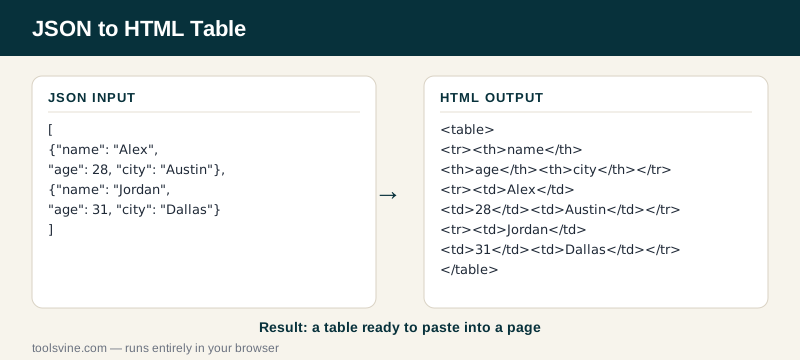
Try it yourself: add a third record for Taylor in Houston and watch a third <tr> appear in the output. Then paste the markup into an empty HTML file and open it in your browser — the table renders with no CSS at all, which is exactly how you know the markup is complete. For the same grid in a document, the JSON to Markdown Table converter writes it in pipe syntax.
How do I style the table after pasting it?
Style it with CSS, because the output carries no classes or inline styles of its own. A rule like table { border-collapse: collapse; } plus th, td { border: 1px solid #ccc; padding: 8px; } gives you a clean bordered grid, and your site's existing table styles apply automatically if it already has them.
Keep the markup and the styling separate on purpose: the converter's job is the data, and your stylesheet's job is the look. If you need the same grid in a document instead of a page, the JSON to Markdown Table converter writes it in pipe syntax for README files and wikis.
Frequently asked questions
Is converting JSON to HTML Table free?
Yes — completely free, with no account, no upload limits, and no watermark on the output. The conversion runs entirely in your browser, so there is no server involved and no cost to pass on. You can convert one record or a thousand rows and the price stays the same: nothing.
Is my JSON data uploaded anywhere?
No. The table markup is built on your device by JavaScript running in the page, and nothing is sent anywhere. That matters when the records hold customer names, email addresses, or internal IDs — data you would never paste into a stranger's server stays safe here because it never leaves your browser.
What happens if my JSON is invalid?
The tool shows a plain-English error naming the line with the problem — a missing quote, a trailing comma, or an unclosed bracket, for example — and leaves the output empty instead of guessing. Fix the error in the input box and the table rebuilds automatically, usually before you finish typing the correction.
Does the table come with any styling?
No. The output is plain markup — a table element with header and data cells and no classes, no inline styles, and no JavaScript. That is deliberate: your site's own CSS decides how it looks, so the table matches the rest of your page. Add a stylesheet rule for borders and padding, or leave it unstyled for a quick internal report.
What happens to special characters in my data?
They are escaped before they reach the markup. An ampersand becomes &, a less-than sign becomes <, and a greater-than sign becomes >, so a value like Tom & Jerry or an angle bracket inside a name never breaks the page. The text a visitor sees is unchanged — the escaping only stops the browser from reading data as HTML.