
Paste JSON data and get a real Excel workbook back instantly — no upload, no account, no waiting. The conversion runs in your browser with the SheetJS library, so your data never leaves your device. Download the .xlsx file and open it in Excel, Google Sheets, or LibreOffice.
A genuine .xlsx file is a ZIP of XML files, not a renamed CSV — which is why spreadsheet apps sometimes refuse a .csv file saved with an .xlsx extension. This tool builds a real workbook with one sheet, headers in row 1, and one row per object. For a plain-text table instead, JSON to CSV is the lighter option, and CSV to JSON runs the trip in reverse.
How to use
- Paste your JSON data into the input box, or press Sample to load two sales records.
- The preview shows the first five rows as a tab-separated table so you can check the shape.
- Change the sheet name in the box above the output if you want something other than Sheet1.
- Download the .xlsx file with the Download button and open it in your spreadsheet app.
Why use Toolsvine
Turning JSON into a spreadsheet usually means either pasting into a web tool that uploads your data or hand-building rows in Excel. This converter builds a genuine .xlsx workbook locally with SheetJS, keeps numbers as real numbers instead of text, and shows a five-row preview so you can verify the columns before you download anything.
How does JSON to Excel (XLSX) work?
JSON to Excel turns each object in your JSON array into one spreadsheet row: the object's keys become the column headers in row 1, and each value lands in its own cell underneath. The tool builds a genuine .xlsx workbook with SheetJS, so Excel, Google Sheets, and LibreOffice all open it without complaints.
Numbers stay numbers in the cells, which is the part a CSV export cannot do: sales of 120 arrives as the number 120, so SUM and AVERAGE work immediately, and a formula you type next to the data will calculate. Dates are the exception — a JSON date string lands as text, so write dates as ISO strings like 2026-11-12 and format the column as a date after importing.
What happens to tricky values
| Detail | How it is handled |
|---|---|
| Sheet name | Sheet1 by default, up to 31 characters |
| Headers | Keys from the first row, in order |
| Numbers | Kept as numbers, not text |
| Nested values | Written as JSON text in the cell |
| Missing keys | Empty cell |
Sheet names longer than 31 characters are cut to 31, because Excel refuses longer names — that is an Excel rule, not a quirk of this tool. A single JSON object instead of an array becomes a one-row sheet, and a top-level number or string is rejected with a plain-English error, since a workbook needs rows to hold.
Worked example: two sales records become a workbook
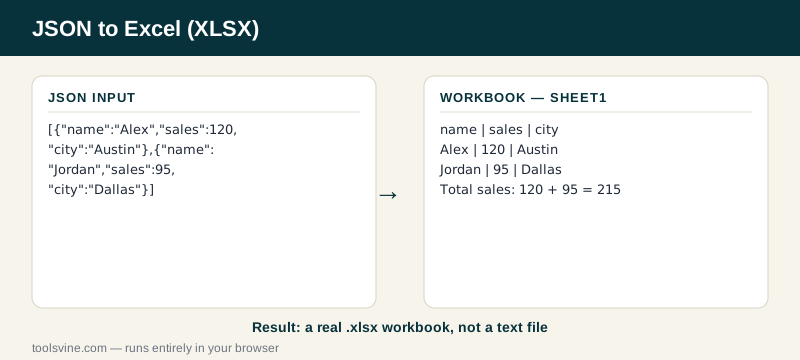
Press Sample and the tool loads two sales records: Alex sold 120 in Austin, Jordan sold 95 in Dallas. The preview shows the shape as a table — headers first, then one row per record — and the downloaded workbook holds exactly the same grid. Add the sales figures: 120 plus 95 is 215.
Example input:
[{"name":"Alex","sales":120,"city":"Austin"},{"name":"Jordan","sales":95,"city":"Dallas"}]
Becomes this workbook grid:
| name | sales | city |
|---|---|---|
| Alex | 120 | Austin |
| Jordan | 95 | Dallas |
Try it yourself: change Jordan's sales from 95 to 110 and the preview updates as you type — the workbook will hold the new value when you download it. The status line reads 2 rows × 3 columns — download the .xlsx file below, confirming the grid before you save it.
Why does Excel sometimes refuse a file I renamed to .xlsx?
Because renaming a .csv file to .xlsx does not change its contents: an .xlsx file is a ZIP archive of XML files, and Excel checks the contents, not the extension. A renamed CSV is still plain text inside, so Excel either refuses it or opens it as a text import.
This tool avoids the problem by building a real workbook with SheetJS, the same library many web apps use to write spreadsheets. If you only need a plain-text table, the JSON to CSV converter is faster — but if the file must open as a spreadsheet on the first double-click, download the .xlsx.
Frequently asked questions
Is converting JSON to Excel (XLSX) free?
Yes — completely free, with no account, no upload limits, and no watermark in the workbook. The conversion runs entirely in your browser using the SheetJS library, so there is no server involved and no cost to pass on. You can convert one record or a thousand rows and the price stays the same: nothing.
Is my JSON data uploaded anywhere?
No. The workbook is assembled on your device by a library running in the page, and nothing is sent anywhere. That matters when the JSON holds sales figures, customer records, or internal IDs — data you would never paste into a stranger's server. The tool works offline once the page has loaded.
What happens if my JSON is invalid?
The tool shows a plain-English error naming the line with the problem — a missing quote, a trailing comma, or an unclosed bracket, for example — and leaves the output empty instead of guessing. Fix the error in the input box and the preview rebuilds automatically, usually before you finish typing the correction.
Will my numbers still work in formulas?
Yes. Numbers stay real numbers in the cells, so SUM, AVERAGE, and any formula you type next to the data calculate immediately. That is the main advantage over a CSV export, where every value arrives as text. Dates are the exception — a JSON date string lands as text, so format that column as a date after importing.
Can I rename the sheet?
Yes. The box above the output holds the sheet name, and it defaults to Sheet1. Type a name like Sales or Q4 Report and the workbook uses it when you download. Excel limits sheet names to 31 characters, so a longer name is cut to 31 automatically — that is an Excel rule, not a limit of this tool.