
Paste JSON data and get CSV back instantly — no upload, no account, no waiting. The conversion runs in your browser with the PapaParse library, so your data never leaves your device. Copy the result, or download it as a .csv file ready to open in Excel, Google Sheets, or any database tool.
CSV is the plain-text table format almost every spreadsheet and database understands, which makes it the easiest way to move JSON records out of an API and into a report. If the trip runs the other way, the CSV to JSON converter reverses it, and JSON to Excel (XLSX) builds a real workbook instead of a text file.
How to use
- Paste your JSON data into the input box, or press Sample to load two example customer records.
- The CSV output appears automatically as you type — there is no Convert button to hunt for.
- Check the live preview, then copy the result or download it as a .csv file with the Download button.
- If the input is invalid, a plain-English error names the line with the problem — fix it and the output updates.
Why use Toolsvine
Most online JSON-to-CSV tools send your data to a server you have never heard of, which is a bad deal when the data holds customer records, email addresses, or API keys. This converter runs the whole job locally in your browser, shows a live preview so you can spot a bad row before downloading, and explains invalid input in plain English instead of dumping a stack trace.
How does JSON to CSV work?
JSON to CSV flattens each object in your JSON array into one row of a table: the object's keys become the column headers, and each value becomes one cell in that row. A two-record array with name, age, and city becomes a three-column table with a header row and two data rows.
CSV has no data types, so every value becomes text on the way out: numbers and booleans come back as strings when the CSV is read again, and dates are safest written as ISO strings such as 2026-11-12, which spreadsheets read as dates. The converter takes its column order from the first row and adds any extra keys it meets later as new columns, leaving earlier rows blank there.
What happens to tricky values
| Detail | How it is handled |
|---|---|
| Nested objects | Written as [object Object] — flatten them first |
| Arrays in a row | Joined with commas, then quoted as one cell |
| Commas or quotes in a value | The cell is quoted automatically, quotes doubled |
| Missing keys and nulls | Empty cell |
| Numbers and booleans | Written as plain text (28, true) |
The [object Object] result for nested data is the one surprise worth knowing about: PapaParse, the library doing the conversion, does not flatten objects for you. If your JSON has an address object inside each record, pull its fields up to the top level first — name, city, and zip as separate keys — or the CSV will lose that detail. Arrays collapse the same way, into one comma-separated cell.
Worked example: two customers become a CSV file
Start with two customer records, one for Alex in Austin and one for Jordan in Dallas. Paste this JSON into the box and the converter returns three lines: a header row plus one row per customer. The numbers 28 and 31 stay plain numbers in the text, since a CSV file carries no type information.
Example input:
[{"name":"Alex","age":28,"city":"Austin"},{"name":"Jordan","age":31,"city":"Dallas"}]
Becomes:
name,age,city\nAlex,28,Austin\nJordan,31,Dallas
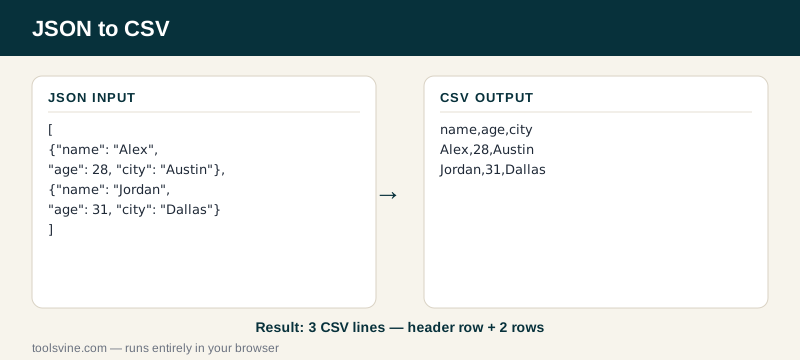
Try it yourself: press Sample on the tool to load exactly these two records, then change Austin to Houston and watch the output update as you type. The status line under the output counts the rows for you — 2 rows → CSV — so you can confirm at a glance that nothing was dropped.
How do I open the CSV in Excel without breaking it?
Open Excel, use File, then Open, and pick the .csv file — or use Data, then From Text/CSV — and Excel will split the columns for you. Double-clicking the file also works, but the import wizard is safer when your data holds commas, quotes, or leading zeros.
Two Excel habits save headaches: import through the wizard instead of double-clicking when a column holds ZIP codes like 78701, because Excel drops leading zeros from numbers, and save your work as .xlsx after importing, since CSV cannot store formatting, formulas, or multiple sheets. For a ready-made workbook, the JSON to Excel (XLSX) converter builds the .xlsx file directly.
Frequently asked questions
Is converting JSON to CSV free?
Yes — completely free, with no account, no upload limits, and no watermark on the output. The conversion runs entirely in your browser using the PapaParse library, so there is no server involved and no cost to pass on. You can convert one record or ten thousand and the price stays the same: nothing.
Is my JSON data uploaded anywhere?
No. Everything happens locally in JavaScript on your own device, and the tool works offline once the page has loaded. That matters most with customer lists, internal IDs, or API keys — data you would never paste into a random server keeps working here because it never leaves your machine.
What happens if my JSON is invalid?
The tool shows a plain-English error naming the line with the problem — for example, a missing quote, a trailing comma, or an unclosed bracket — and leaves the output empty instead of guessing. Fix the error in the input box and the CSV updates automatically, usually before you finish typing the correction.
Why does my nested data show up as [object Object]?
Because CSV has no way to hold an object inside a cell, and the PapaParse library writes nested objects as the text [object Object] instead of expanding them. Flatten the data first — move address.city up to a top-level city key — and every value lands in its own column. Arrays collapse the same way, into one comma-separated cell.
Can I download the CSV result as a file?
Yes — the Download button saves the result as a .csv file with a sensible name, ready to open in Excel, Google Sheets, or any database import tool. Copy works too, if you would rather paste the result straight into a spreadsheet or an email. Either way, the file is generated on your device, not on a server.