
Tag dozens of URLs with the same campaign in one go: paste a list, one URL per line, fill in the source, medium, and campaign once, and every link comes back tagged. Copy the whole list or download it as a CSV with the original and tagged URLs side by side.
The tagging runs entirely in your browser — nothing is uploaded. For a single link with the extra term and content fields, use the UTM Link Builder, and if a tagged link is going into search results, keep the page's canonical clean with the Canonical Tag Generator.
How to use
- Paste your URLs into the box, one per line.
- Fill in the source, medium and campaign once.
- Copy the tagged list, or download it as a CSV.
Why use Toolsvine
Tagging forty links by hand is not just slow, it is where consistency dies: the seventeenth link gets “Instagram” instead of “instagram”, the twenty-third gets a typo in the campaign name, and the analytics report quietly splits one campaign into three. This builder exists to tag the whole list in one pass with one spelling, and to hand you a CSV you can keep as the record of exactly what went out.
How do I tag a whole list of links at once?
Paste your URLs one per line, enter the source, medium, and campaign once, and the builder tags every line with the same three parameters. The count line tells you how many URLs were tagged and flags any line that was not a valid URL.
The CSV download pairs each original URL with its tagged version so you can check the work in a spreadsheet.
Each line is tagged the same way the single-link builder tags one URL: the three parameters are appended, and an existing utm_source, utm_medium, or utm_campaign is replaced rather than duplicated. A line that is not a valid URL — for example one without “https://” — is marked with a warning in the output and counted as invalid, so a typo in one line never silently corrupts the rest of the list.
Worked example
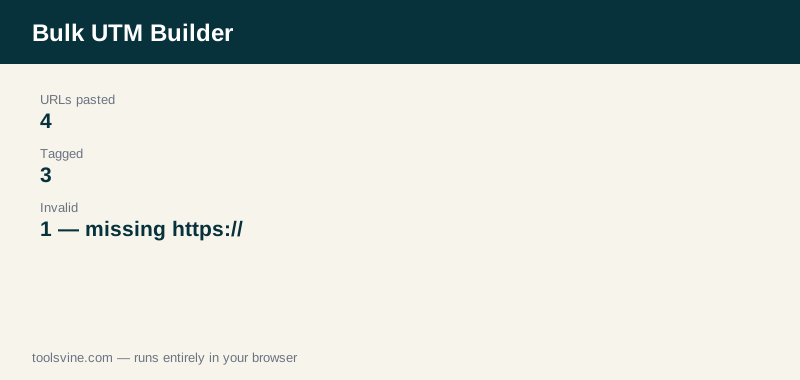
Paste four lines with source “newsletter”, medium “email”, and campaign “july-2026”: three product pages and one line, “shop.example.com/sale”, written without a protocol. The builder returns the three tagged URLs — for example, “https://www.example.com/best-running-shoes-flat-feet/?utm_source=newsletter&utm_medium=email&utm_campaign=july-2026” — and the count line reads “4 URLs — 3 tagged, 1 invalid.” The invalid line is shown as “⚠ Not a valid URL: shop.example.com/sale”, and the CSV download lists the original and tagged URL in two columns.
How should I organize bulk UTM campaigns?
Give each push one campaign name, tag the whole list in a single run, and save the downloaded CSV as the record. Use the same source and medium across the entire set, and put the date or the offer in the campaign name so the July newsletter and the August newsletter never merge into one report.
Keep a simple spreadsheet of every campaign you have run, with the source, medium, campaign name, and date. When you need a second campaign for the same links, paste the same list again with the new campaign name — reusing the list takes seconds, and the CSV from each run stays as proof of exactly which links carried which tags.
Frequently asked questions
How many URLs can I paste at once?
There is no hard limit. The tool tags every line you paste, and large lists work fine because the tagging happens in your browser. For very long lists, a few hundred lines at a time keeps the output easy to read and the CSV easy to review before you share the links.
What counts as an invalid URL?
A line that the browser cannot parse as a URL, most often because it has no scheme — “shop.example.com/sale” without “https://” is invalid, while “https://shop.example.com/sale” is fine. Invalid lines are marked with a warning, counted separately, and left out of the CSV's tagged column.
What is in the downloaded CSV file?
Two columns: “Original URL” and “Tagged URL”, one row per pasted line. Invalid lines appear with “INVALID URL” in the tagged column, so the file is both the output and the audit trail. Open it in any spreadsheet app, and quotes inside URLs are escaped correctly.
Can I use a different campaign for each URL?
Not in one run — the bulk builder applies one source, medium, and campaign to the whole list, which is what keeps the naming consistent. For a different campaign, paste the list again with the new values. For a single link with different values, the UTM Link Builder handles one URL at a time.
Is anything I paste uploaded anywhere?
No. The tagging runs entirely in your browser, and the pasted URLs never leave your device. The CSV is generated locally and downloaded straight to your computer, so you can tag links for unreleased pages without sending them to any server.